
CC Switch: connect Claude Code and Codex to OpenOxAI
CC Switch keeps separate profiles for each coding client. This guide covers Claude Code over Messages and Codex over Responses, with the right key and URL for each, then shows how to verify a request.
A config manager, not a chat client
A profile manager for coding tools. It edits configuration; it never sees your prompts.
CC Switch
is a free, open-source desktop app built with Tauri for macOS, Windows and Linux. It stores one
configuration per provider and applies the one you select. For Claude Code, that configuration is
a saved copy of ~/.claude/settings.json — the base URL, the token, and any other
settings that profile carries.
Enabling a profile replaces that file. Claude Code then starts as usual, reads the environment it finds, and sends its request to whichever endpoint the file names. In direct mode — the mode this guide uses — there is no local proxy in the path: CC Switch edits a file, and traffic goes straight from Claude Code to OpenOxAI.
Why use it with OpenOxAI?
-
Keep working when a limit hits
Switch to a usage-based OpenOxAI profile for the rest of the day, then switch back. No re-login and no lost project setup.
-
One profile per key or group
Personal, work and test credentials stay separate and visible before a session starts. The URL is the same; only the key changes.
-
No credentials in your shell history
Store the key in the profile instead of exporting it in a terminal or committing a project file.
-
Several clients, one window
The same app manages Claude Desktop, Codex and Gemini CLI profiles — but each tab writes a different file, so keep them separate.
What you need
- CC Switch 3.19 or a later 3.x build, installed on macOS, Windows or Linux.
- Claude Code installed and working for the Messages walkthrough — check with
claude --version. - An OpenOxAI key allowed to call Claude models, with credit on the plan you use.
- Two minutes with the model library if you have not chosen a model ID yet.
Profile → settings file → request
Three steps, and only the middle one is CC Switch's job.
A profile holds a copy of the Claude Code settings file. Enable writes that copy to
~/.claude/settings.json. Claude Code reads it at startup, appends
/v1/messages to the base URL, and sends an Anthropic Messages request. With the
OpenOxAI profile active, that request goes to https://api.openoxai.com/v1/messages.

Click any figure in this guide to open it full size. This diagram shows direct mode: some CC Switch builds also offer a local proxy or failover mode, which routes requests through the app and is configured separately.
Where the model comes from
Because a profile is a settings file, it can also pin a default model (the model key)
and permissions. If your profile pins one, Claude Code starts with it; --model or
/model overrides it for a session. If neither sets a model, Claude Code falls back to
its built-in default — which may not exist on OpenOxAI. Set a model explicitly on the first run.
Install CC Switch
Download from the official releases page. The walkthrough uses CC Switch 3.19 on macOS.
1. Open https://github.com/farion1231/cc-switch/releases
2. Download the macOS .dmg for your chip
3. Open the image and drag CC Switch into Applications
4. Launch it — the provider list is the first screen
If Gatekeeper blocks the first launch, allow it in System Settings → Privacy & Security.
1. Open https://github.com/farion1231/cc-switch/releases
2. Download the Windows .msi or .exe
3. Run the installer and approve the prompt
4. Launch CC Switch from the Start menu
CC Switch writes Claude Code's settings under your user profile, so no administrator rights are needed after install.
1. Open https://github.com/farion1231/cc-switch/releases
2. Download the .deb, .rpm or AppImage
3. Install with your package manager, or chmod +x the AppImage
4. Launch CC Switch from your application menu
Tray integration varies by desktop environment; the provider list works either way.
First launch
The provider list is the first screen. Use Claude Code for sections 04–06 and Codex for section 07. Each tab writes a different client configuration, so keep their keys, protocols and endpoints in separate profiles.
Create an OpenOxAI key for Claude
The key must be allowed to call Claude models. A GPT-only key authenticates and still fails.
Sign in and open API Keys
Sign in at openoxai.com/login, add credit to the plan you intend to use, then open openoxai.com/dashboard/keys.
Create the token and pick a Claude group
Click New Token, name it something you will recognise later (for example
cc-switch-macbook), and choose the group that matches the workload.
| Group | Best for | What to expect |
|---|---|---|
| special | First setup, everyday work | Default starting point with the lowest-cost routing. |
| reverse | Interactive coding | Prioritizes lower latency and higher throughput. |
| direct | Long context, production | More direct routing for stable long-context sessions. |
Copy the key once
The full key is shown at creation time. Copy it straight into CC Switch in the next section — not into a shell profile, a README or a ticket. If you lose it, revoke the token and create a new one.
Where the key ends up
CC Switch stores the profile locally, and enabling it writes the key into
~/.claude/settings.json as ANTHROPIC_AUTH_TOKEN. That file is readable by
your user account — the same trust level as any local tool config. Do not commit it, do not sync it
to a shared drive, and revoke keys you no longer use.
Add the OpenOxAI profile
Five fields, one of which is easy to get wrong. The dialog stays inactive until you enable it.
Open the Claude Code tab and add a provider
Make sure the Claude Code tab is selected in the icon row, then use the add control in the provider list. The dialog that opens is the one mapped below.
Fill the five fields
Name it OpenOxAI, paste the key, and use the root URL. Leave the advanced options alone unless your account needs a different auth header.

/v1. ⑤ Advanced options, left at their defaults.
The one field that breaks setups
Enter https://api.openoxai.com exactly. Adding /v1 produces
https://api.openoxai.com/v1/v1/messages, which does not exist; adding
/v1/messages doubles the path too. The request fails before a model is chosen,
so changing the model will never fix it.
Save and check the card
The new card appears in the list with its name and note, but it is not active yet. If you keep several OpenOxAI keys, duplicate the profile and change only the key — the URL stays the same.
Turn it on, then prove it works
Enable swaps the settings file. One request tells you whether the swap took.
Click Enable on the OpenOxAI card
The button sits on the right side of the card. CC Switch writes the profile immediately; your previous profile stays stored and can be re-enabled later.

~/.claude/settings.json.Confirm what was written
Open ~/.claude/settings.json. The profile's environment should be there — the
OpenOxAI root and the token, with nothing pointed at Anthropic's own host.
"env": {
  "ANTHROPIC_BASE_URL": "https://api.openoxai.com",
  "ANTHROPIC_AUTH_TOKEN": "sk-…"
}
The real file usually contains more — a pinned model, permissions, hooks — depending on the
profile. The two env entries decide where requests go.
Send a one-shot request
Start a new shell and run Claude Code with an explicit model. The exact IDs are the ones the model library lists.
| Model | Model ID | Context | Good for |
|---|---|---|---|
| Claude Sonnet 5.5 | claude-sonnet-5-5 | 1M | The balanced default: edits, reviews, everyday coding. |
| Claude Opus 5.5 | claude-opus-5-5 | 1M | Harder reasoning, architecture and long-form work. |
claude --print --model claude-opus-5-5 \
  "Reply with exactly: CCSWITCH-OK"
--print sends the prompt, prints the answer and exits. Expect the single line
CCSWITCH-OK. A hang is an auth or path problem, not a slow model.
Inside an interactive session, the same choice is /model claude-sonnet-5-5. The
flag always wins over a model pinned in the profile.
Match the request in Usage
Open Usage and match the
request by time and model. You should see claude-opus-5-5, a completed status and
the token count for that turn. This catches the quiet failure: a reply billed to the wrong key.
Verification record
On 27 October 2026 a Claude Code 2.1.283 session using a CC Switch-managed OpenOxAI profile
completed a request and returned CCSWITCH-OK:
claude --print --model claude-opus-5-5. The temporary test key was revoked afterwards;
no key appears in this page, its images or its files.
Add a separate Codex profile for GPT
Keep this profile separate from the Claude Code Messages profile above.
Two clients, two protocols
Claude Code uses an Anthropic Messages key and the root URL https://api.openoxai.com.
Codex uses a GPT-service key, the Responses protocol and
https://api.openoxai.com/v1. Do not copy the Claude profile's URL, key or model into Codex.
Choose a GPT-service key
In OpenOxAI API Keys,
create or select a key for the GPT service and confirm it can call
gpt-6.1-sol. Use this exact lowercase model ID, not its display name. Do not use a
Claude-service key for this profile.
Create a provider from the Codex tab
Select Codex in the top client row, click +, choose Codex Provider, then click Custom Configuration. Enter the provider name and GPT key. Keep API Request URL Full URL off and use this base URL:
Provider Name: OpenOxAI GPT
API Request URL: https://api.openoxai.com/v1
API Request URL Full URL: Off
Default Model: gpt-6.1-sol
Do not append /responses to the base URL. With Full URL off, Codex builds the
Responses request path itself.
Set Responses (native), save and enable
Open Advanced Options and set Upstream Format to
Responses (native). Confirm the model is gpt-6.1-sol, save with
Add, then click Enable on the new profile. CC Switch fills the
Codex auth.json credential field from the API key; never copy a real key into a
screenshot, project file or shared document.

Restart Codex and send hi
Fully restart the local Codex client after enabling the profile, start a new session, choose
gpt-6.1-sol and send hi. A model reply confirms the active client can
reach OpenOxAI; a profile card by itself does not prove inference succeeded.
hi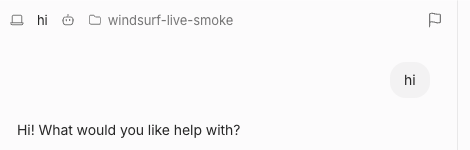
gpt-6.1-sol. This verifies that client path, not the CC Switch Codex profile above.Match the request in Usage
Sign in to OpenOxAI, open Usage, and match the request time and model. Confirm the GPT model ID, a successful status, token usage and cost. This is the final check that the request used the expected key and route.
Switch back without changing Claude Code
In the Codex tab, enable your previous Codex profile to return to it. This does not change the separate Claude Code profile.
If the Codex request fails
- 404: use
https://api.openoxai.com/v1with Full URL off; do not add/responses. - 401: check that this is an active GPT-service key, then save and enable the edited profile again.
- Model not found: use the exact lowercase ID
gpt-6.1-soland confirm it is allowed for the key. - Protocol error: set Upstream Format to
Responses (native); changing only the URL cannot change the protocol.
The live hi screenshot above came from Devin Local through OpenCode ACP. The CC Switch Codex
setup steps are documented separately; this record does not claim a Codex request was sent through CC Switch.
Move between profiles without losing anything
Enabling a profile overwrites the settings file, not the other profiles.
In Claude Code, enable your original Claude profile. In Codex, use the Codex tab and enable its previous profile. The OpenOxAI profiles stay in their respective lists; switching one client does not alter the other.
Each client reads its settings when it starts, so an already-running session keeps the endpoint it
began with. Start a new session after switching; restart an IDE or agent wrapper that launched
claude or codex as well.
Where the profiles live
CC Switch keeps its database and dated backups under ~/.cc-switch/. The Claude Code
profile writes ~/.claude/settings.json; Codex uses its own auth and provider config.
Back to the subscription
Enable the original profile. If you edited settings.json by hand, re-enable a profile
to overwrite the manual change.
Claude Desktop is different
The Claude Desktop tab writes a gateway configuration for the desktop app, not a Claude Code settings file. Use the Claude Desktop guide for that path.
One key, several machines
Install CC Switch on each machine and add the same key, or separate keys per machine so a single revocation does not cut off every laptop. Separate keys also make Usage easier to read.
Fix the request before changing the client
These checks cover the Claude Code Messages profile. The Codex Responses fixes are listed above.
404 or “not found” on every request
The URL root is wrong. Check the profile's request URL, not the model.
- Correct:
https://api.openoxai.com - Wrong:
https://api.openoxai.com/v1— produces/v1/v1/messages. - Wrong:
https://api.openoxai.com/v1/messages— the client appends that path again.
Fix the field, save, click Enable again, then start a new Claude Code session.
401, “invalid api key” or a prompt that hangs
The key is wrong, revoked, or not allowed to use Claude models.
- Confirm the token in API Keys is active and has Claude access.
- Re-paste the key into the profile; a leading space is enough to fail.
- Check that the profile you enabled is the one you edited — not a duplicate with an old key.
- A GPT-only key cannot call Claude models even though it authenticates.
After changing the key, re-enable the profile so settings.json is rewritten.
Still talking to the old provider
Something is overriding the profile, or the session started earlier.
- Start a fresh terminal and session: settings are read at process start.
- Run
env | grep ANTHROPIC. Exported shell variables take precedence over the settings file — remove the old export. - Check
~/.claude/settings.jsonfor the OpenOxAI base URL after enabling. - If an IDE or agent wrapper launches Claude Code, restart that wrapper.
“model not found”, 400 or an empty answer
The endpoint works; the model ID does not, or the key cannot see it.
- Use the exact ID, for example
claude-opus-5-5, not a display name. - Confirm the model is enabled for that key's group in the dashboard.
- Try
claude --print --model claude-sonnet-5-5 "hi"to separate one model from the whole profile. - Check Usage: a rejected request may still appear with an error status.
Questions before you commit
The details people ask about after the first successful request.
Is CC Switch a chat client?
No. It has no composer and never sees your prompts. It stores provider configurations and writes the active one to the client's config file. For a chat window, use the Chatbox guide.
Does this cancel or replace my Claude subscription?
No. Your subscription stays a separate profile. CC Switch only decides which configuration Claude Code loads; enabling the other profile brings the subscription back untouched.
Where is my OpenOxAI key stored?
In the CC Switch database under ~/.cc-switch/. The Claude Code profile is also written
to ~/.claude/settings.json as ANTHROPIC_AUTH_TOKEN; the Codex profile writes
its own Codex auth configuration. These files are readable by your user account, so keep them out
of repositories and shared backups.
Can I use the same key in CC Switch and Chatbox?
Yes. The key is an OpenOxAI credential, not a client credential, and usage from both apps lands in the same dashboard. Separate keys per client are easier to audit if you care about attribution.
Which clients can CC Switch manage?
CC Switch 3.19 has tabs for Claude Code, Claude Desktop, Codex and Gemini CLI. This guide covers Claude Code Messages and Codex Responses separately. Each tab writes a different client configuration, so do not copy keys, endpoints or model settings between them.
Do I need to restart a client after switching?
Start a new session in the client you switched. A running Claude Code or Codex session keeps the configuration it started with. If you switch mid-task, finish or save first; then restart the client so its next session picks up the new endpoint.
What happens when CC Switch updates?
Profiles live in the app's database and survive normal updates. Back up ~/.cc-switch/
before a major version jump if you keep many profiles, and re-check the provider fields after a UI
change — the URL rules do not change, but labels move.
Keep going
The pages you will need after the first successful request.
Models & pricing
Exact IDs, context length and live reference prices for Claude and other families.
Chatbox
A desktop chat client for the same key, with a verified first reply.
CC Switch source
Release notes, issues and the repository behind the app.

One profile. One click. One verified request.
If this saved you a configuration loop, post the guide with the preview card and the verified Claude Code result. The card and the Open Graph metadata are ready for X / Twitter, Discord and Slack unfurls.
Post this guide on XNeed a hand?
OpenOxAI support can check the key group, account balance and model access. Include the model ID, the timestamp of the request and the error text — never the key itself. Contact support →