
OpenOx
ModelsApps
Sign inSign up

Usage tutorial

Instructions for use

Accounts, keys, subscription prices, usage billing and API integration.

Platform

Introduction to OpenOxAI

Models, API access, Studio, keys and usage.

Account

Account setup

Register, sign in and fund your account.

Authentication

API keys

Create keys and check access permissions.

Subscriptions

Subscription plans

Prices, allowances, validity and preview status.

Billing

Pay-as-you-go billing

Tokens, cache, media costs and usage records.

Integration

Integration tutorials

Set up Codex, Claude Code and other clients.

Optional

CC Switch

Manage API key profiles and switch with one click.

gateway

OpenClaw

Connect an agent gateway to the API.

first step

Register quickly and complete the first top-up

This page only does two things: register an OpenOx account and have the available balance appear in your wallet. After completion, enter the API Key page, do not go backwards.

RegisterWalletTopupOpenOx Console
Register accounttop-upComplete judgment

Register

Register account

If you do not have an OpenOx account yet, first complete the information filling in on the registration page.

1

Open registration portal

Click "Get API Key" on the OpenOx homepage, or directly enter the registration page. After entering you will see the brand description on the left and the registration form on the right.

Registration entrance
https://openoxai.com/register
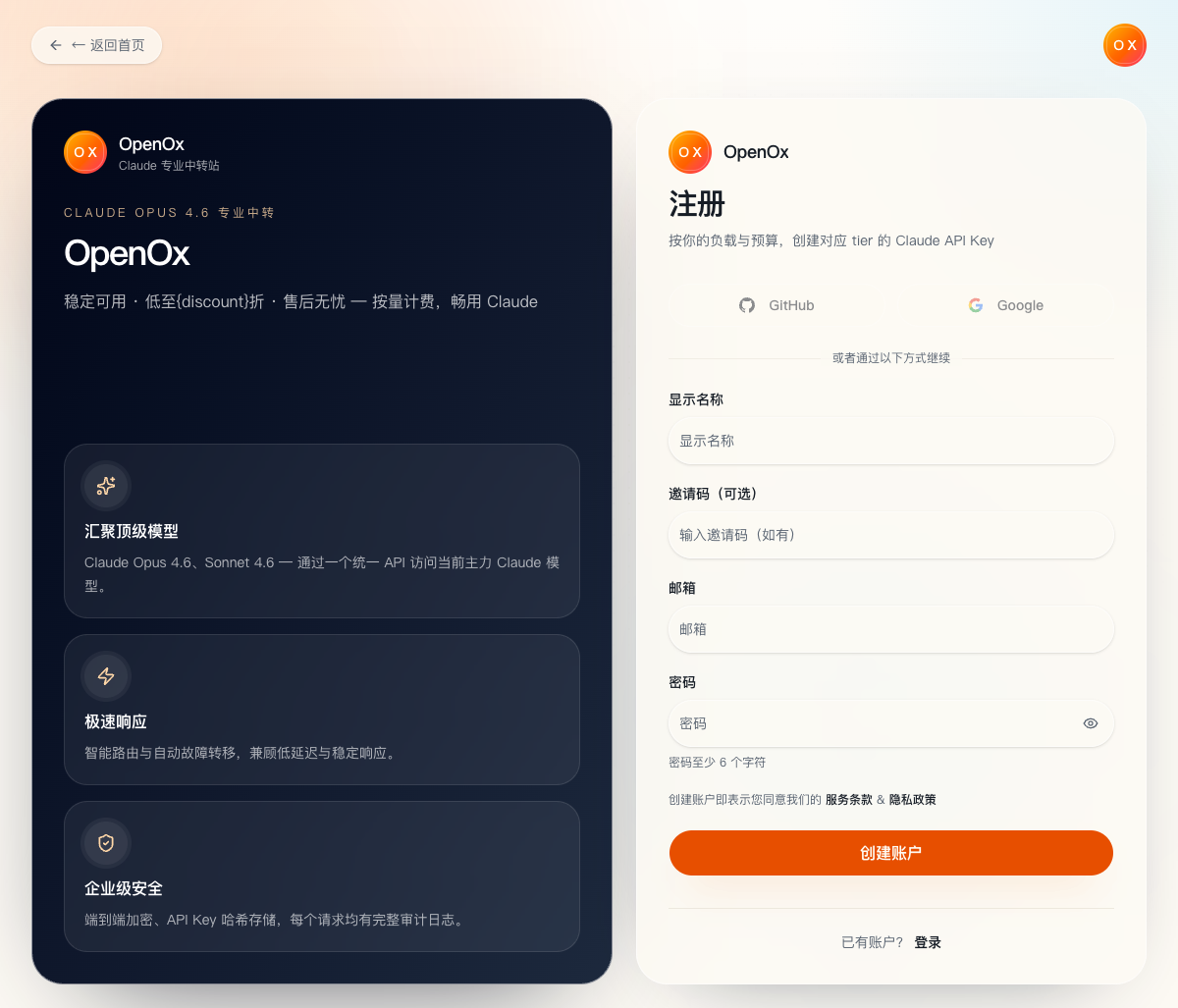
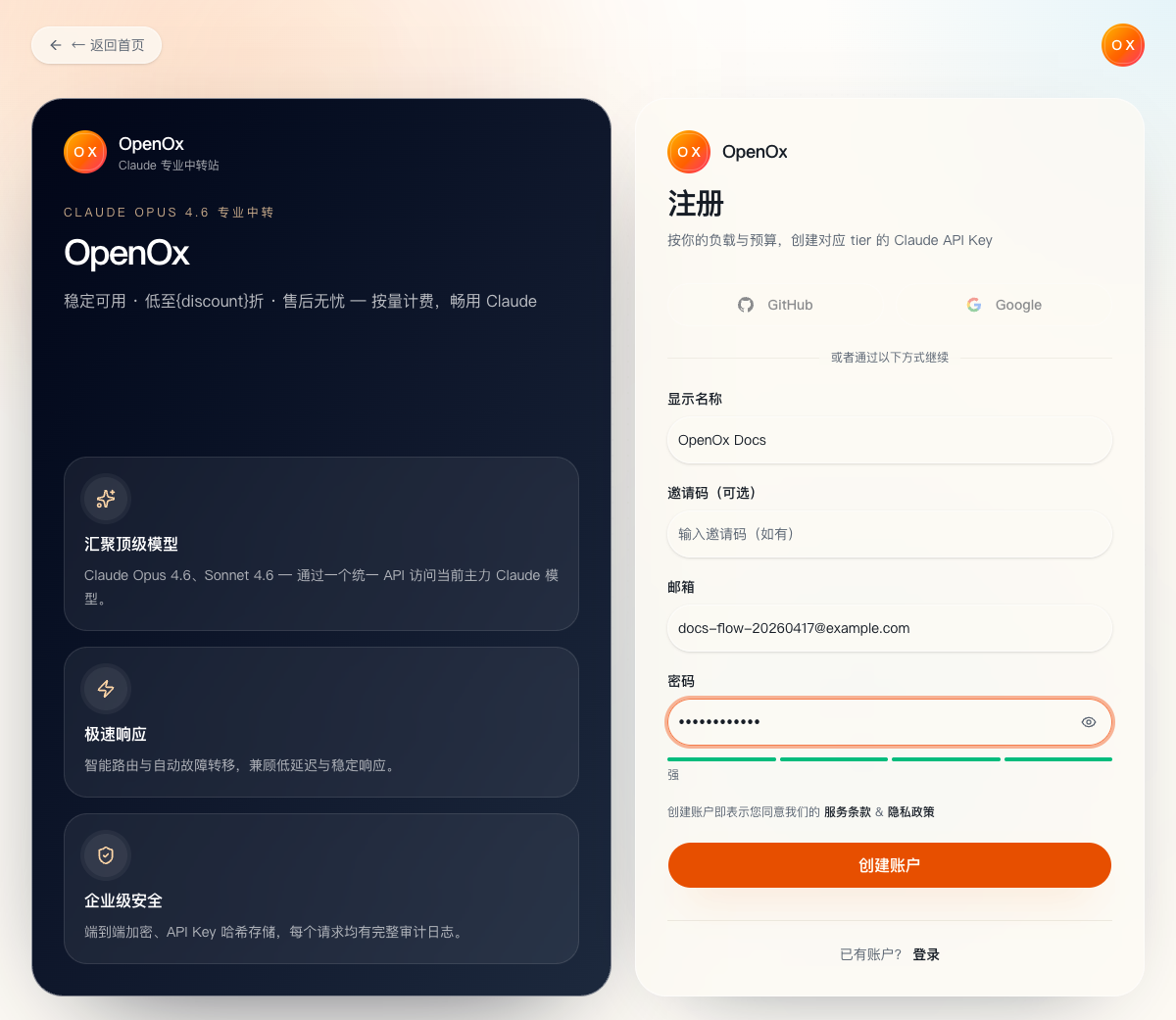
OpenOx register entry
Registration page entrance. When connecting for the first time, it’s safest to start here.
2

Fill in the information and create an account

Fill in the display name, email and password in sequence, and enter the console after submission. If there is no invitation code, leave it blank.

OpenOx register form
Fill in the registration form. It is recommended to use a commonly used email address to make subsequent troubleshooting notifications and bills more convenient.
💡

Tip

If you have already logged in to OpenOx, you can jump directly to the top-up chapter without repeated registration.
⚠️

Note

After creating an account, please confirm that you have entered the console before continuing with the following top-up steps. When there is no login status, the console page will ask you to log in again.

Wallet

top-up

This step is completed only after the top-up is successful and the balance is updated.

3

Enter wallet page

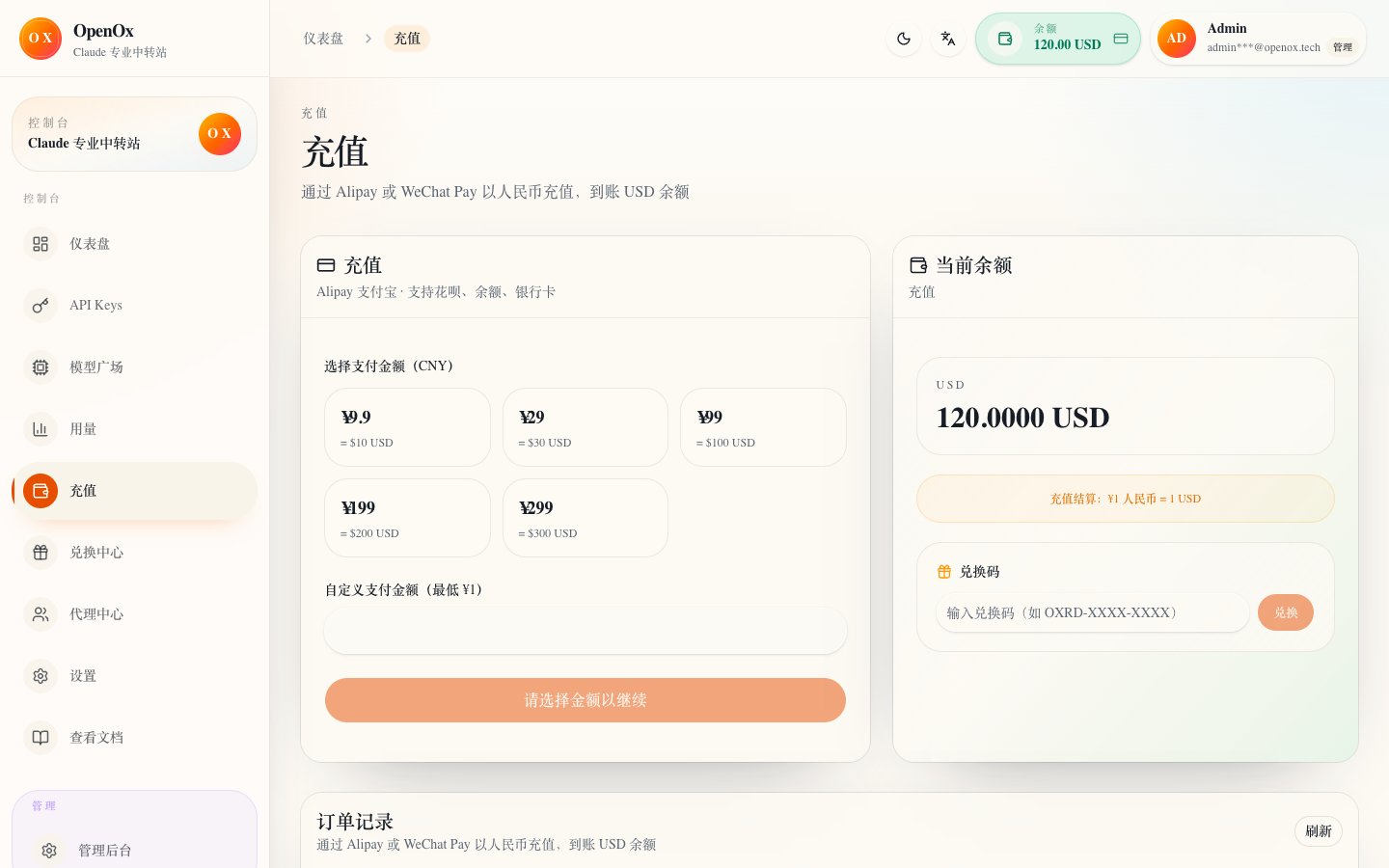
After logging in, enter the wallet or top-up entrance from the console sidebar. You can also access the wallet address directly and check the current balance status within the page.

Wallet entrance
https://openoxai.com/dashboard/topup
OpenOx wallet page
Wallet page representation. First make sure you are on the Wallet/Topup page, not the API Key page.
4

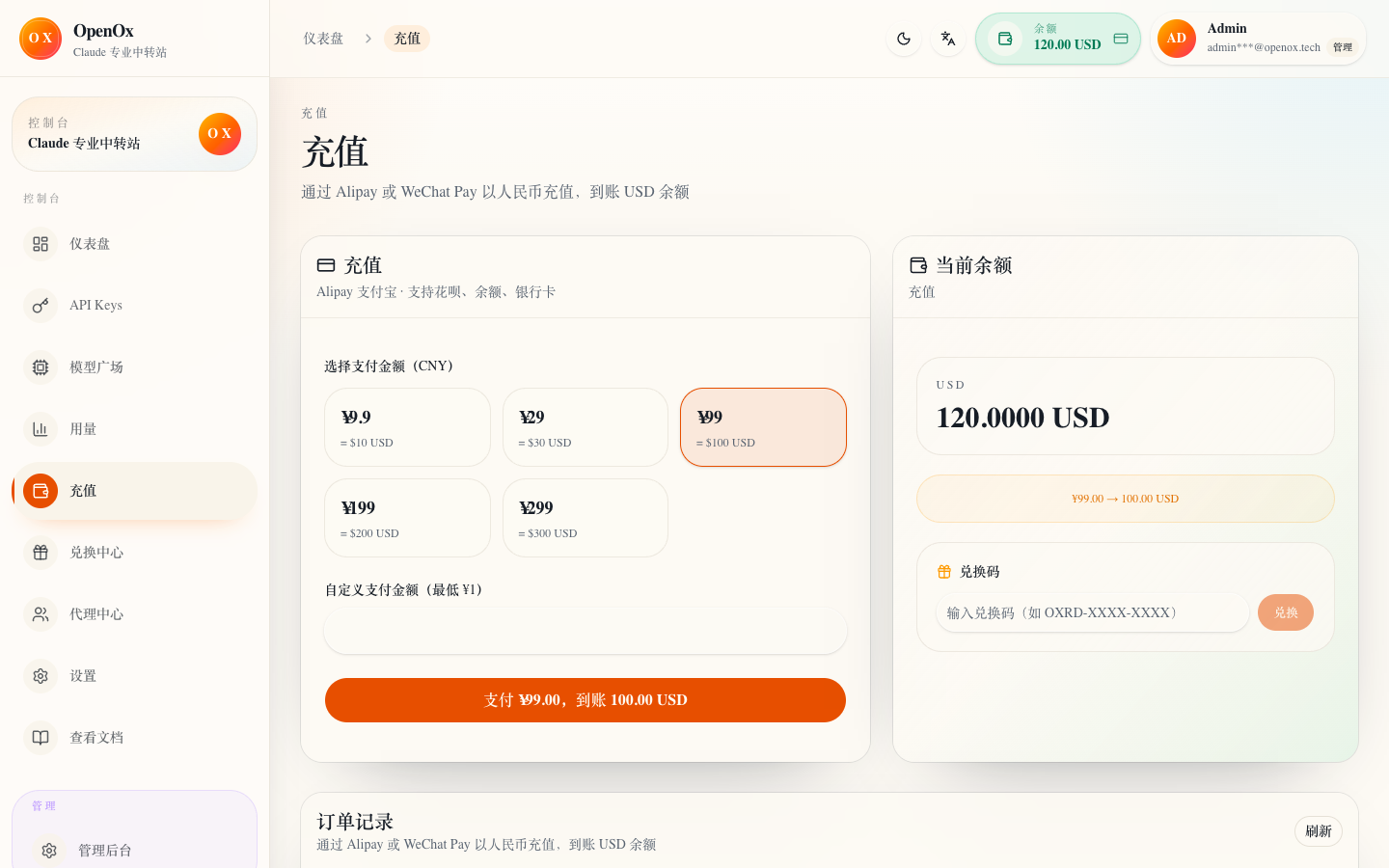
Select amount and payment method

Select the top-up amount according to your usage intensity, and then confirm the payment method. When accessing for the first time, it is recommended to top-up with a small amount to open the link.

OpenOx topup amount selection
top-up amount and payment method. First choose a moderate amount and confirm that the payment link is normal.
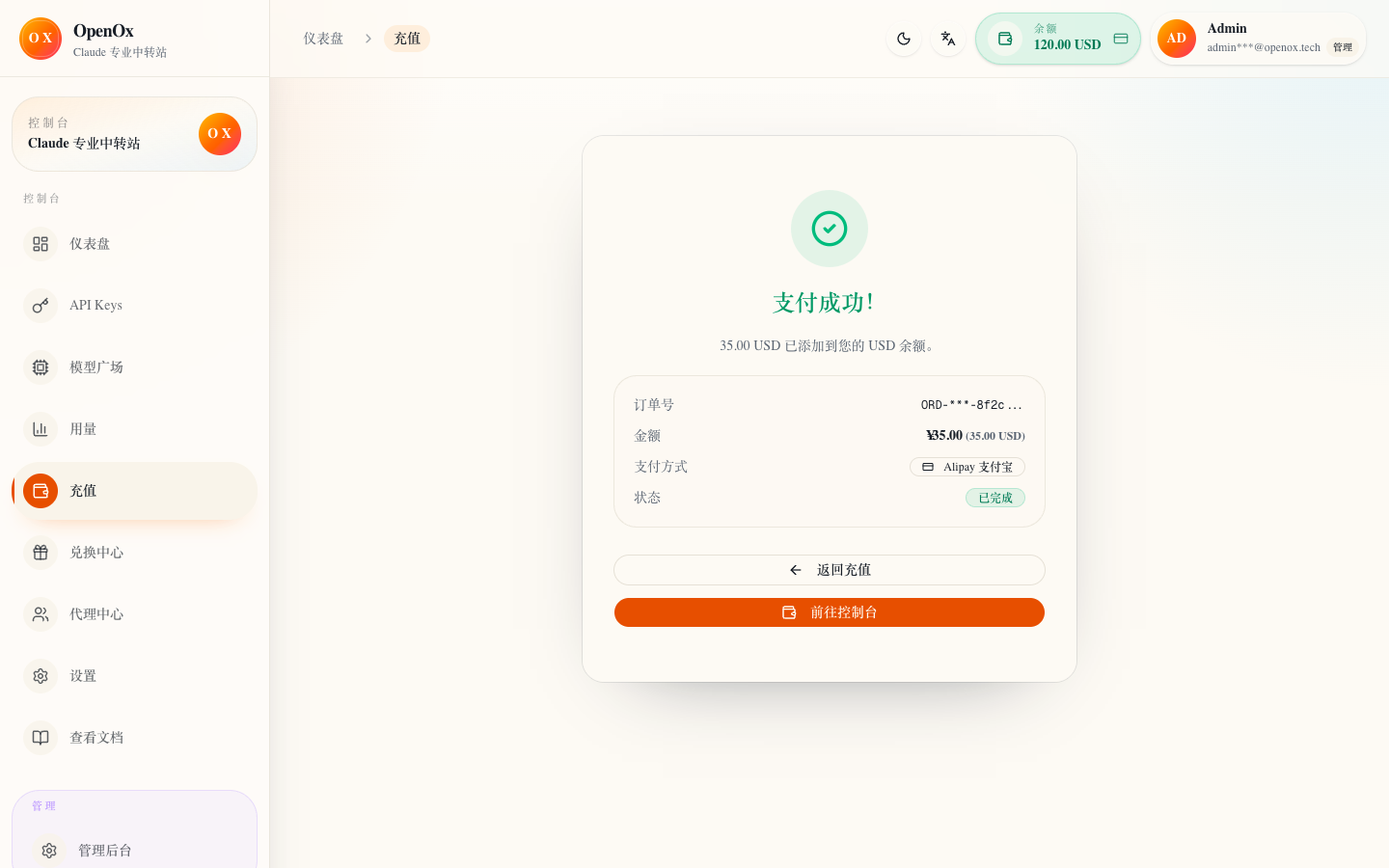
OpenOx topup confirmation
After payment is completed, return to the console and confirm that the balance area has been refreshed.
💡

Tip

After the wallet balance is updated, you can continue to Create API Key.
💡

Tip

You can check before and after topping up Model square, confirm current models, capabilities and complete real-time prices.
⚠️

Note

Do not mix top-up completion and token creation in the same time period for investigation. Confirm the balance is received first, and then create the token, which will reduce a lot of irrelevant variables.

Checklist

Judgment criteria for completing this step

If the following two items are met, do not continue to stop at the top-up page.

1. You already have an OpenOx console account that can be logged in normally.

2. The new available balance has been displayed in the wallet.

Previous article

Usage tutorial

Next article

Create token