OpenOx / Tutorials
All tutorialsAPI keys
Tutorials/IDE extensions/All systems
IDE extensions/All systems/2 min read

Codex in VS Code

Connect the Codex extension to your OpenOx account.

On this page
Modify the Configuration FileStart Using CodexIDE Extension (Configure this only if needed; otherwise, you can skip this step)

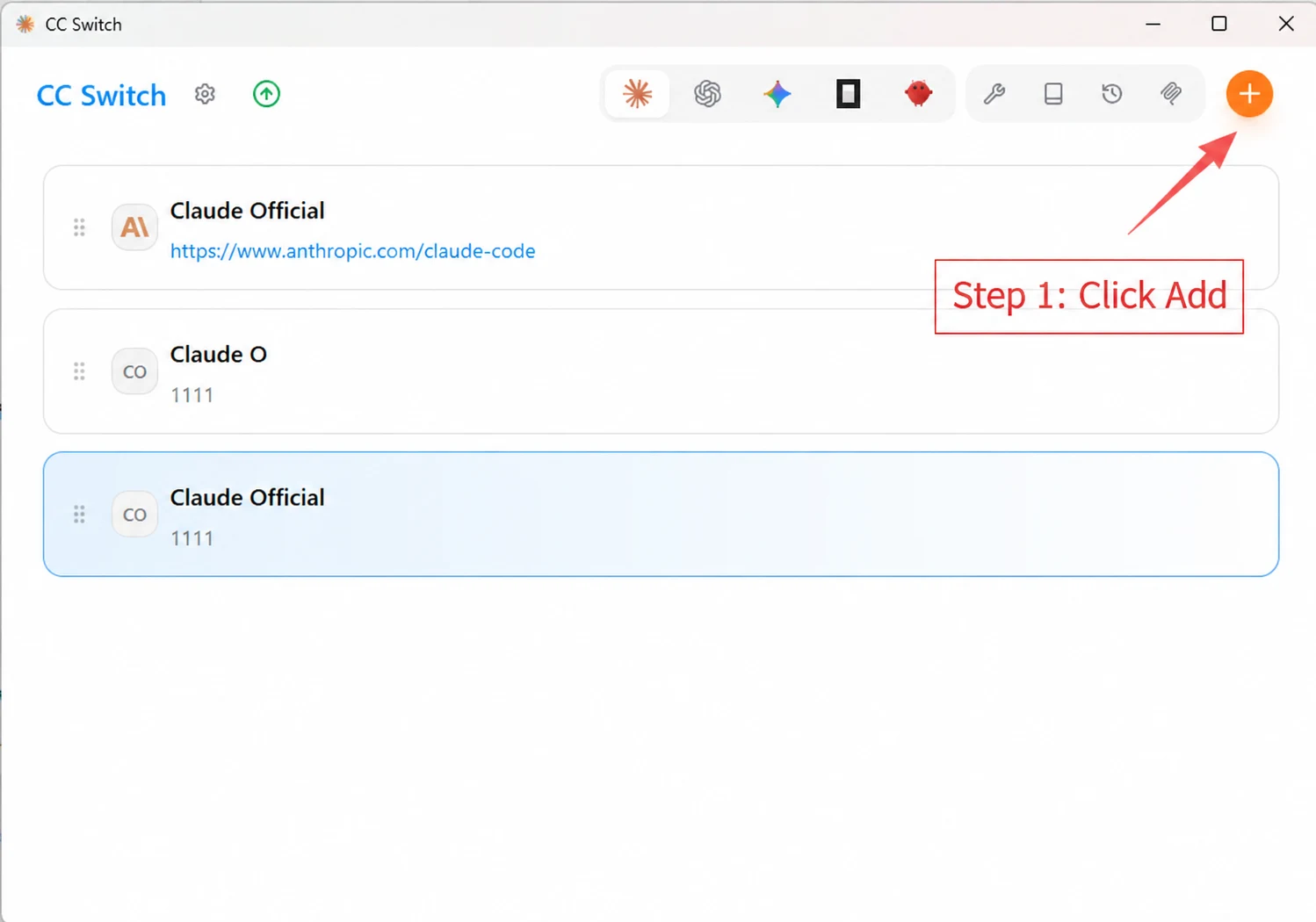
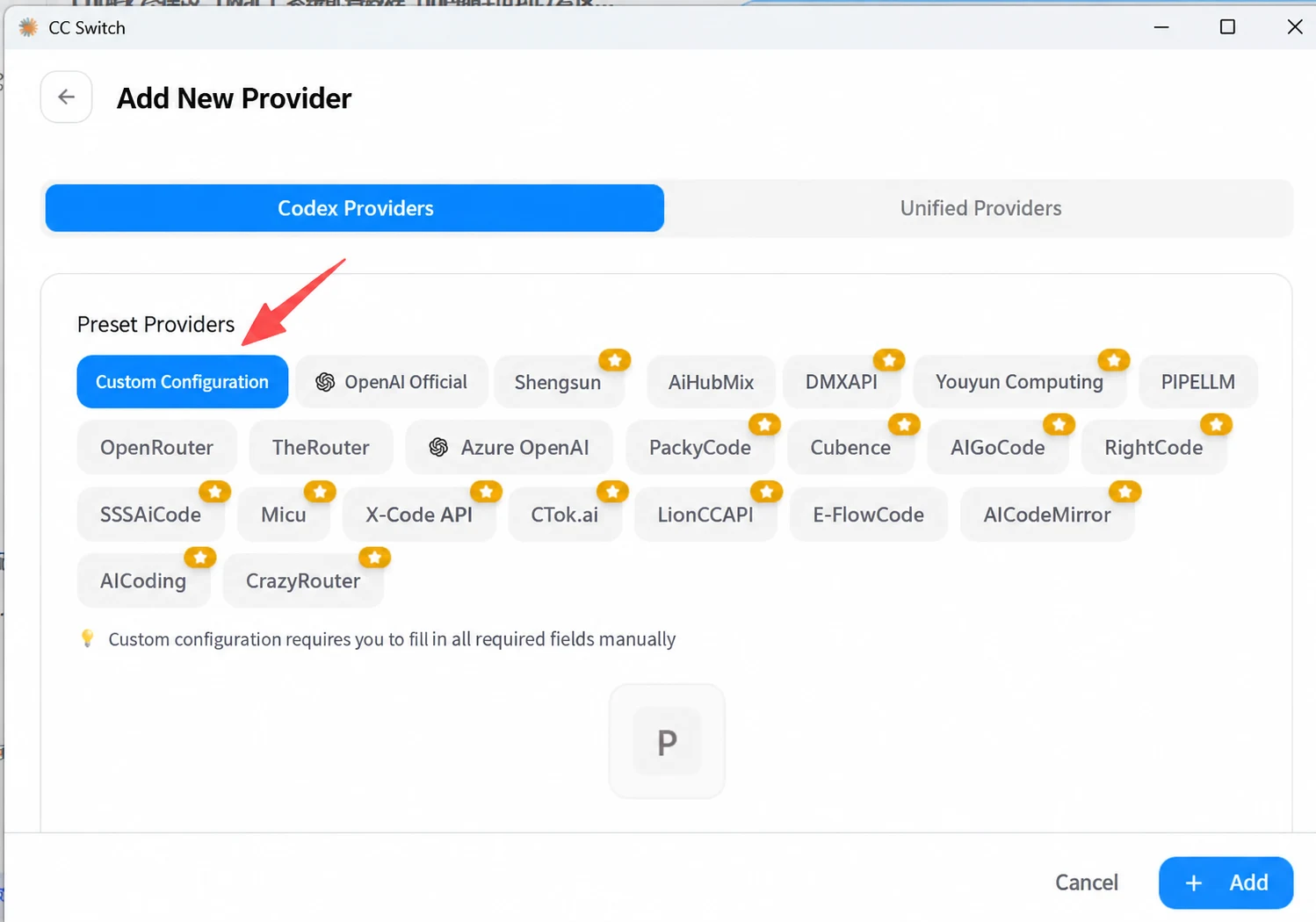
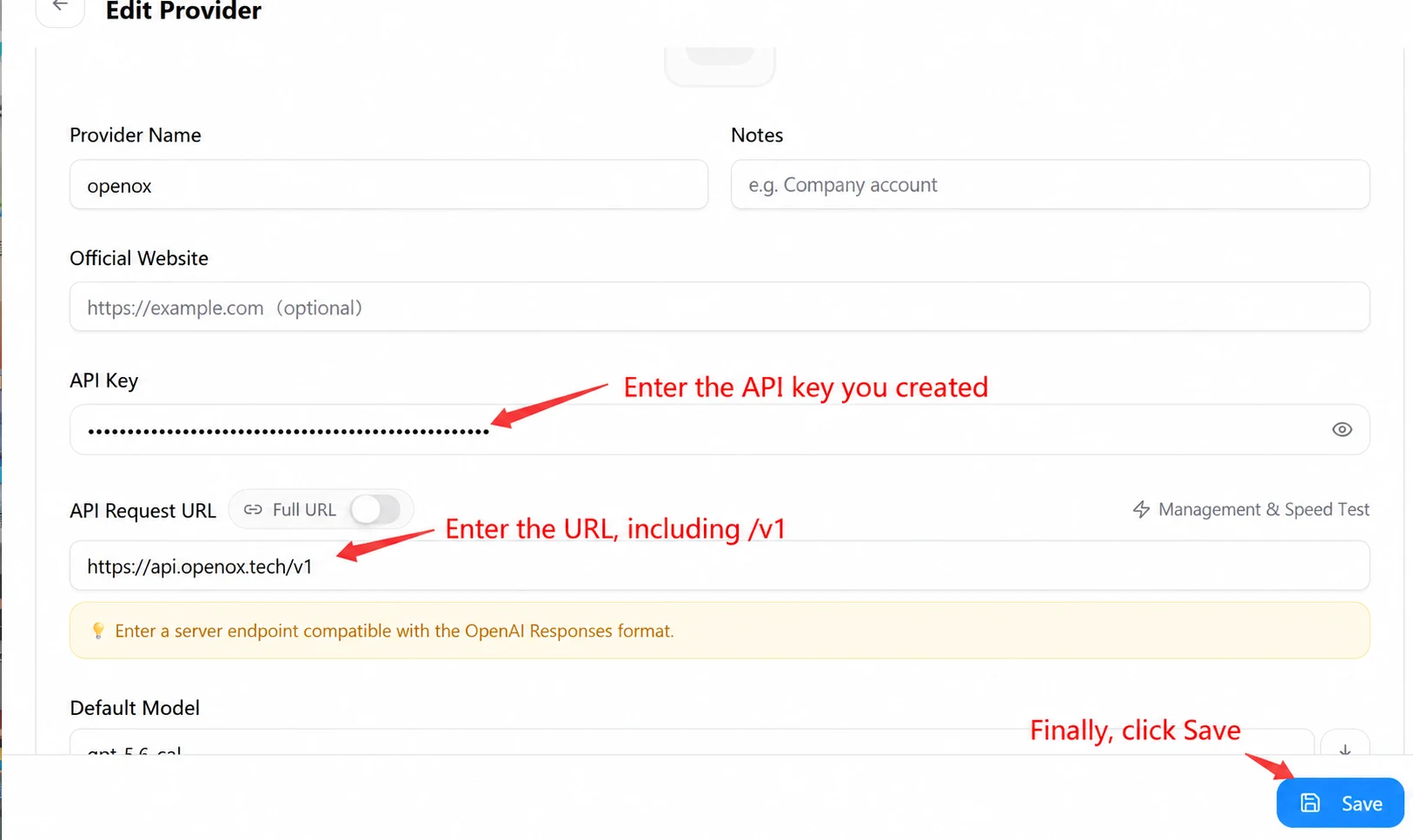
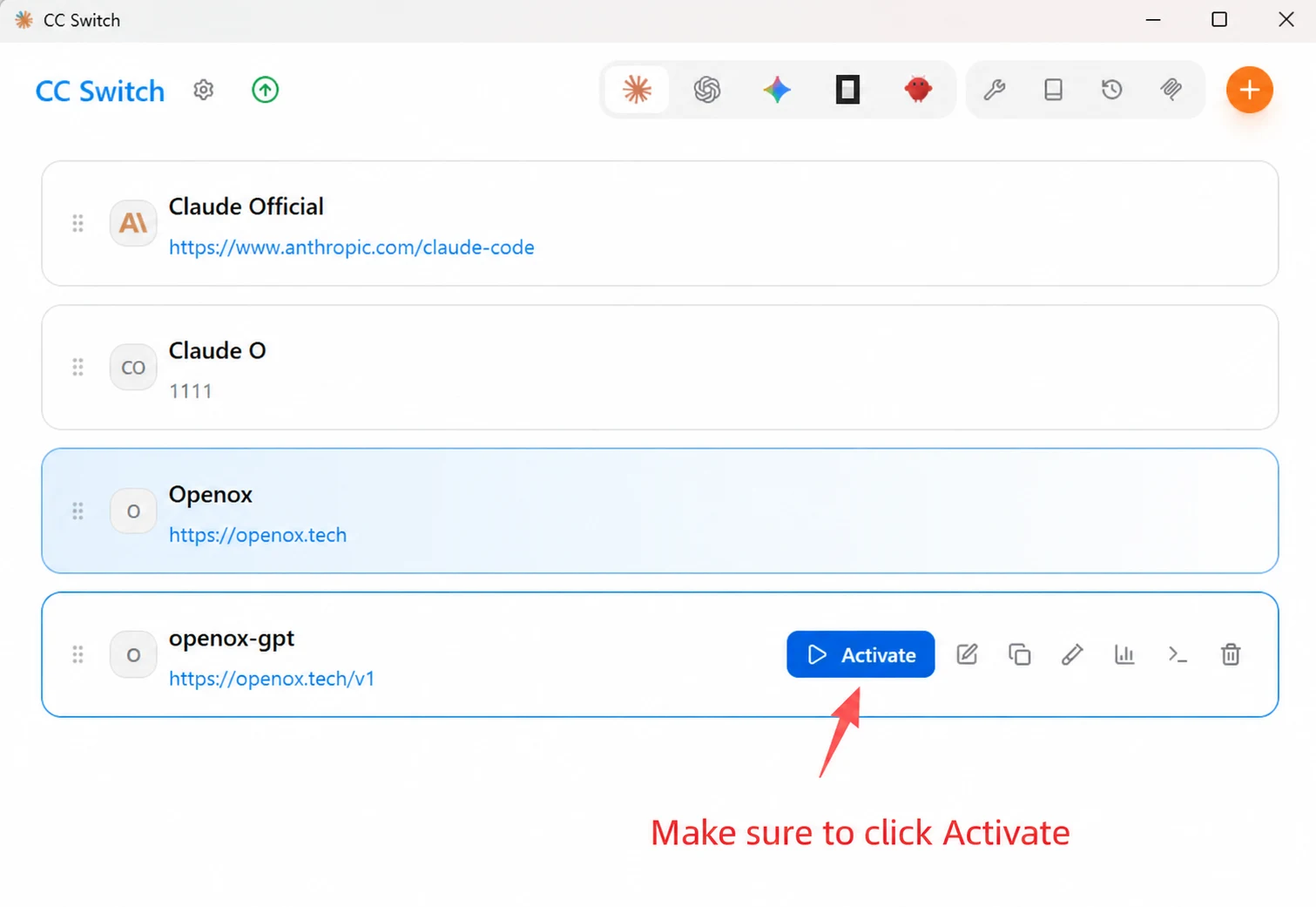
Modify the Configuration File

Install cc swtich

Windows installation package

CC-Switch-v3.13.0-Windows (1).zip
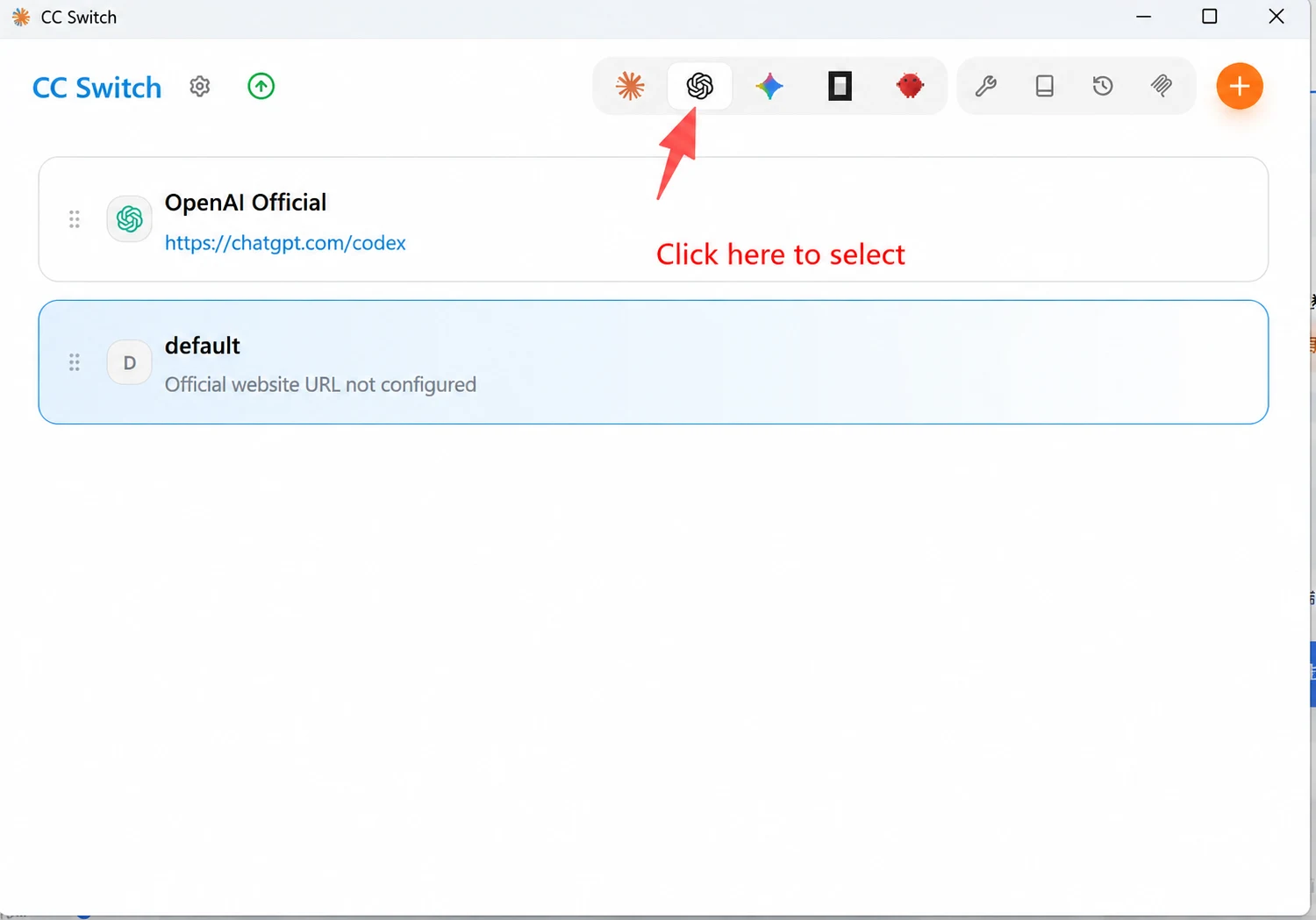
Codex in VS Code setup screenshot

Start Using Codex

Action: Enter codex and press Enter to start using it~

Enter /model to choose an available model. Use the exact model ID from the live model catalog, for example gpt-5.6-sol.

IDE Extension (Configure this only if needed; otherwise, you can skip this step)

⬇️Integration: Once the above configuration is complete and responses work normally, open a new Vscode / Cursor /Trae window, download the Codex extension, and you can use it.
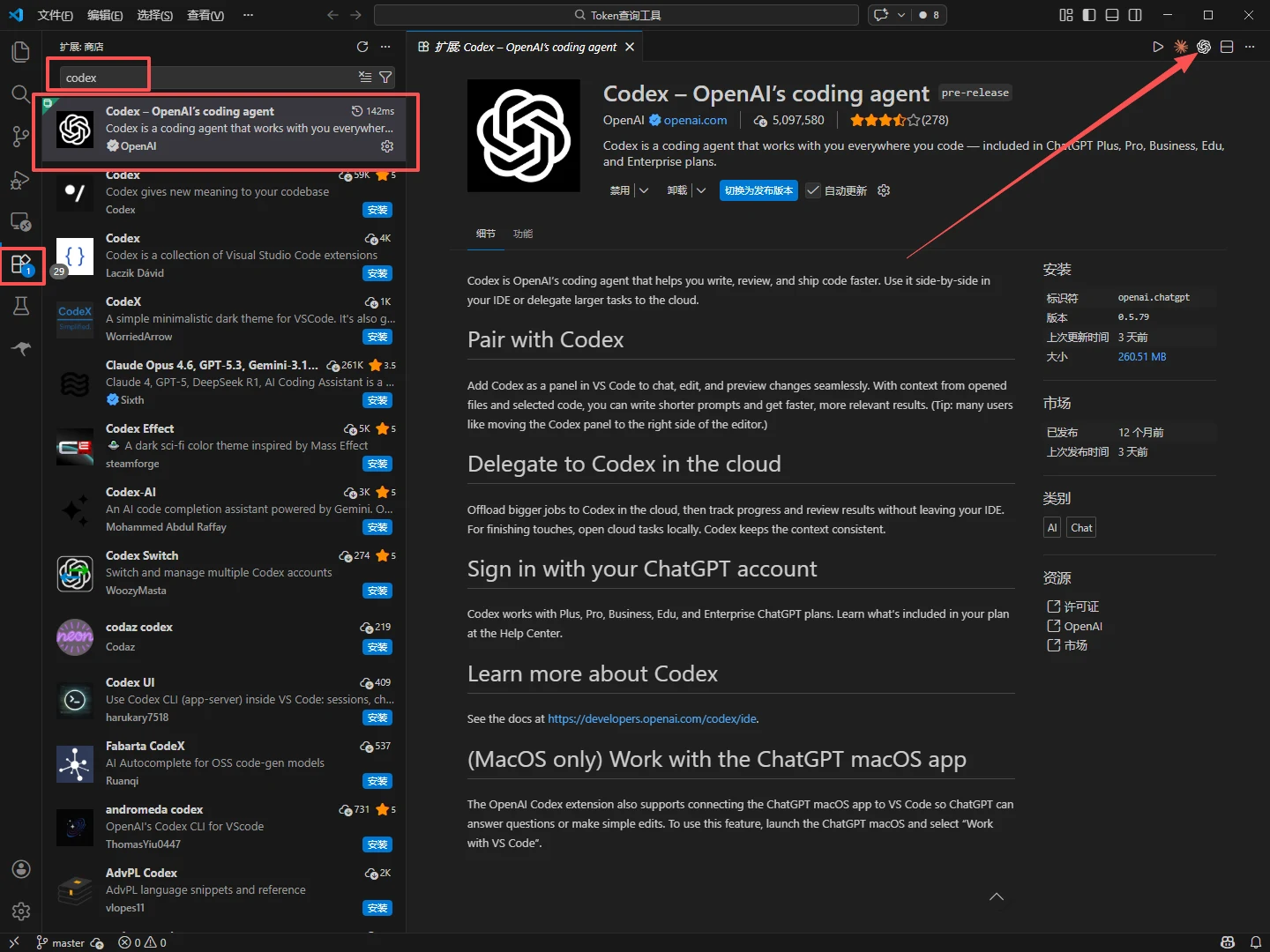
Codex in VS Code setup screenshot
Browse all tutorials

On this page

Modify the Configuration FileStart Using CodexIDE Extension (Configure this only if needed; otherwise, you can skip this step)