- Keep an eye on the conversation length in each chat window. Overly long conversations consume credits faster, slow down responses, and reduce output quality. When a conversation gets long, enter compact to compress the context, then copy the summary into a new window to continue.
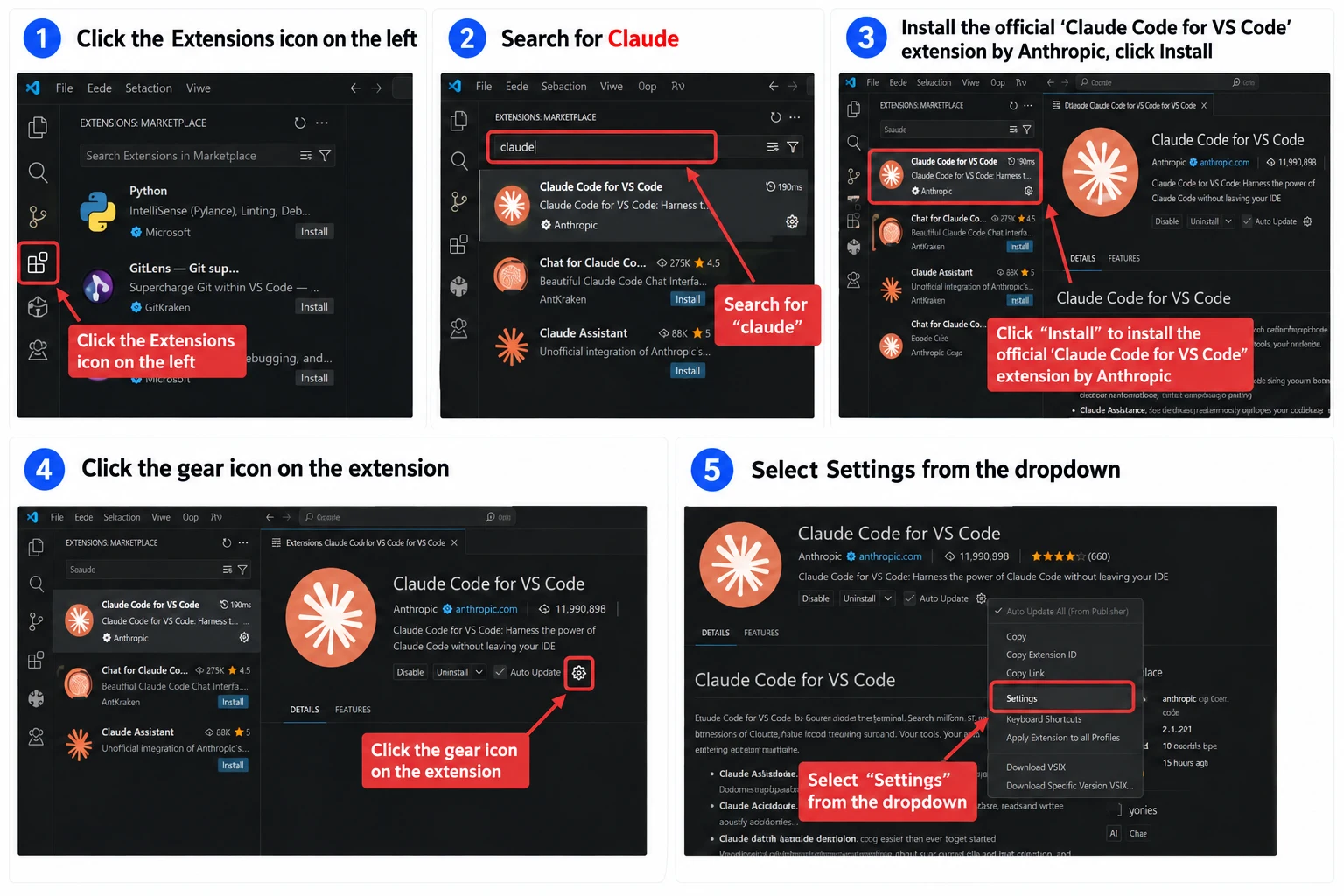
Open the Extensions marketplace on the left side of VS Code, search for and install Claude Code for VS Code, then download ccswtich for configuration.
Windows installation package:
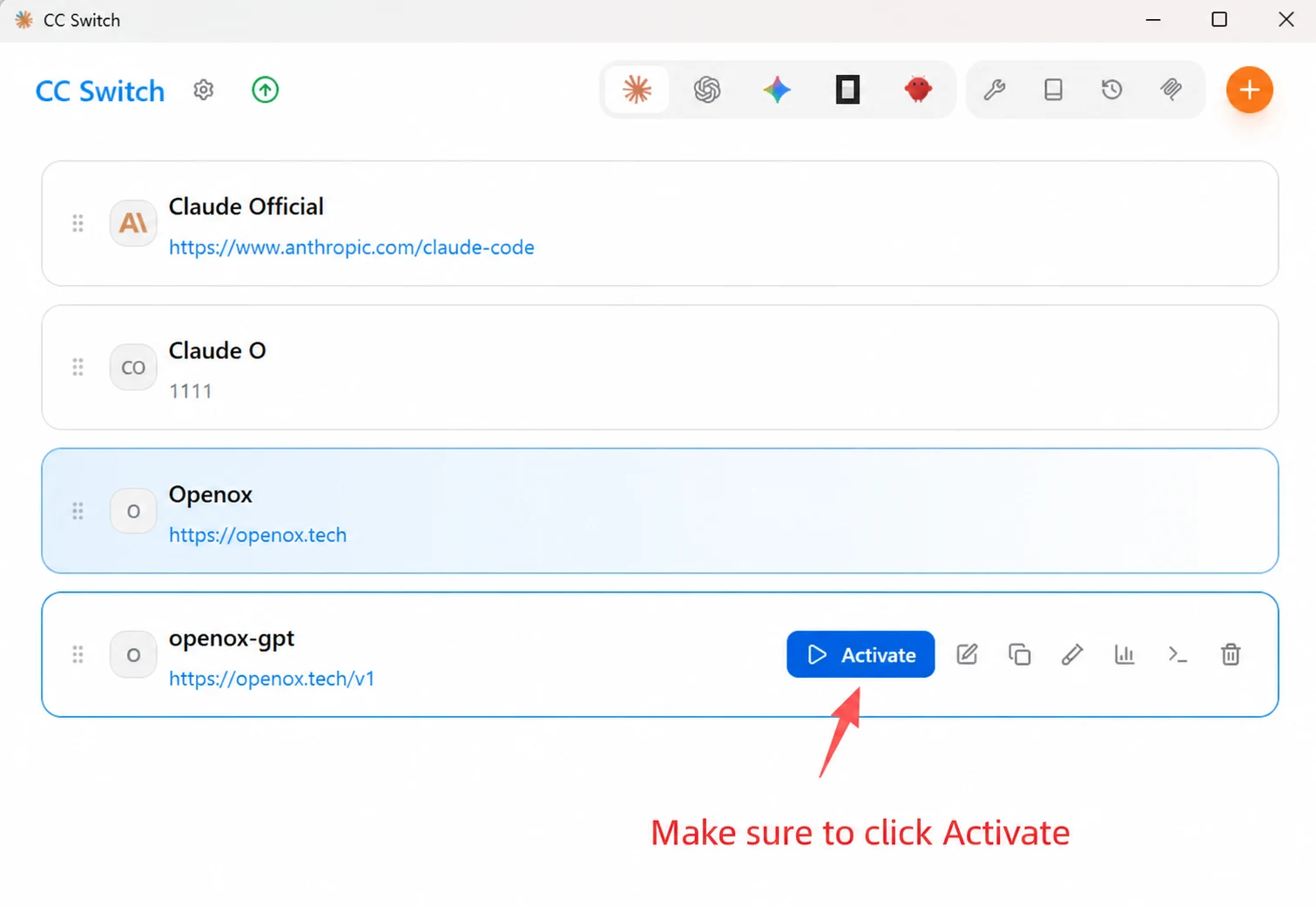
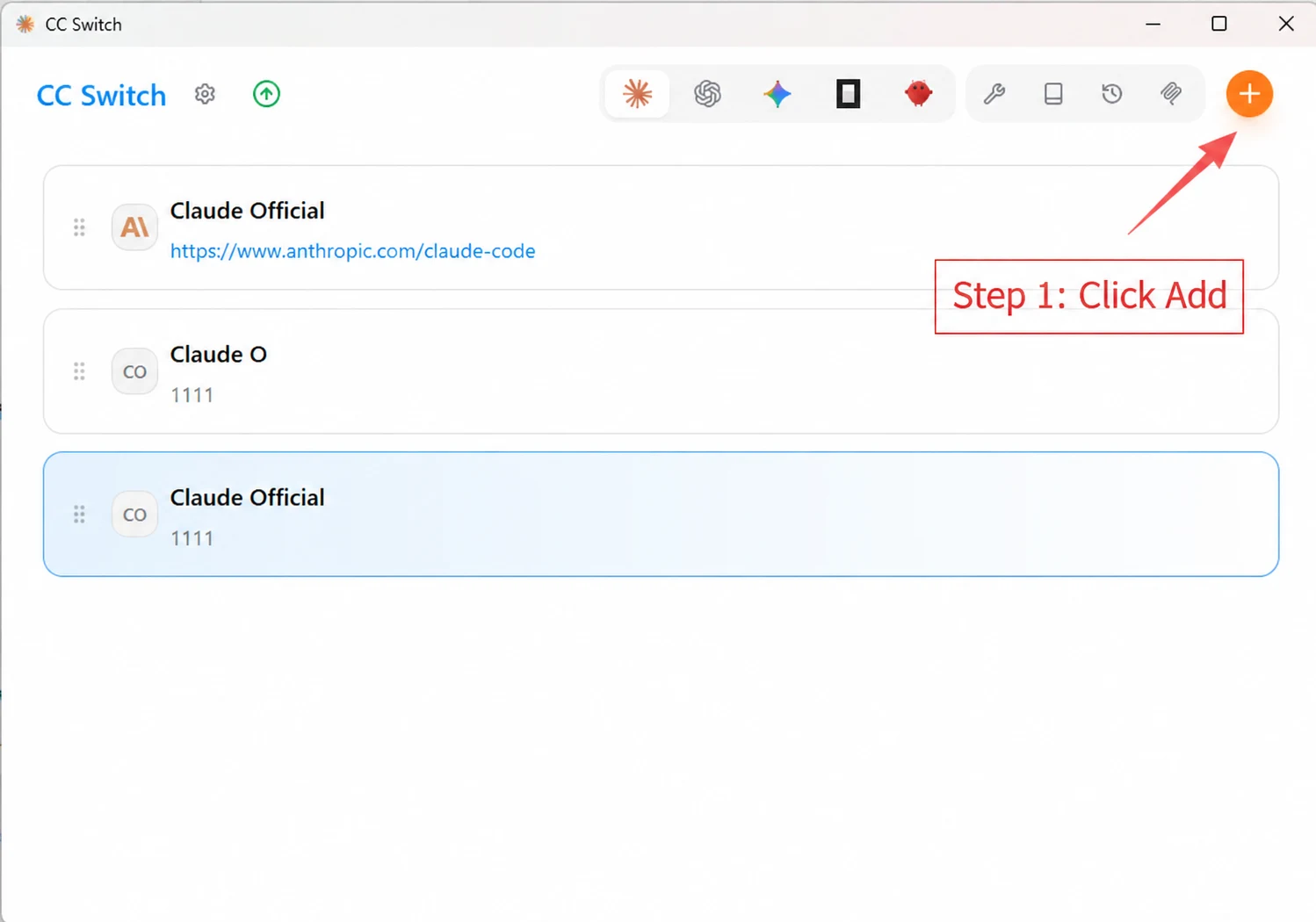
- Download and install CC Switch, then open the application. On the home page, click the [+] add button in the upper-right corner to open the provider configuration page
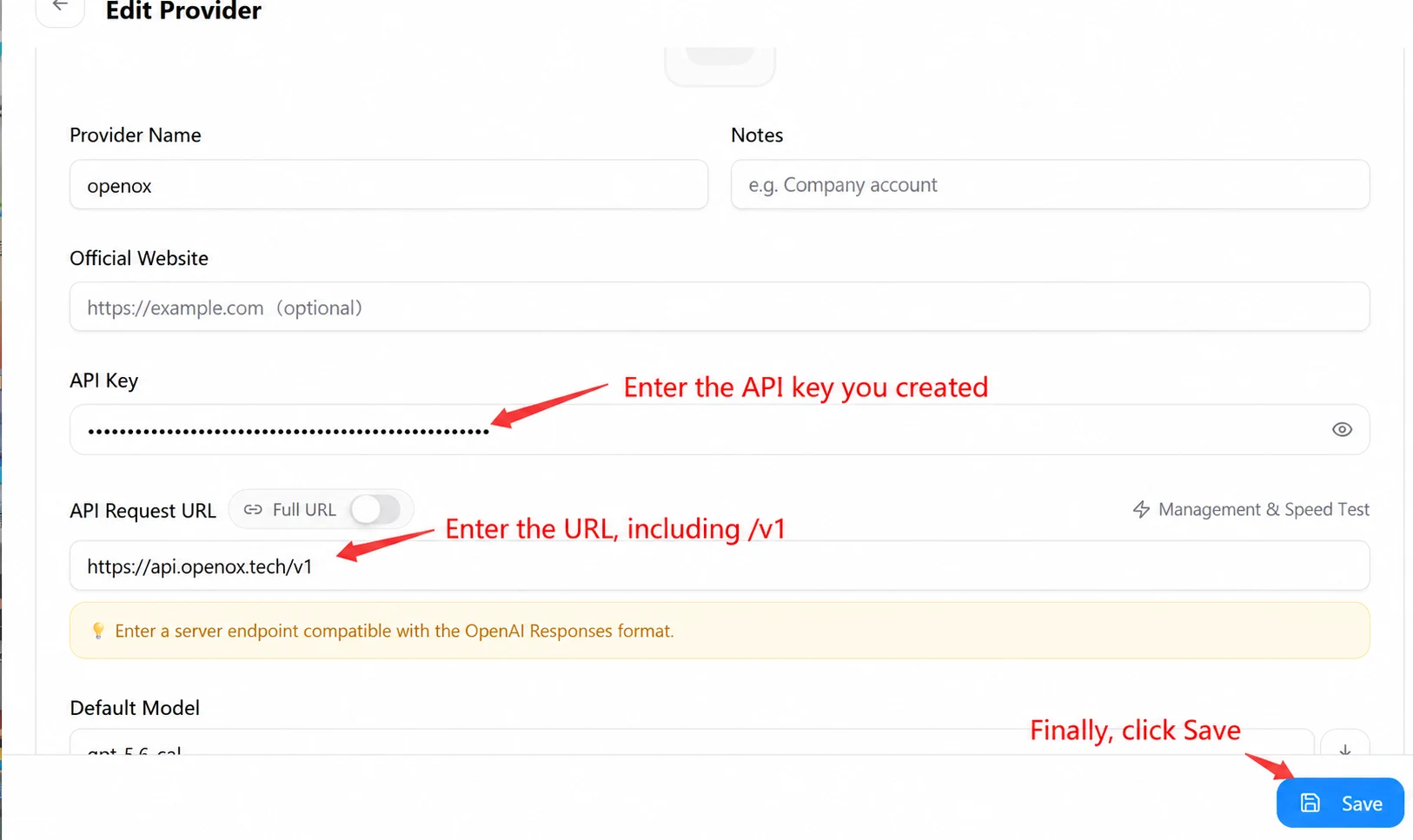
- Follow the prompts on the page to enter the OpenOx configuration: enter Openox as the provider name; enter the key beginning with sk that you created earlier as the API Key; enter https://api.openoxai.com/ as the request URL, without adding /v1 at the end. When finished, click [Save] in the lower-right corner