
Windows desktop installer download:
https://cdn.openclawcn.net/update/artifacts/OpenClaw%E6%A1%8C%E9%9D%A2%E7%89%88_0.3.2_x64-setup.exe
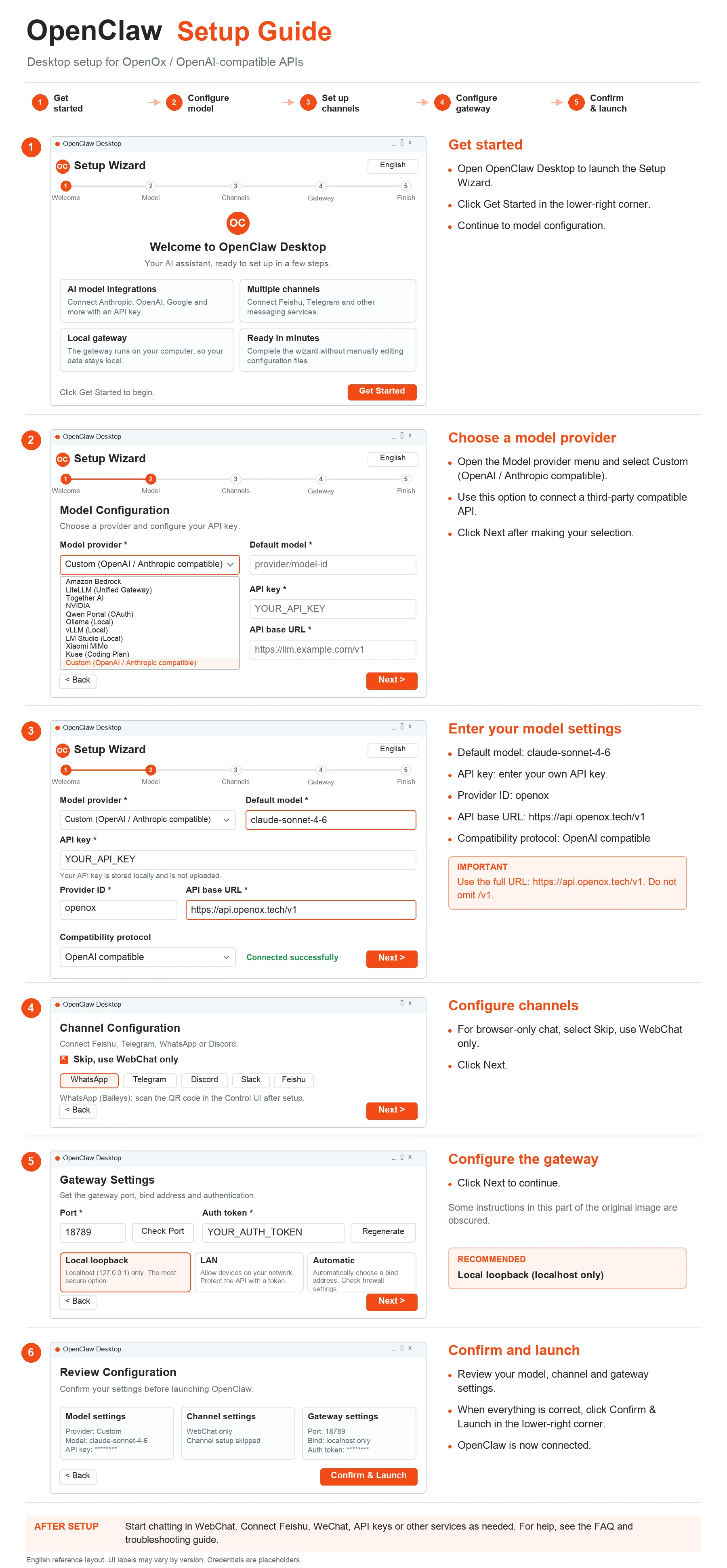
English Translation of the Original Image
OpenClaw Integration Tutorial Flowchart
Configure an OpenOx / OpenAI-compatible API in the desktop application (detailed steps).
Workflow: Start Setup → Model Configuration → Channel Configuration → Gateway Settings → Confirm and Launch
Step 1: Start Setup
- Open the OpenClaw desktop application and enter the setup wizard.
- Click the Start Setup button in the bottom-right corner.
- Enter the configuration workflow.
Text in the Screenshot
OpenClaw Desktop · Setup Wizard · Simplified Chinese
Welcome → Model → Channels → Gateway → Complete
Welcome to OpenClaw Desktop
OpenClaw Desktop is a Windows desktop application for an AI assistant that can work for you, with an integrated installation and configuration workflow. This wizard will guide you through the initial setup.
- AI model integration: Supports mainstream providers such as Anthropic, OpenAI, and Google. Configure API keys in one place.
- Multi-channel support: Built-in channel adapters for Feishu, Telegram, and more, connecting your team collaboration tools.
- Local gateway: The gateway runs securely on your local machine. Your data never leaves your computer.
- Ready to use: Complete the guided setup in a few minutes, without manually editing configuration files.
Click Start Setup below to begin.
Step 2: Select a Model Provider
- In the Model Provider dropdown, select Custom (OpenAI/Anthropic Compatible).
- This is the option for connecting to a third-party compatible API.
- After making your selection, click Next in the bottom-right corner.
Text in the Screenshot
Model Configuration
Select an AI model provider and configure an API key to give OpenClaw its reasoning capabilities.
Fields: Model Provider, Default Model, API Key, and API Base URL.
Visible provider options:
- Amazon Bedrock
- LiteLLM (Unified Gateway)
- Together AI
- NVIDIA
- Qwen Portal (OAuth)
- Ollama (Local)
- vLLM (Local)
- LM Studio (Local)
- Xiaomi MiMo
- Kuse (Coding Plan)
- Custom (OpenAI/Anthropic Compatible)
Buttons: Previous and Next.
Step 3: Enter the Model Configuration
- Default Model: For example,
claude-sonnet-4-6. - API Key: Enter your API key.
- Provider ID:
openox. - API Base URL:
https://api.openoxai.com/v1. - Compatibility Protocol: Select OpenAI Compatible.
Note: The URL must be https://api.openoxai.com/v1. Do not omit /v1.
Text in the Screenshot
Model Provider: Custom (OpenAI/Anthropic Compatible)
Default Model:claude-sonnet-4-6
API Key: The API key is stored locally and is not uploaded.
Provider ID:openox
API Base URL:https://api.openoxai.com/v1
Compatibility Protocol: OpenAI Compatible
Status: Connection Successful. Buttons: Previous and Next.
Step 4: Channel Configuration
- If you only need browser-based chat for now, you can skip this step.
- Select Skip, Use WebChat Only.
- Click Next in the bottom-right corner.
Text in the Screenshot
Channel Configuration
Configure message channels to connect to Feishu, Telegram, WhatsApp, or Discord.
Tabs: WhatsApp, Telegram, Discord, Slack, Feishu.
WhatsApp (Baileys)
WhatsApp uses QR-code authentication. After configuration is complete, configure it through the Control UI.
Checkbox: Skip, Use WebChat Only. Buttons: Previous and Next.
Step 5: Gateway Settings
- [Text obscured in the original image]
- [Text obscured in the original image]
- Click Next.
Recommended
Text in the Screenshot
Gateway Settings
Configure the gateway's service port, bind address, and authentication method.
Port:18789. Button: Detect Port.
Authentication Token. Button: Regenerate.
- Local Loopback (localhost only) — Recommended: Only localhost (
127.0.0.1) can access the gateway. This is the most secure option. - Local Network: Other devices on the same local network can access it. Use this when other devices need to call the API.
- Automatic: Let the gateway choose its bind address automatically. This may expose it to the public internet. Ensure the firewall is configured correctly.
Buttons: Previous and Next.
Step 6: Confirm and Launch
- Check that the model configuration, channel configuration, and gateway settings are correct.
- After confirming everything is correct, click Confirm and Launch.
- Click the Confirm and Launch button in the bottom-right corner.
- Complete the OpenClaw integration.
Text in the Screenshot
Confirm Configuration
Configure the gateway's service port, bind address, and authentication method.
- Model Configuration · Edit: Provider: Custom; Default Model:
claude-sonnet-4-6; API Key. - Channel Configuration · Edit: Channels: WebChat Only; channel configuration has been skipped.
- Gateway Settings · Edit: Port:
18789; Bind Address: Local Loopback (localhost); Authentication Token.
Buttons: Previous and Confirm and Launch.
After Completion
- Try chatting through WebChat.
- Connect to WeChat, API keys, Feishu, and other integrations as needed.
- Encountered a problem? See the frequently asked questions and troubleshooting documentation.