
Mac desktop installer download:
Download OpenClaw for macOS
Notes on integration:
1. When adding a model, enter the URL: https://api.openoxai.com/v1
2. When adding a model, select the ID of the model you want to add from the openox Model Marketplace. Make sure it is lowercase.
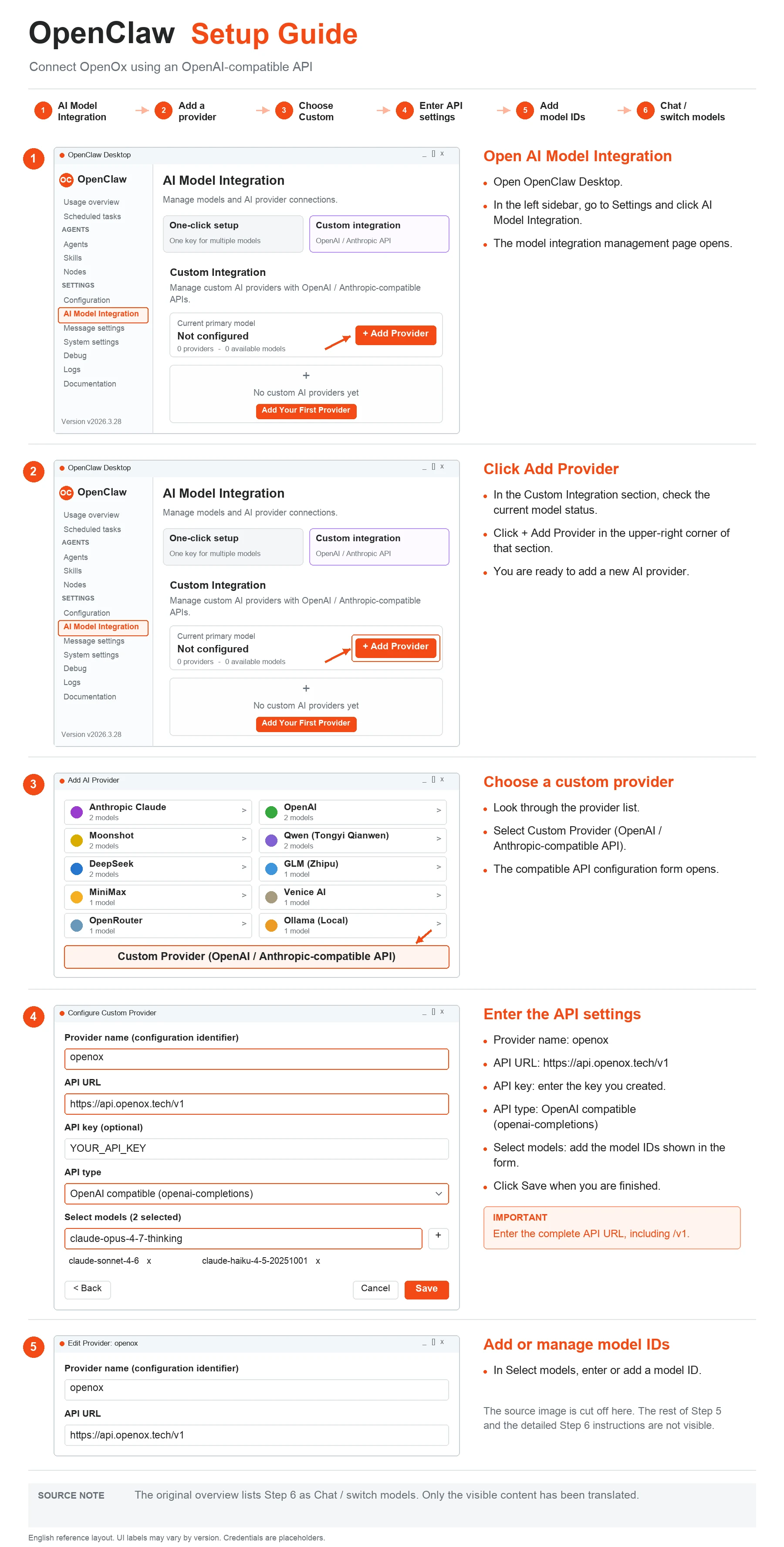
English Translation of the Original Image
OpenClaw Integration Tutorial Flowchart
OpenOx / OpenAI-compatible API integration (extra-large, clear version)
Workflow: Open AI Model Integration → Add a Provider → Select a Custom Provider → Enter API Parameters → Add Model IDs → Switch Models in Chat
Step 1: Open AI Model Integration
- Open the OpenClaw desktop application.
- In the settings section on the left, click AI Model Integration.
- Open the model integration management page.
Text in the Screenshot
AI Model Integration
Configure and manage access to AI models.
- All-in-One Integration · Recommended: One API key for all models.
- Custom Integration: A self-configured OpenAI / Anthropic-compatible API.
Custom Integration: Manage custom AI provider models. Supports OpenAI / Anthropic-compatible APIs.
Current Primary Model: Not Set
0 providers · 0 available models
No custom AI providers have been configured yet.
Buttons: Add Provider and Add Your First Provider.
Step 2: Click Add Provider
- Check the current model status in the Custom Integration section.
- Click + Add Provider in the upper-right corner.
- Prepare to add a new AI provider.
Step 3: Select a Custom Provider
- Scroll down through the provider list.
- Select Custom Provider (Compatible with OpenAI/Anthropic APIs).
- Open the compatible API configuration page.
Text in the Screenshot
Add AI Provider
- Anthropic Claude: 2 models
- OpenAI: 2 models
- Moonshot: 2 models
- Qwen (Tongyi Qianwen): 2 models
- DeepSeek: 2 models
- GLM (Zhipu): 1 model
- MiniMax: 1 model
- Venice AI: 1 model
- OpenRouter: 1 model
- Ollama (Local): 1 model
Custom Provider (Compatible with OpenAI/Anthropic APIs)
Step 4: Enter API Parameters
- Provider Name:
openox - API URL:
https://api.openoxai.com/v1 - API Key: Enter the key you created.
- API Type: Select OpenAI Compatible (openai-completions).
- Select Models: You can add
claude-opus-4-7-thinking,claude-sonnet-4-6, andclaude-haiku-4-5-20251001. - After entering the information, click Save.
Note: Enter the complete API URL, including /v1.
Text in the Screenshot
Configure Custom Provider
Provider Name: Used to identify the provider. Value: openox.
API URL:https://api.openoxai.com/v1
API Key (Optional)
API Type: OpenAI Compatible (openai-completions)
Select Models (2 Selected):claude-sonnet-4-6 and claude-haiku-4-5-20251001. The input contains claude-opus-4-7-thinking.
Buttons: +, Back, Cancel, and Save.
Step 5: Add or Manage Model IDs
- Enter or add model IDs in the Select Models section.
- Copy model IDs from the openox Model Marketplace.
- Use lowercase model IDs and check that they are spelled in full.
- You can add multiple models. After checking them, click Update.
Text in the Screenshot
Edit Provider: openox
Provider Name: Used to identify the provider. Value: openox.
API URL:https://api.openoxai.com/v1
API Key (Optional)
Leave blank to keep the existing key, or enter a new key.
API Type: OpenAI Compatible (openai-completions)
Select Models (2 Selected)
Input placeholder: Enter a Custom Model ID
Selected models: claude-sonnet-4-6 and claude-haiku-4-5-20251001.
Buttons: +, Cancel, and Update.
Step 6: Switch Models on the Chat Page
- Return to the Chat page from the left sidebar.
- Click the dropdown at the top of the chat.
- Select the model you want to use from the list.
- Examples:
Default (claude-sonnet-4-6 - openox),claude-haiku-4-5-20251001 - openox, andclaude-sonnet-4-6 - openox. - Click a model to switch to it.
Text in the Screenshot
OpenClaw > Chat
After Completion
- If no models are displayed, first check whether the API URL includes
/v1. - Select OpenAI Compatible as the API type.
- Use lowercase model IDs. Copy and paste them from the openox Model Marketplace.
Sidebar Labels in the Screenshots
Usage, Scheduled Tasks, Agents, Skills, Nodes, Settings, Configuration, AI Model Integration, Messaging Settings, System Settings, Debug, Logs, Documentation, and Version.
The chat screenshot also shows Chat, Models, Instances, and Sessions.