
1. Preparation
Before you begin, make sure you have the following:
1. The Codex desktop app installed.
2. CC Switch installed.
3. An OpenOx account.
2. Generate a Grok API Key in OpenOx
1. Open the console and click Token Management.
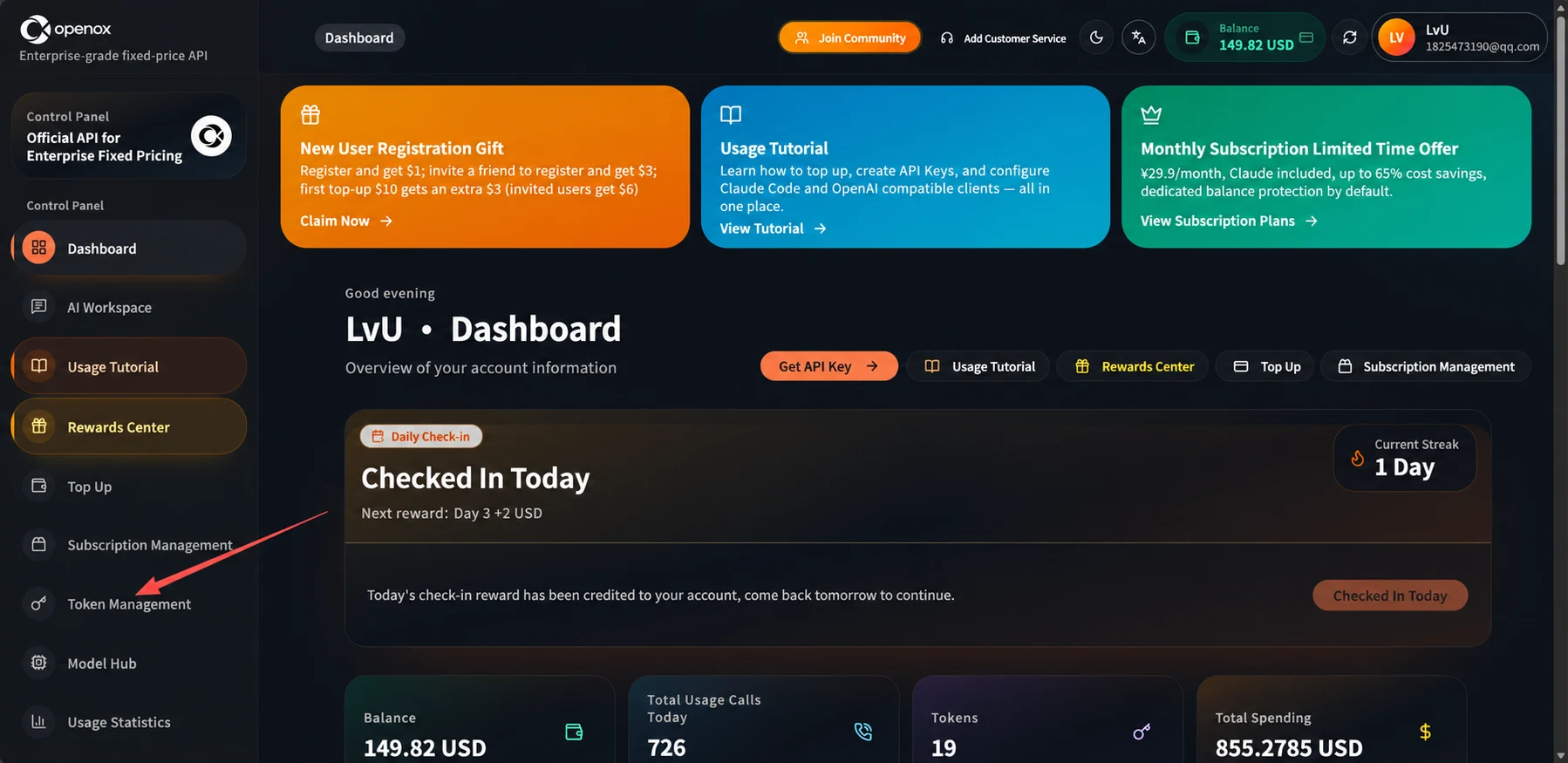
Screenshot 1: English Translation
Console: Enterprise-grade stability, full-capability, low-cost official API.
Navigation: Dashboard; AI Workspace; Tutorials; Redemption Center; Top Up; Subscription Management; Token Management; Model Hub; Usage.
Header: Join the Community; Contact Customer Support; Balance.
New User Sign-Up Gift: Get $1 when you sign up; get $3 when you sign up with an invitation code; get an extra $3 on your first $10 top-up ($6 if invited). Claim Now.
Tutorials: Sign up and top up, create an API key, and configure Claude Code and OpenAI-compatible clients, all in one guide. View Tutorials.
Limited-Time Monthly Subscription: From ¥29.9/month. Save up to approximately 65% with a monthly Claude subscription. Your balance is protected by default when the quota runs out. View Subscription Plans.
Good evening. LvU · Dashboard. Here is an overview of your account.
Actions: Get API Key; Tutorials; Redemption Center; Top Up; Subscription Management.
Daily Check-In: Checked In Today. Next milestone: Day 3, +2 USD. Current streak: 1 day. Today's check-in reward has been credited. Come back tomorrow to continue your streak.
Account overview: Balance, 149.82 USD; Calls Today, 726; Token Management, 19; Cost, 855.2785 USD.
2. Select Grok and create a token.
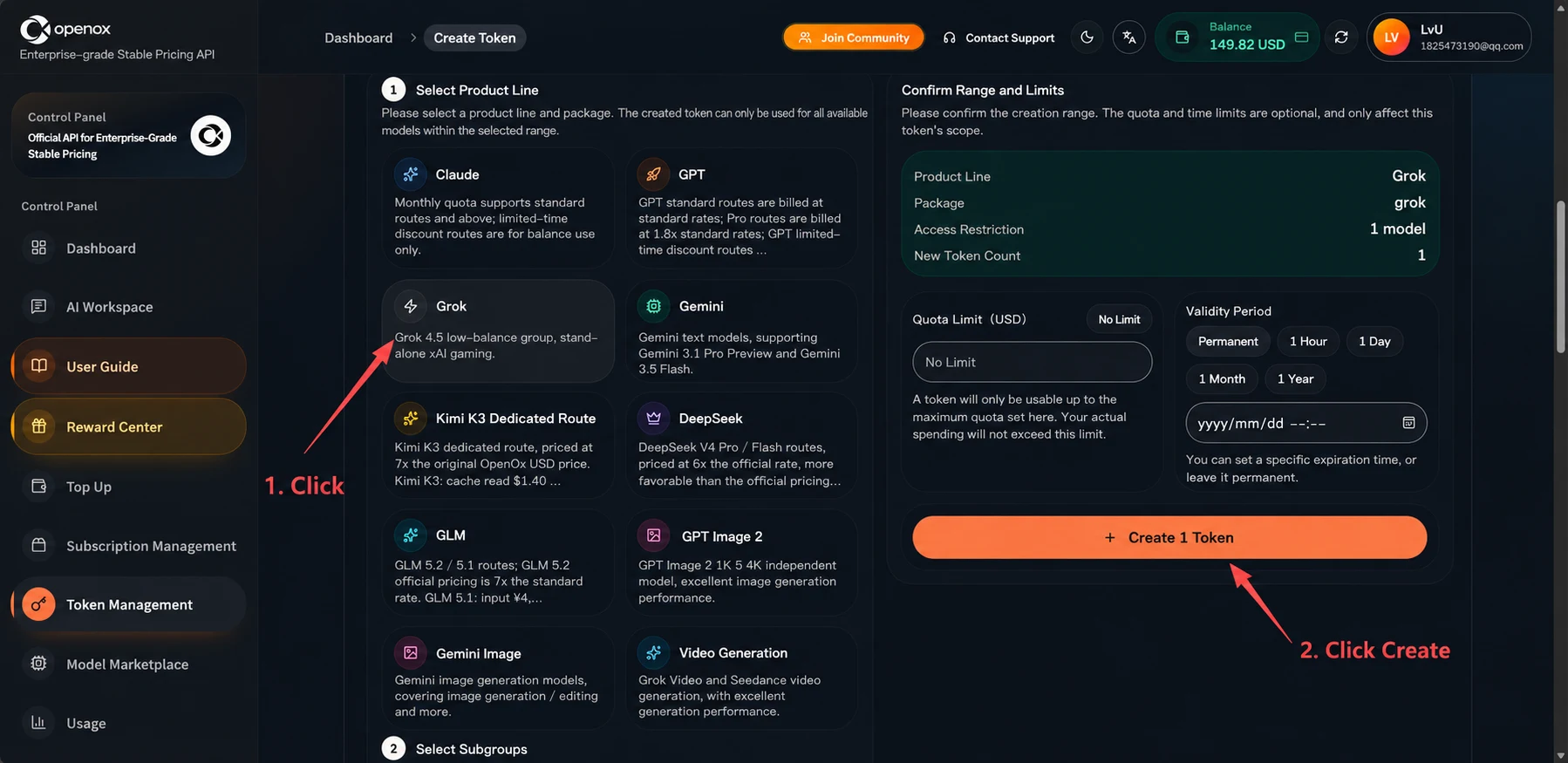
Screenshot 2: English Translation
Annotations: 1. Click. 2. Click Create.
1. Select a Product Line. Select a product line and group first. By default, the token you create can use all available models within that scope.
Claude: Monthly-pass quota supports standard routes and above; limited-time promotional routes only support balance usage.
GPT: The unified GPT route consumes quota at the standard rate; Pro direct access consumes quota at 1.8 times the rate; GPT limited-time promotional routes...
Grok: Grok 4.5 low-cost balance group, using an independent xAI-compatible upstream.
Gemini: Dedicated Gemini text route, supporting Gemini 3.1 Pro Preview and Gemini 3.5 Flash.
Kimi K3 Dedicated Route: A dedicated Kimi K3 route, using OpenOx USD prices at 70% of the official price. Kimi K3: cache read $1.40...
DeepSeek: Dedicated DeepSeek V4 Pro / Flash route, with usage-based pricing at 60% of the official reference price; RMB pricing is displayed transparently. ...
GLM: Dedicated GLM 5.2 / 5.1 route; GLM 5.2 is billed at 70% of the official domestic RMB price. GLM 5.1: input ¥4...
GPT Image 2: GPT Image 2 1K and 4K are separate models, charged per successful generation.
Gemini Image: Gemini image preview models, billed by model / resolution.
Video Generation: Grok Video and Seedance video generation, charged per successful generation.
2. Select a Group Tier. [The text below this heading is cut off in the original image.]
Confirmation and Limits: Confirm the scope before creating the token. Quota and expiration time are optional restrictions that apply only to the token being created.
Product Line: Grok; Plan: grok; Access Restrictions: 1 Model; Number to Create: 1.
Quota Limit (USD): Unlimited Quota. The token quota limits only the maximum allowance available to this token; actual requests are still subject to the account's remaining balance.
Expiration Time: Never Expires; One Hour; One Day; One Month; End of Month. You can set a specific expiration time directly; leave it blank for no expiration.
Create 1 Token.
Navigation: Dashboard; Token Management; Console; AI Workspace; Tutorials; Redemption Center; Top Up; Subscription Management; Model Hub; Usage. Header: Join the Community; Contact Customer Support; Balance. Enterprise-grade stability, full-capability, low-cost official API.
3. Scroll down and copy the API key.
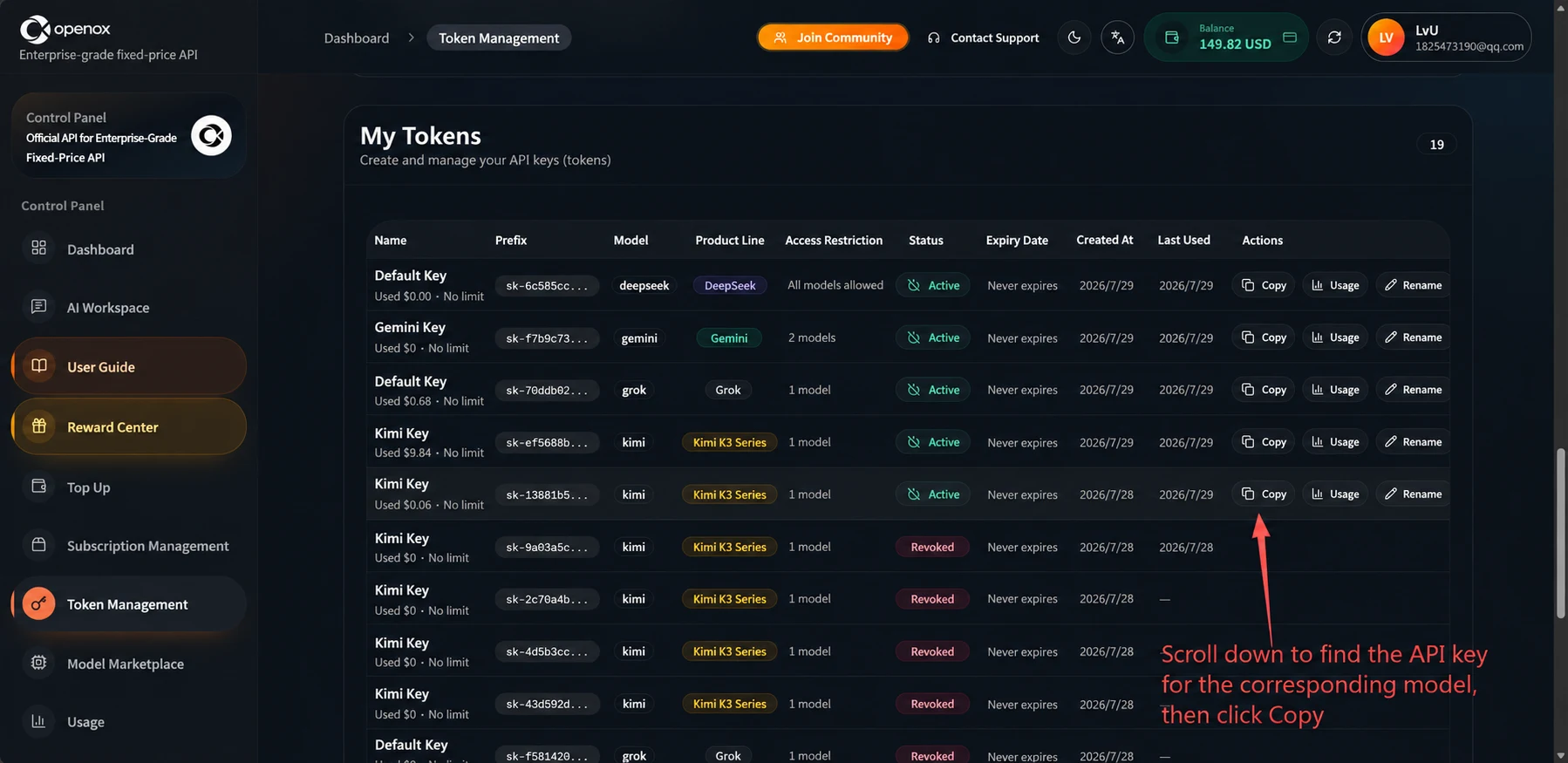
Screenshot 3: English Translation
Annotation: Scroll down to find the API key for the corresponding model and copy it.
My Tokens. Create and manage your API keys (tokens).
Table columns: Name; Prefix; Plan; Product Line; Access Restrictions; Status; Expiration Time; Created On; Last Used.
Table labels: Used; Unlimited Quota; Allow All Models; 2 Models; 1 Model; Active; Revoked; Never Expires; Kimi K3 Dedicated Route. Actions: Copy; Usage; Rename.
Navigation: Dashboard; Token Management; Console; AI Workspace; Tutorials; Redemption Center; Top Up; Subscription Management; Model Hub; Usage. Header: Join the Community; Contact Customer Support; Balance. Enterprise-grade stability, full-capability, low-cost official API.
3. Configure CC Switch
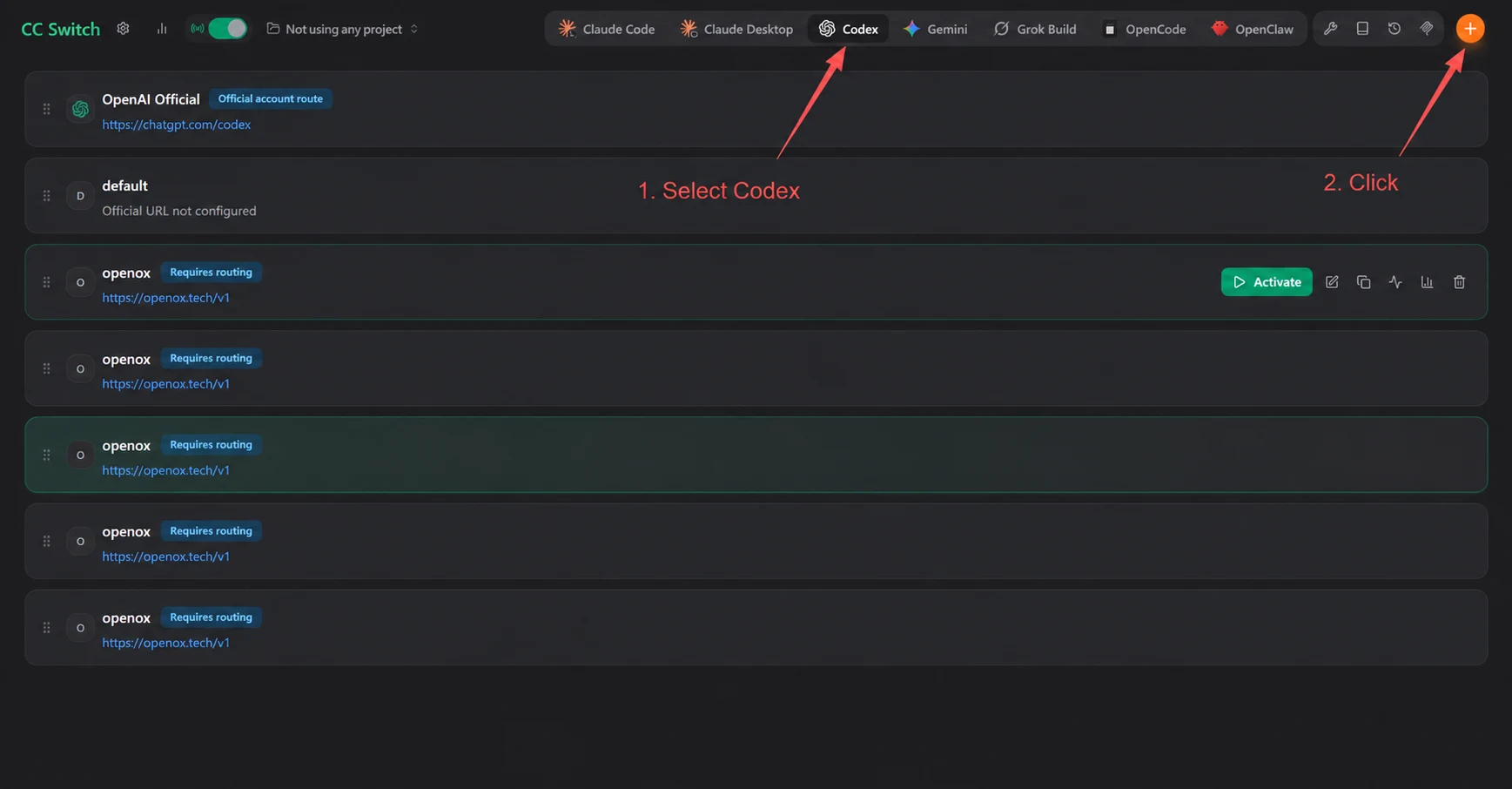
Screenshot 4: English Translation
Annotations: 1. Select Codex. 2. Click the + button.
Interface labels: No Project; Official Account Routing; Website URL Not Configured; Enable; Routing Required.
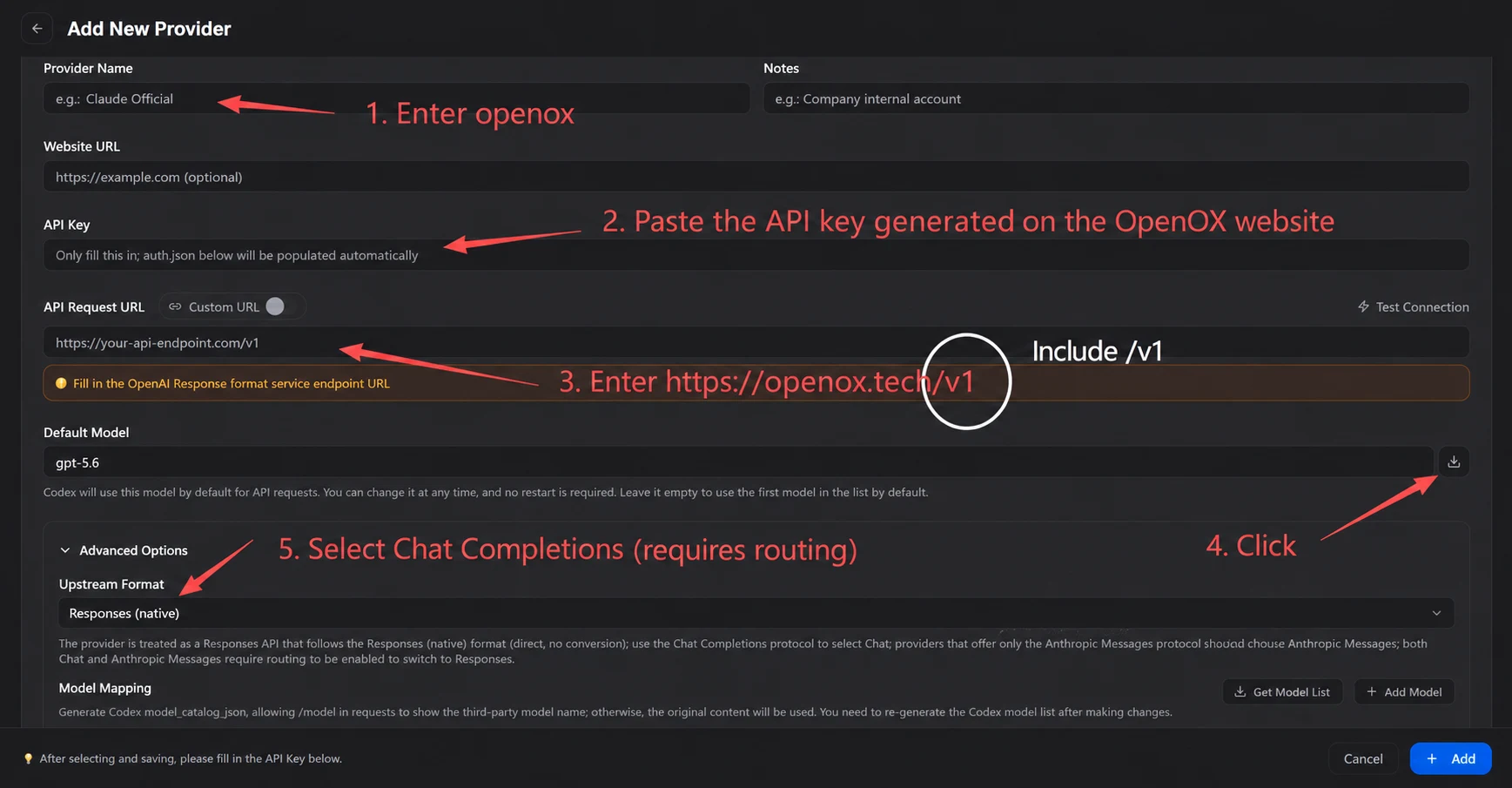
Screenshot 5: English Translation
Add New Provider.
Provider Name: For example, Claude Official. Notes: For example, a dedicated company account.
Annotation 1: Enter openox.
Website Link: https://example.com (optional).
API Key: You only need to fill in this field; auth.json below will be filled in automatically.
Annotation 2: Paste the API key generated on the OpenOx website.
API Request URL; Full URL; Manage and Test Speed. Placeholder: https://your-api-endpoint.com/v1.
Annotation 3: Enter https://api.openoxai.com/v1. The URL must include v1.
Enter a server endpoint URL compatible with the OpenAI Response format.
Default Model: gpt-5.6.
The model Codex requests by default can be changed at any time without waiting for preset updates. If this field is left blank and model mappings are configured, the first mapping row is used by default.
Annotation 4: Click the download-shaped button beside the default model.
Advanced Options. Upstream Format: Responses (native).
Annotation 5: Select Chat Completions (routing must be enabled).
If the provider natively uses the Responses API, select Responses (direct connection, no format conversion). If it uses the Chat Completions protocol, select Chat. If the provider only offers the native Anthropic Messages protocol, select Anthropic Messages. Both Chat and Anthropic Messages require routing takeover to be enabled so they can be converted to Responses.
Model Mappings; Fetch Model List; Add Model.
Generate a Codex model_catalog_json so the /model command displays these third-party model names. Table entries are saved exactly as entered. Restart Codex after making changes to refresh the model list.
After selecting a preset, fill in fields such as API Key below. Cancel; Add.
Scroll down the page.
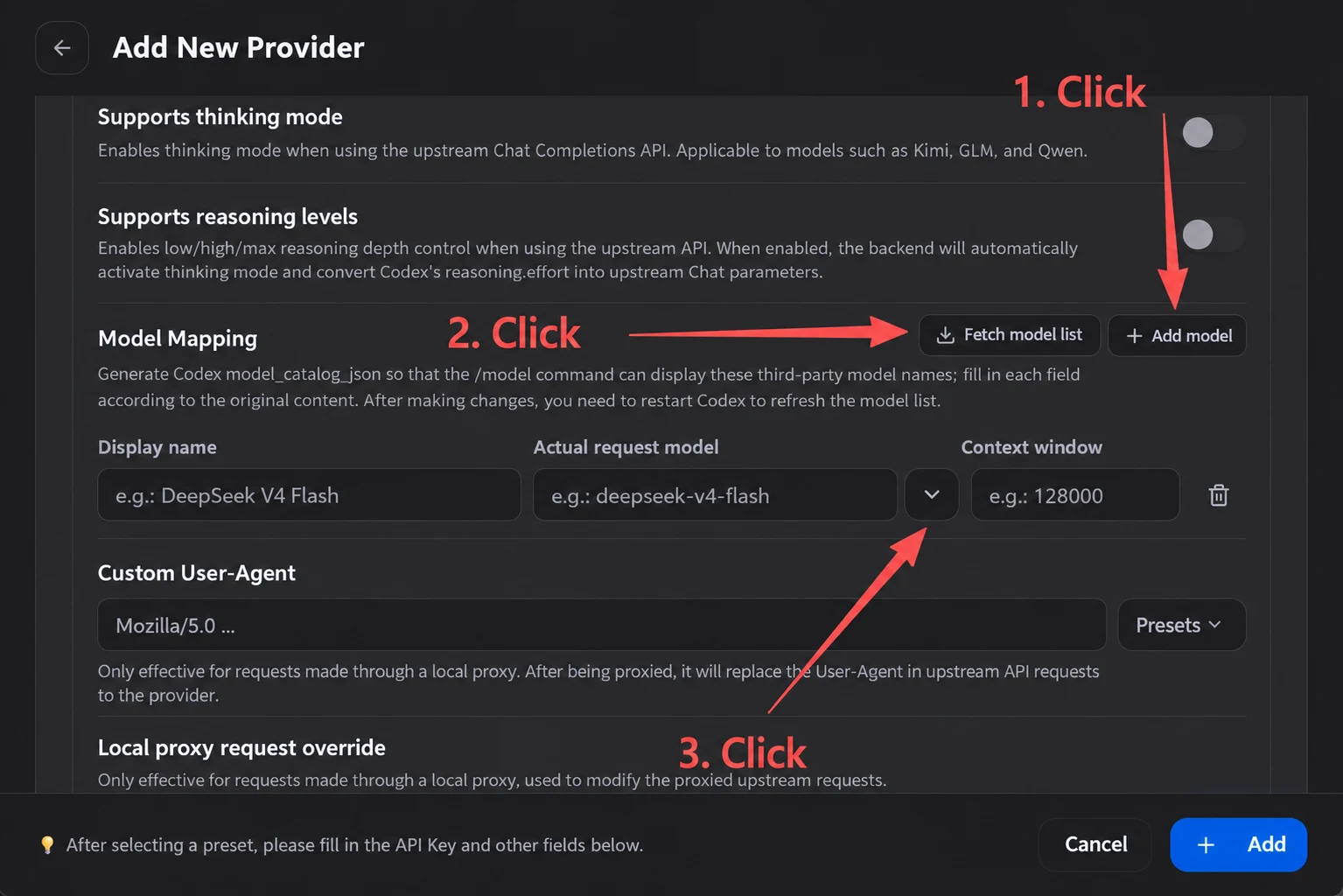
Screenshot 6: English Translation
Add New Provider.
Supports Thinking Mode: Enable this when the upstream Chat Completions API supports turning thinking on or off. Kimi, GLM, Qwen, and similar models usually fall into this category.
Supports Reasoning Effort Levels: Enable this when the upstream supports reasoning-depth controls such as low/high/max. Enabling it automatically turns on thinking mode and converts Codex's reasoning.effort into an upstream Chat parameter.
Model Mappings; Fetch Model List; Add Model.
Generate a Codex model_catalog_json so the /model command displays these third-party model names. Table entries are saved exactly as entered. Restart Codex after making changes to refresh the model list.
Annotations: 1. Click Add Model. 2. Click Fetch Model List. 3. Click the model dropdown.
Menu Display Name: For example, DeepSeek V4 Flash. Actual Request Model: For example, deepseek-v4-flash. Context Window: For example, 128000.
Custom User-Agent: Mozilla/5.0. Presets.
This takes effect only after local routing/proxy takeover is enabled, and replaces the User-Agent in API requests forwarded to the provider.
Local Proxy Request Overrides: These take effect only after local routing/proxy takeover is enabled, and apply to upstream requests after protocol conversion.
After selecting a preset, fill in fields such as API Key below. Cancel; Add.
Select the model you want.
4. Turn On Routing
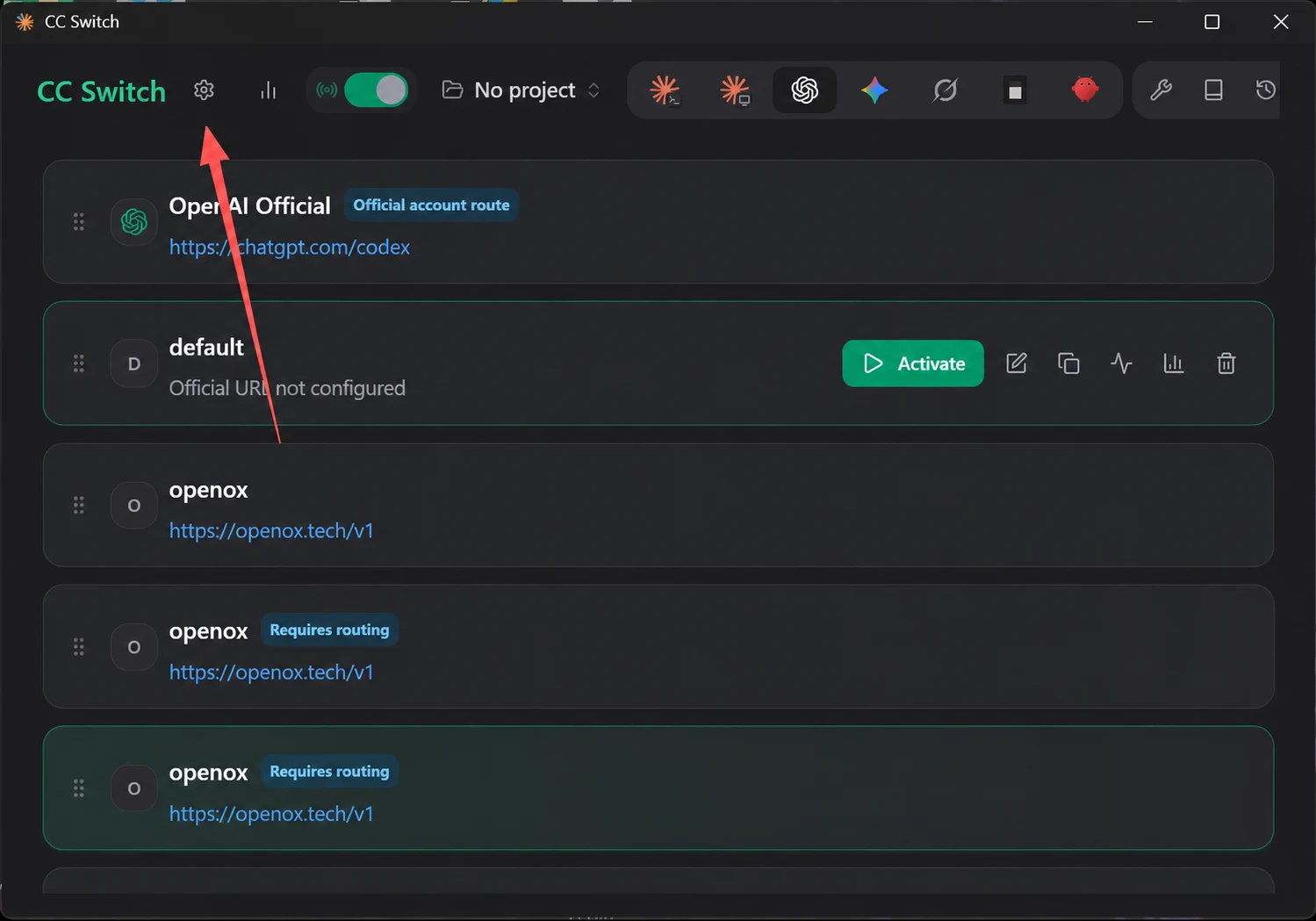
Screenshot 7: English Translation
Interface labels: No Project; Official Account Routing; Website URL Not Configured; Enable; Routing Required.
2. Click Routing and turn on routing.
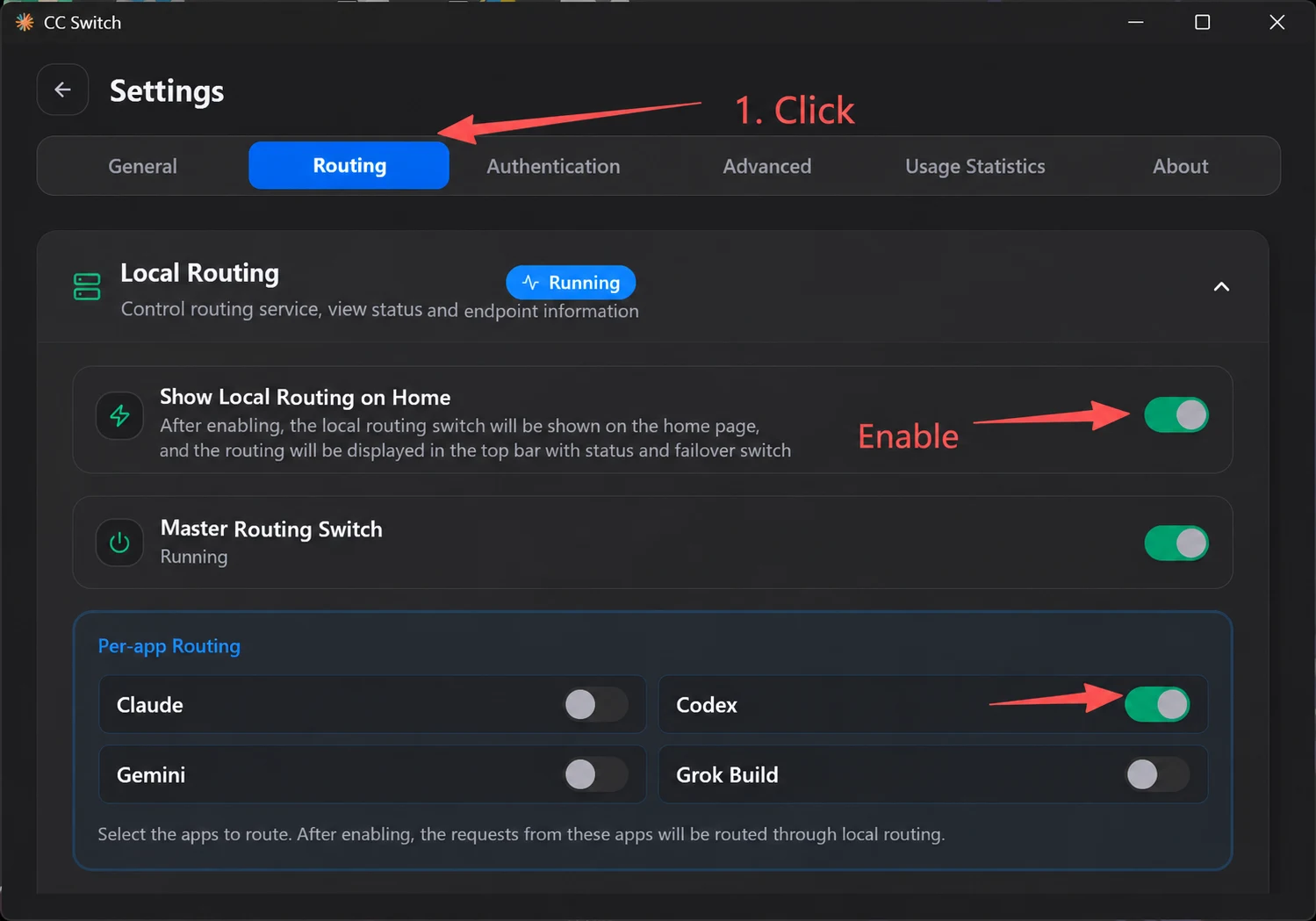
Screenshot 8: English Translation
Settings. Tabs: General; Routing; Authentication; Advanced; Usage Statistics; About.
Annotation: 1. Click Routing.
Local Routing: Control the routing service and view its status and port information. Running.
Show the Local Routing Switch on the Home Page: When enabled, routing and failover switches appear at the top of the home page.
Master Routing Switch: Running.
Routing Enabled: Claude; Codex; Gemini; Grok Build.
Select the applications to route. Once enabled, requests from the selected application are forwarded through local routing.
Annotation: Turn on the indicated switches: Show the Local Routing Switch on the Home Page, Master Routing Switch, and Codex.
3. Go back and enable the route you just created.
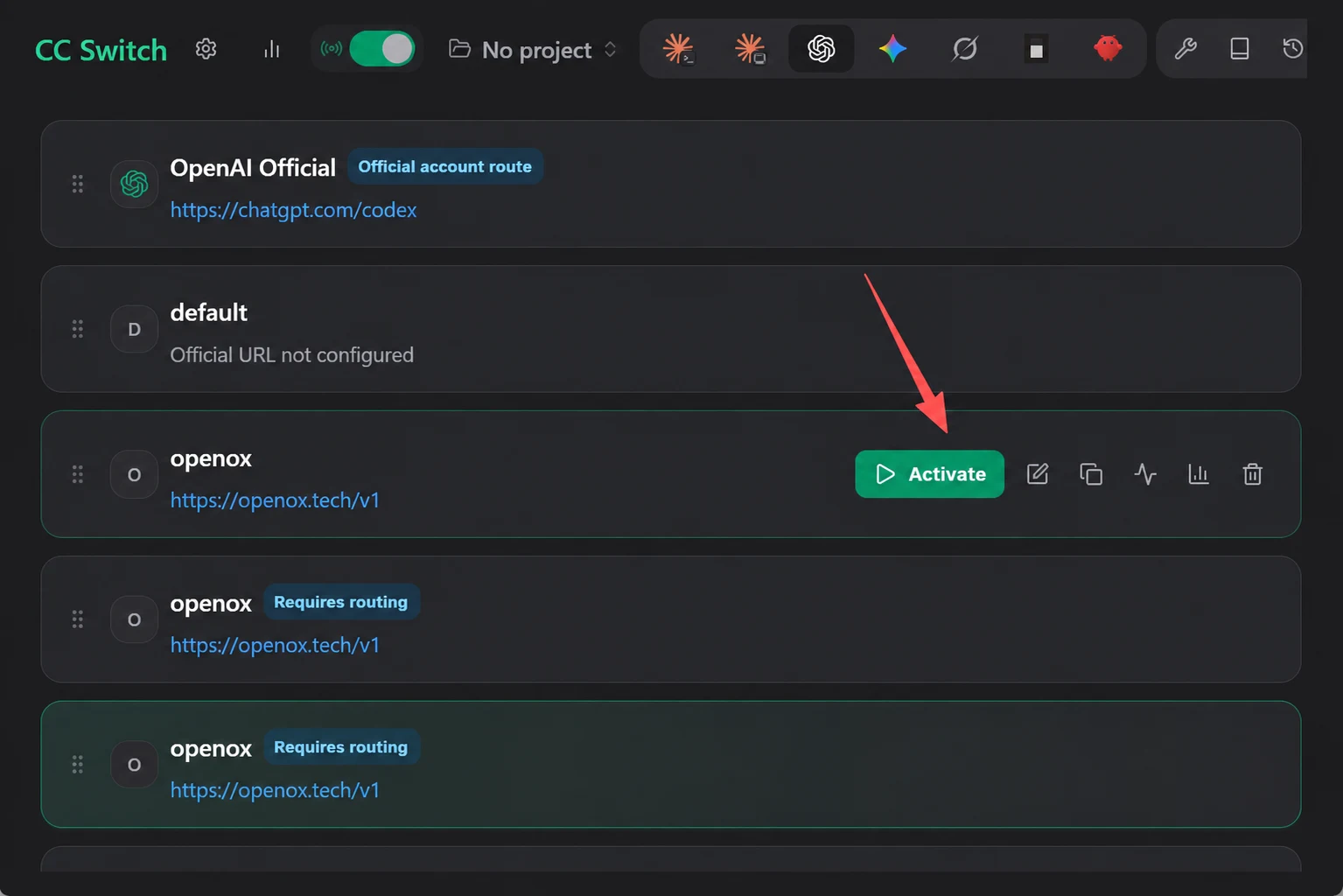
Screenshot 9: English Translation
Interface labels: No Project; Official Account Routing; Website URL Not Configured; Enable; Routing Required.
5. Wait a Moment, Then Restart Codex
If Custom appears, the configuration was successful.
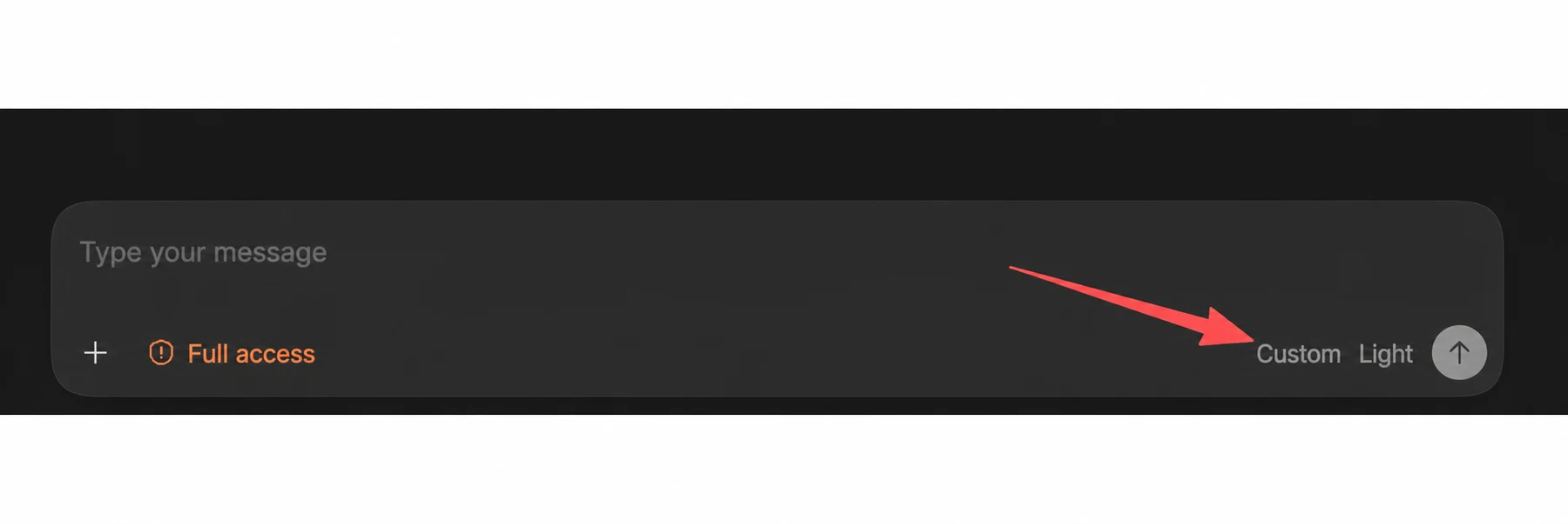
Screenshot 10: English Translation
Type anything. Full Access. Custom. Low.