
This tutorial is for the Codex desktop app, not the command-line terminal version.
This tutorial shows you how to sign in to the Codex desktop app using an OpenOx API key and switch the API site to OpenOx.
OpenOx API base URL:
https://api.openoxai.com/v1
Note: A redemption code is not an API KEY. Be sure to watch my video tutorial 👇👇
1. Prerequisites
Before you begin, prepare the following:
- The Codex desktop app installed
- An OpenOx account
- An OpenOx API key
- A Windows or Mac computer
An OpenOx API key generally looks like this:
YOUR_OPENOX_API_KEY
Note:
- Do not include spaces before or after the API key.
- Do not share your API key with others.
- Do not publicly share screenshots showing your complete API key.
- Do not upload your API key to GitHub or public documents.
2. Downloading the Codex Desktop App
Windows Computers
Windows users are advised to install the Codex desktop app from the Microsoft Store.
Steps:
- Open the Microsoft Store on your computer.
- Search for:
Codex
- Find the official Codex app from OpenAI.
- Click Install.
- After installation is complete, open Codex from the Start menu.
Official download link: https://get.microsoft.com/installer/download/9PLM9XGG6VKS?cid=website_cta_psi
Windows installer:
This content cannot currently be displayed outside Feishu Docs.
3. Opening the Codex Desktop App
After installation is complete, open the Codex desktop app.
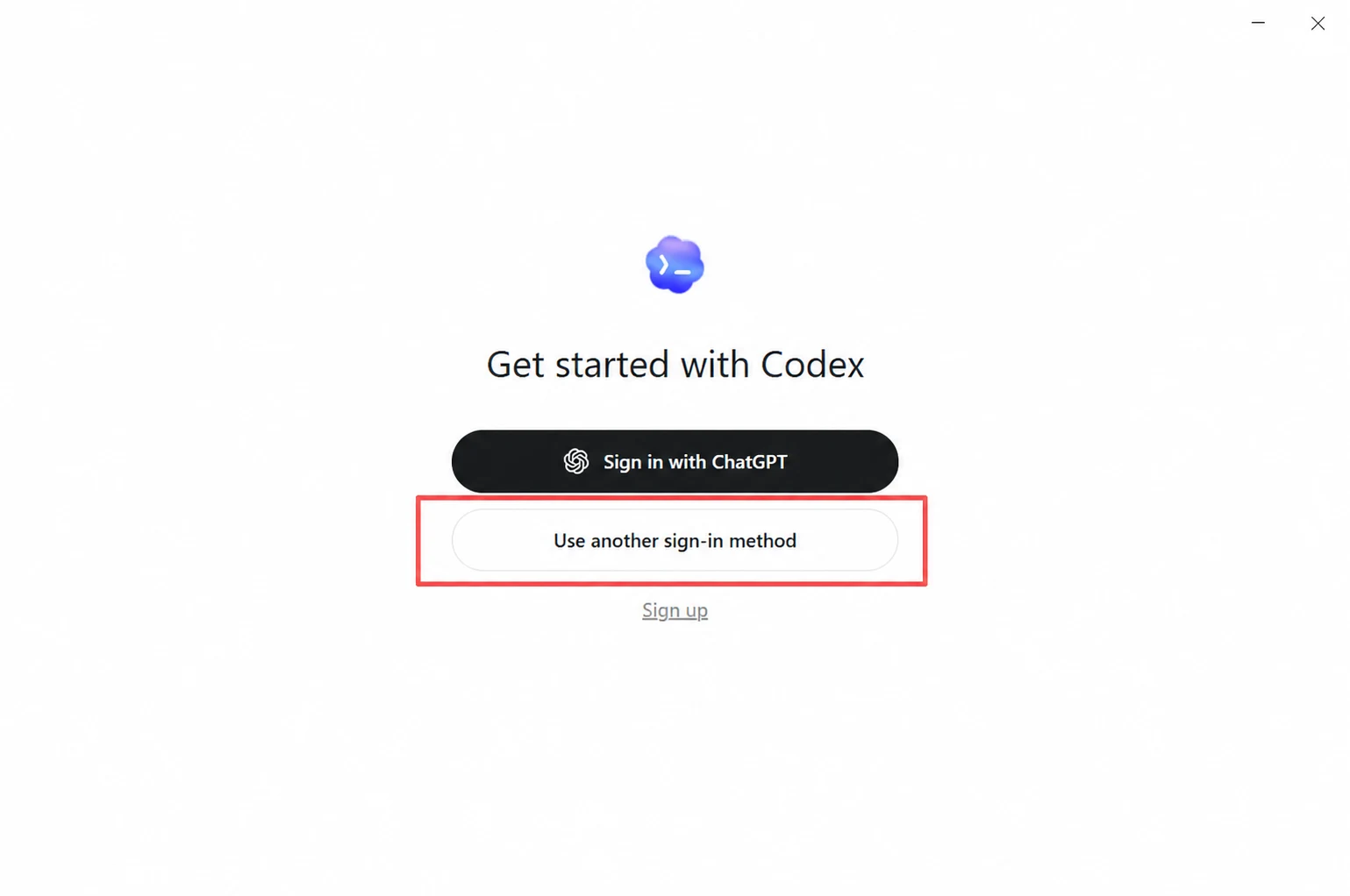
On first launch, you will usually see a sign-in page. There are two common sign-in methods:
- Sign in with a ChatGPT account.
- Sign in with an API key.
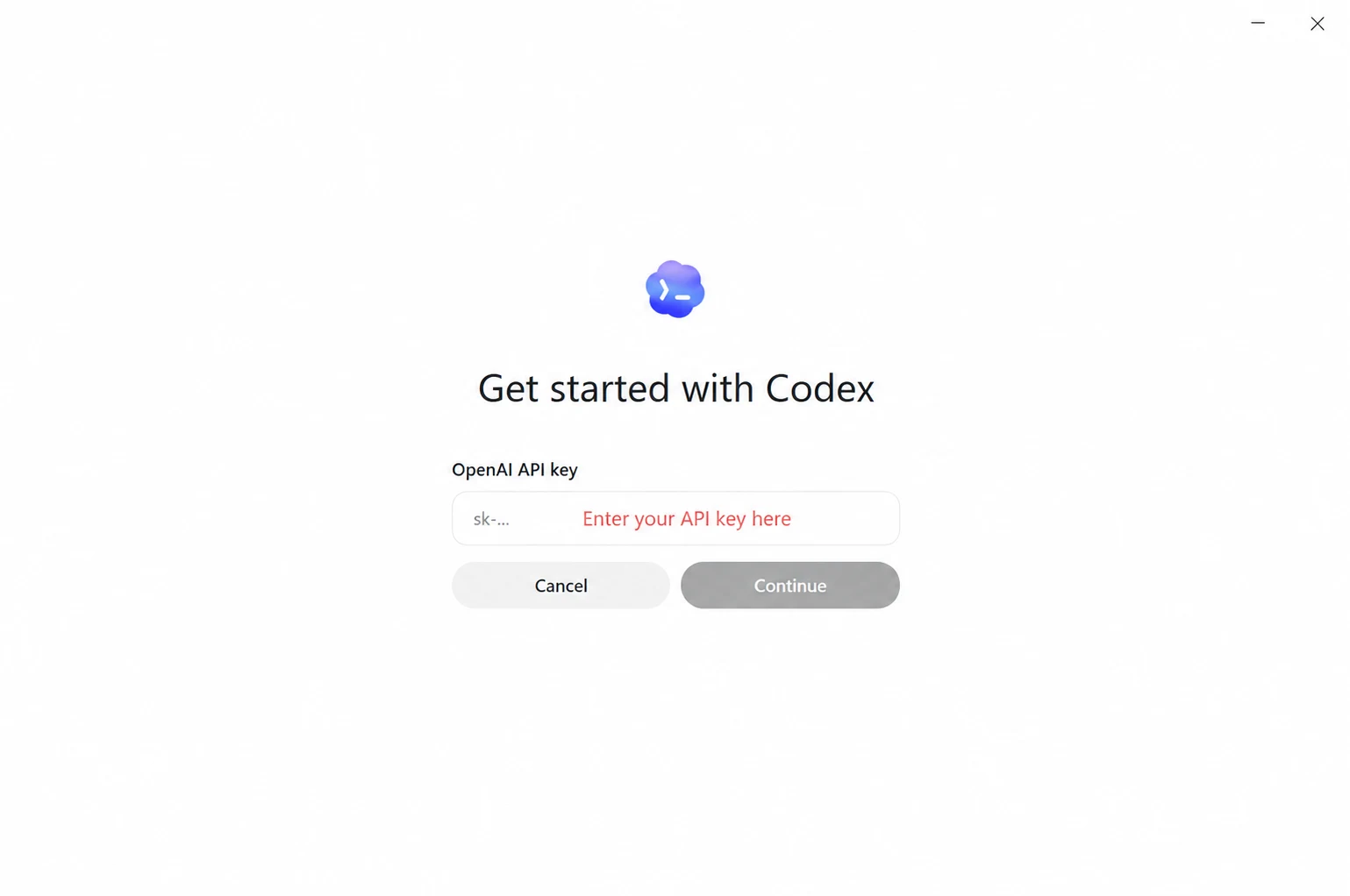
Here, select:
API Key Sign-in
Note:
- Do not include spaces when copying the API key.
- Do not copy line breaks.
- If an error occurs after pasting, first check for spaces before or after the key.
- If you previously signed in with a personal ChatGPT account, sign out first.
4. If You Have Already Signed In with a Personal Account
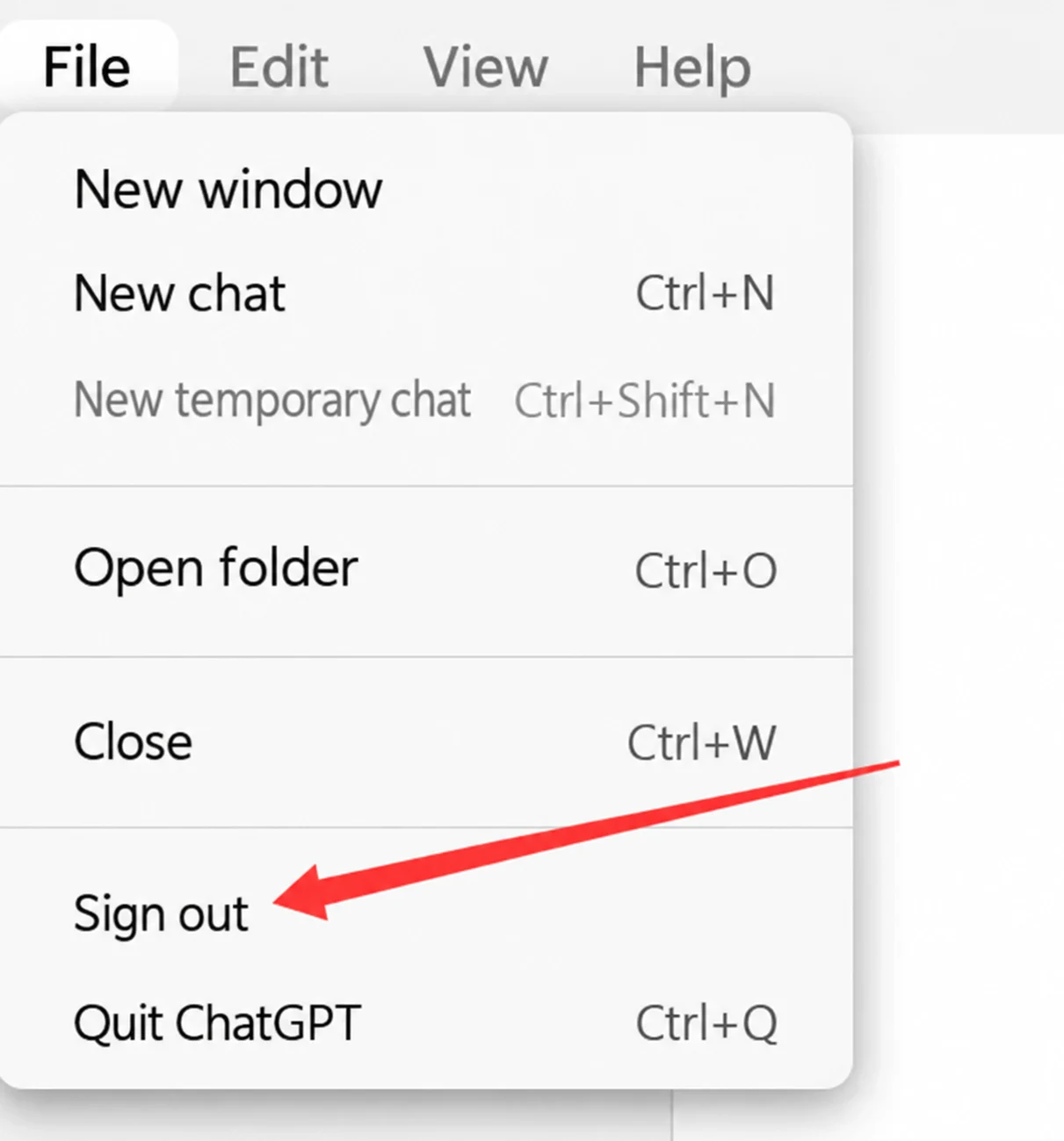
If Codex is already signed in with a ChatGPT account, sign out first, then sign in again using an API key.
Steps:
- Open the Codex Desktop App
- Click your avatar or account area in the lower-left corner.
- Click:
Sign out
- Return to the sign-in page.
- Select:
API Key
- Enter the API key provided to you by OpenOx.
If you are using Codex for the first time, you do not need to sign out; simply choose API key sign-in.
5. Setting the OpenOx API Site
To make the Codex desktop app send requests to the OpenOx API, you need to modify the Codex configuration file:
config.toml
This is the most important step in the entire tutorial.
6. Windows Configuration Instructions
Opening the Configuration File
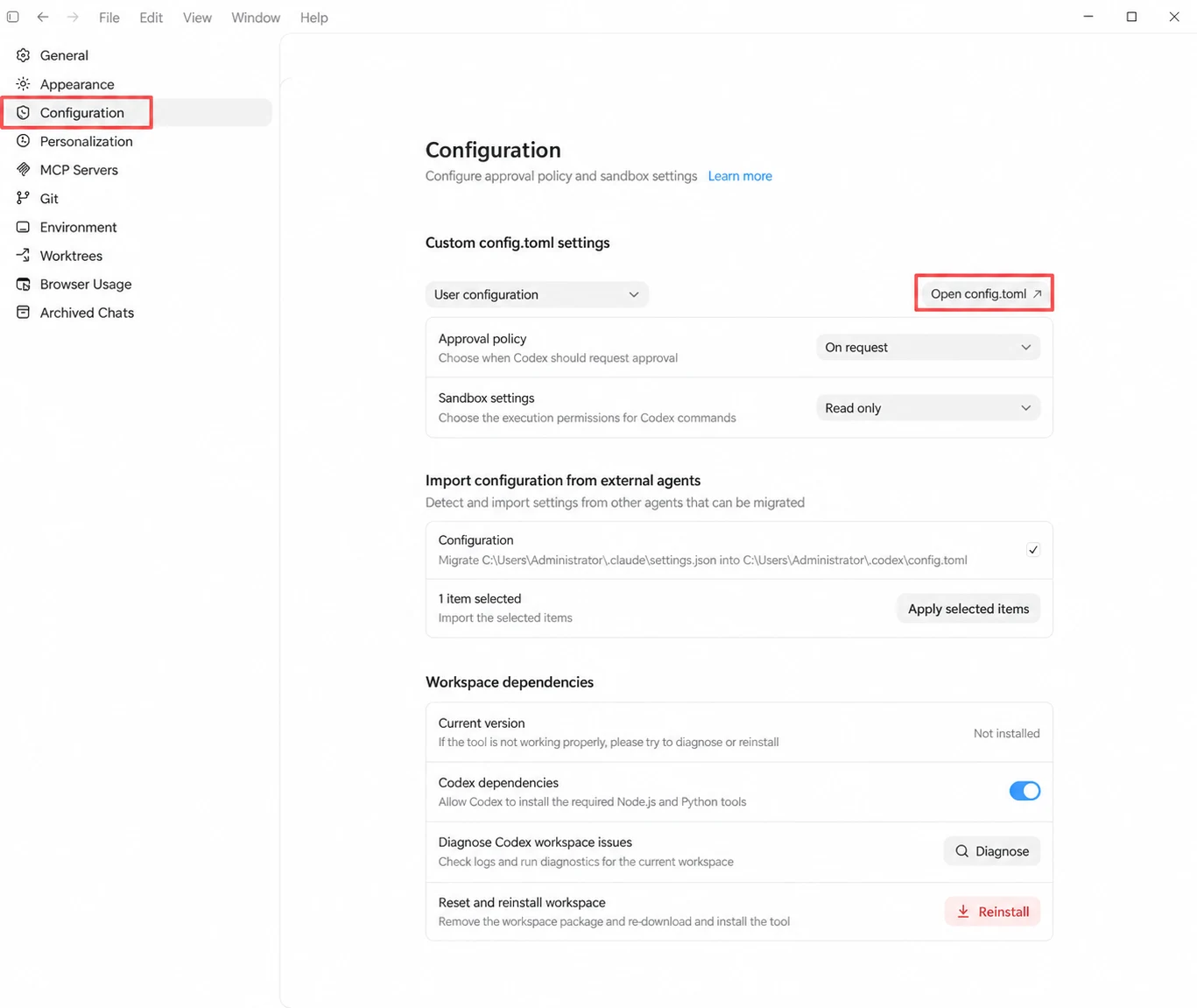
- Open the Codex Desktop App
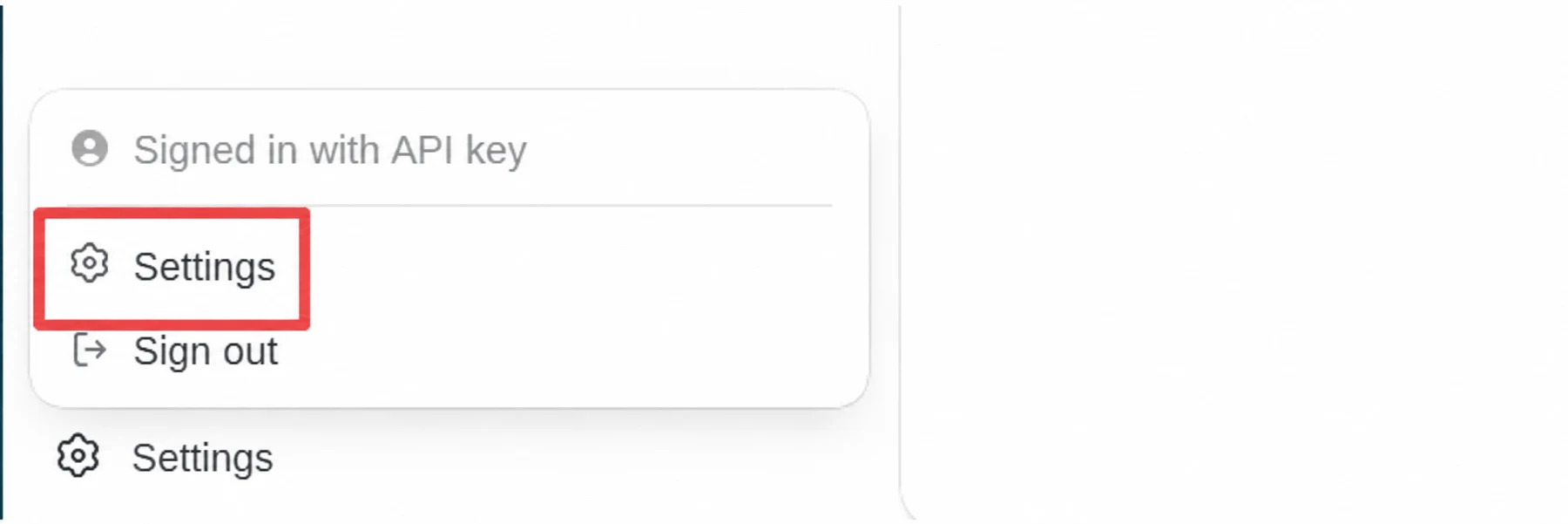
- Click in the lower-left corner:
Settings
- Find the configuration entry.
- Open config.toml
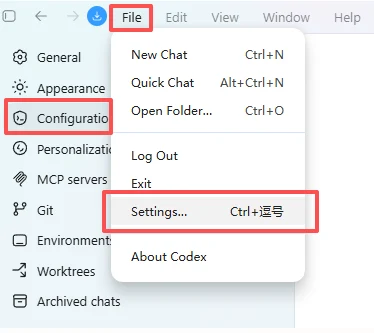
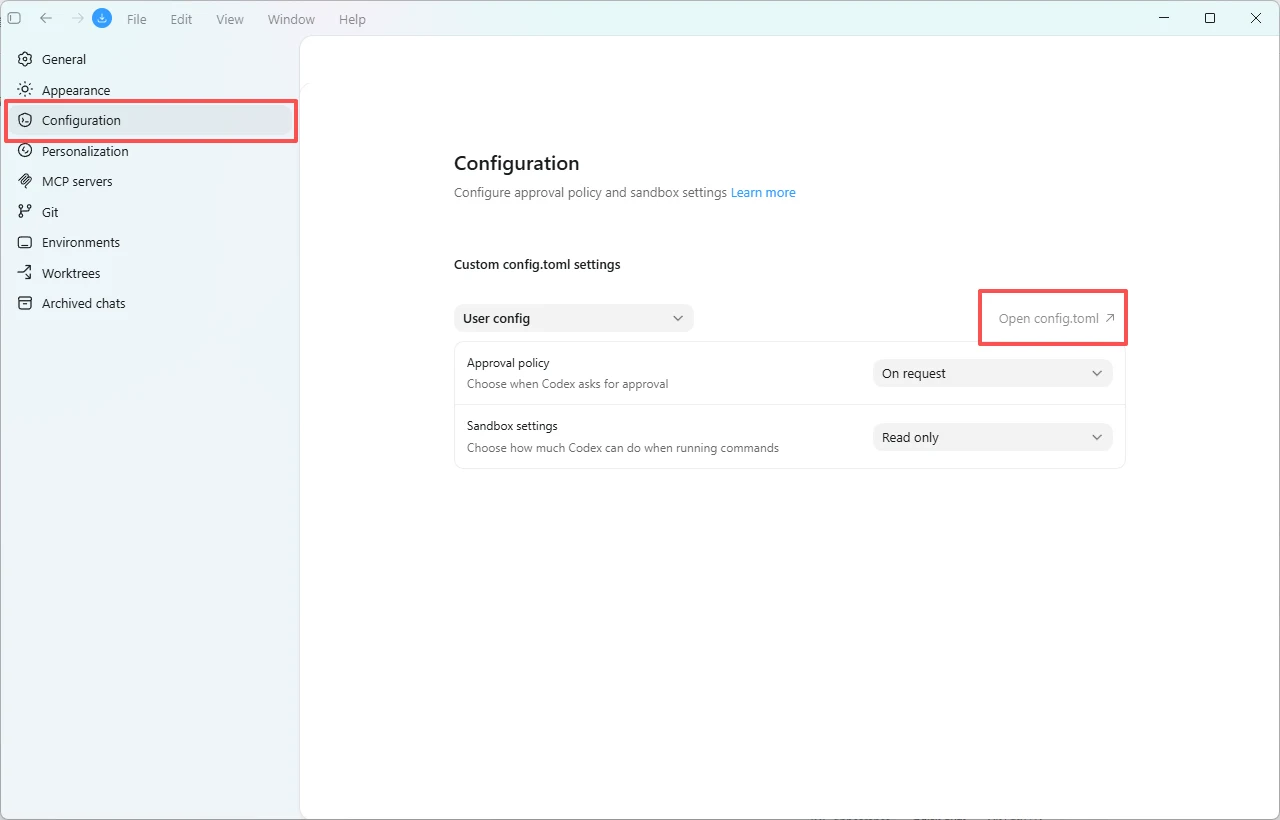
If you cannot find the Settings button, click ① 【File】 ②【Settings…】 ③【Configuration】④【Open config.toml】
Windows Configuration Content
After opening config.toml, copy the following content into the file. Make sure the entire configuration file contains only the following content (do not keep the old configuration):
Be sure to save and exit completely!
model_provider = "openox"
model = "gpt-5.6-sol"
model_reasoning_effort = "high"
disable_response_storage = true

approval_policy = "on-request"
sandbox_mode = "workspace-write"

[model_providers.openox]
name = "OpenOx"
base_url = "https://api.openoxai.com/v1"
wire_api = "responses"
requires_openai_auth = true

[sandbox_workspace_write]
network_access = true

[windows]
sandbox = "elevated"
Note: It is recommended to place the content above at the top of the file to prevent old configuration settings from affecting use.
Handling Windows Sandbox Errors
If Windows displays a sandbox-related error after startup, you can change the last section:
[windows]
sandbox = "elevated"
To:
[windows]
sandbox = "unelevated"
After saving, exit Codex completely, then reopen it.
- When using the app, keep the conversation length in each chat window under control. Overly long conversations lead to faster usage consumption, slower responses, and poorer results. When a conversation becomes long, enter compact to compress the context, then copy the summary into a new window to continue.