
1. Before you begin
Sign in to OpenOx and create an API key before setting up CC Switch. You can manage your keys in Token Management.
Open Token Management to create or copy your key.
- An OpenOx account
- An OpenOx API key
- A Windows PC
Keep your API key private. Paste it only into the provider configuration in CC Switch.
2. Install Codex Desktop
Install the official Codex app from the Microsoft Store:
- Open the Microsoft Store.
- Search for Codex.
- Install the official app published by OpenAI.
- When installation finishes, open Codex from the Start menu.
You can also open the official Codex download.
3. Connect OpenOx with CC Switch
Download the latest Windows version of CC Switch. The screenshots below use an earlier release, so some labels may look different.
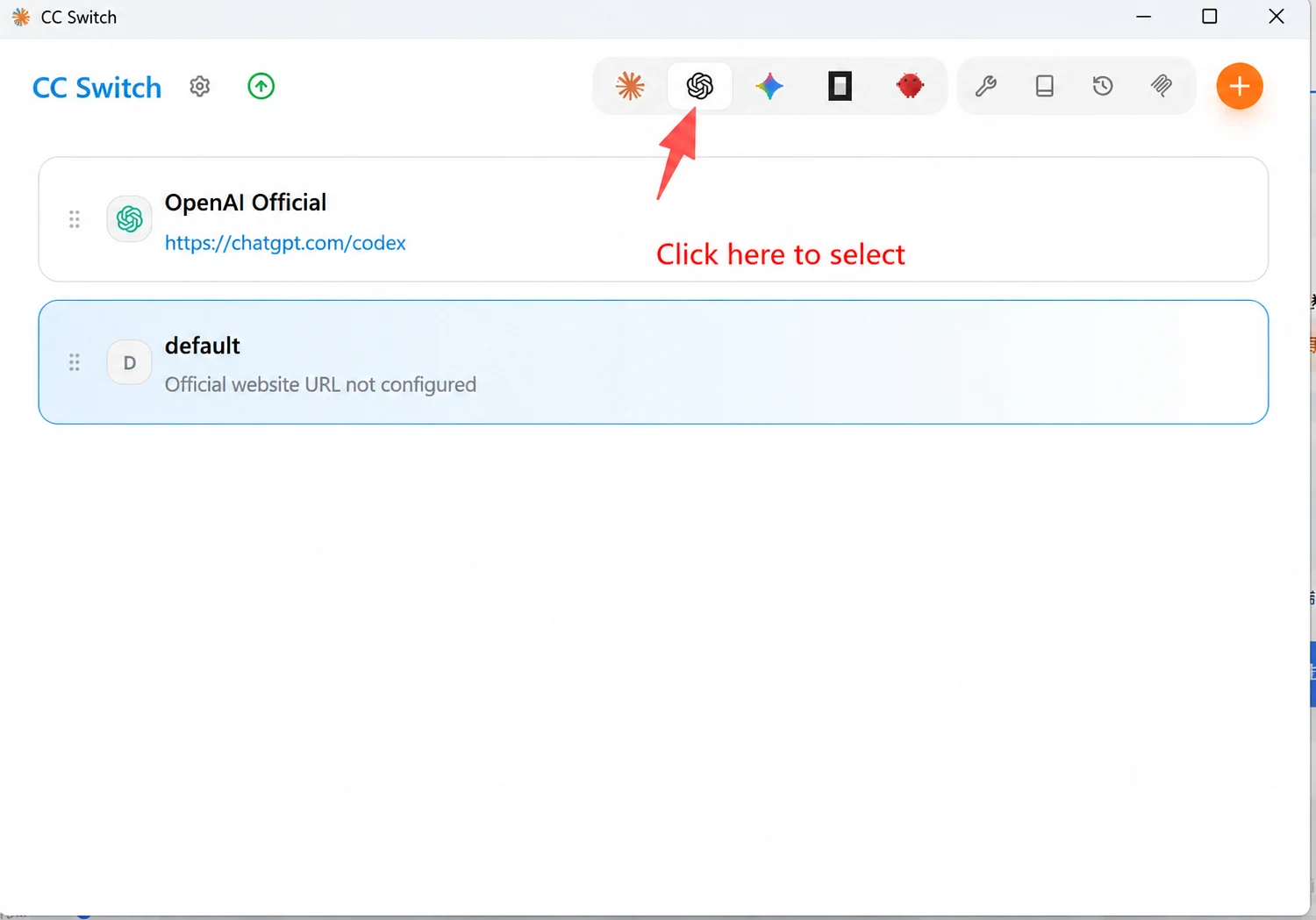
Choose the Codex provider
In CC Switch, select the Codex provider at the top of the window.
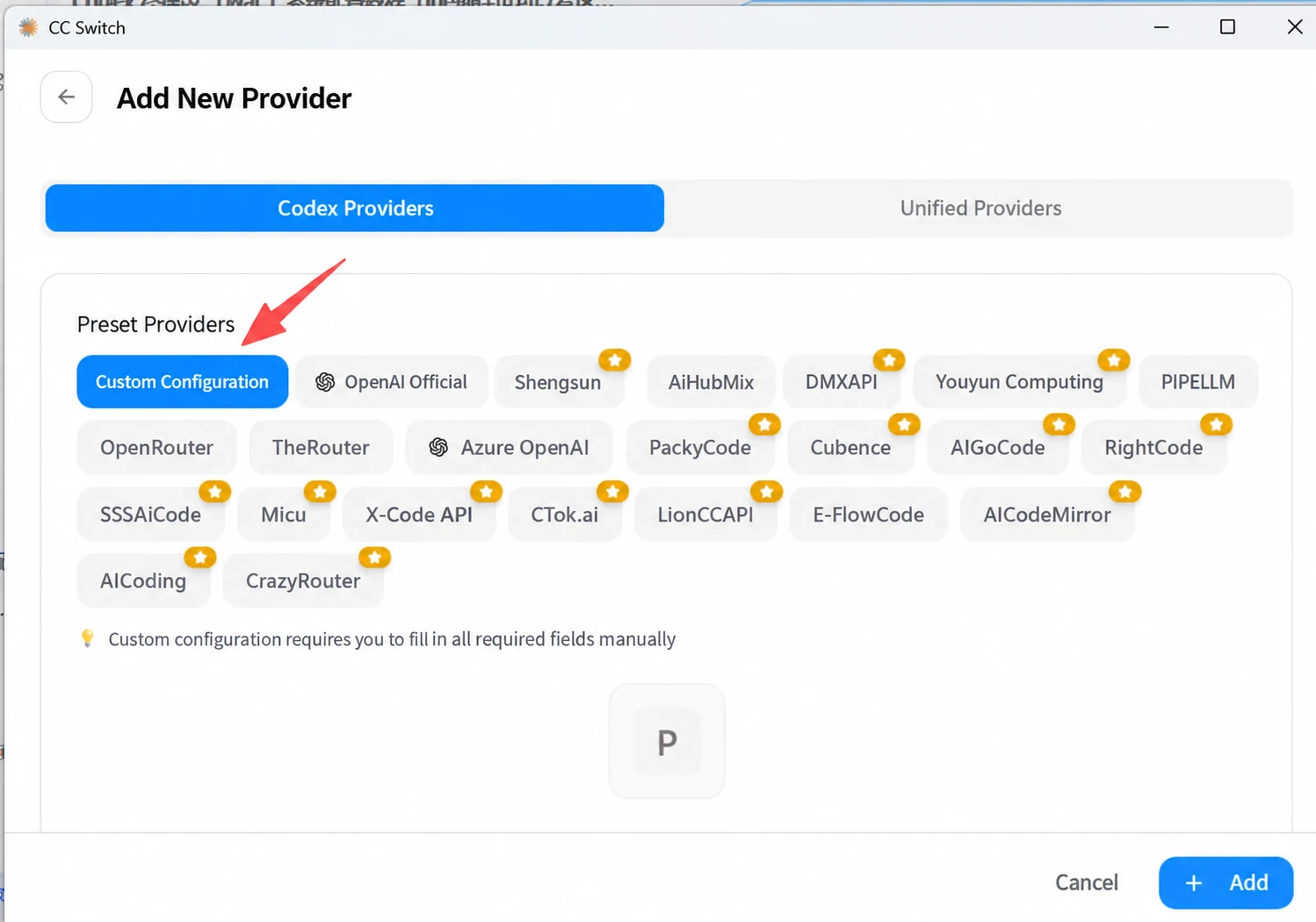
Add an OpenOx configuration
Click Add, then choose Custom Configuration under Codex Providers.
Enter the provider details and save:
- Provider name: OpenOx
- API key: paste the key you created in Token Management
- API request URL: https://api.openoxai.com/v1
- Default model: choose a model available to your API key
Save the configuration, then select OpenOx in CC Switch to make it active.
4. Test the connection
Fully quit Codex and reopen it so it loads the active CC Switch provider. Start a new chat, choose a model available to your key, and send a short prompt. A normal response confirms that the connection is working.