
This tutorial is for the Codex desktop app, not the command-line terminal version. You need to modify the configuration file.
OpenOx API site:
https://api.openoxai.com/v1
1. Prerequisites
Before you begin, prepare the following:
- The Codex desktop app installed
- An OpenOx account
- An OpenOx API key:How to Create an API Token
An OpenOx API key generally looks like this:
YOUR_OPENOX_API_KEY
2. Downloading the Codex Desktop App
Steps:
Official download link: https://get.microsoft.com/installer/download/9PLM9XGG6VKS?cid=website_cta_psi
Mac installer
3. Opening the Codex Desktop App
After installation is complete, open the Codex desktop app.
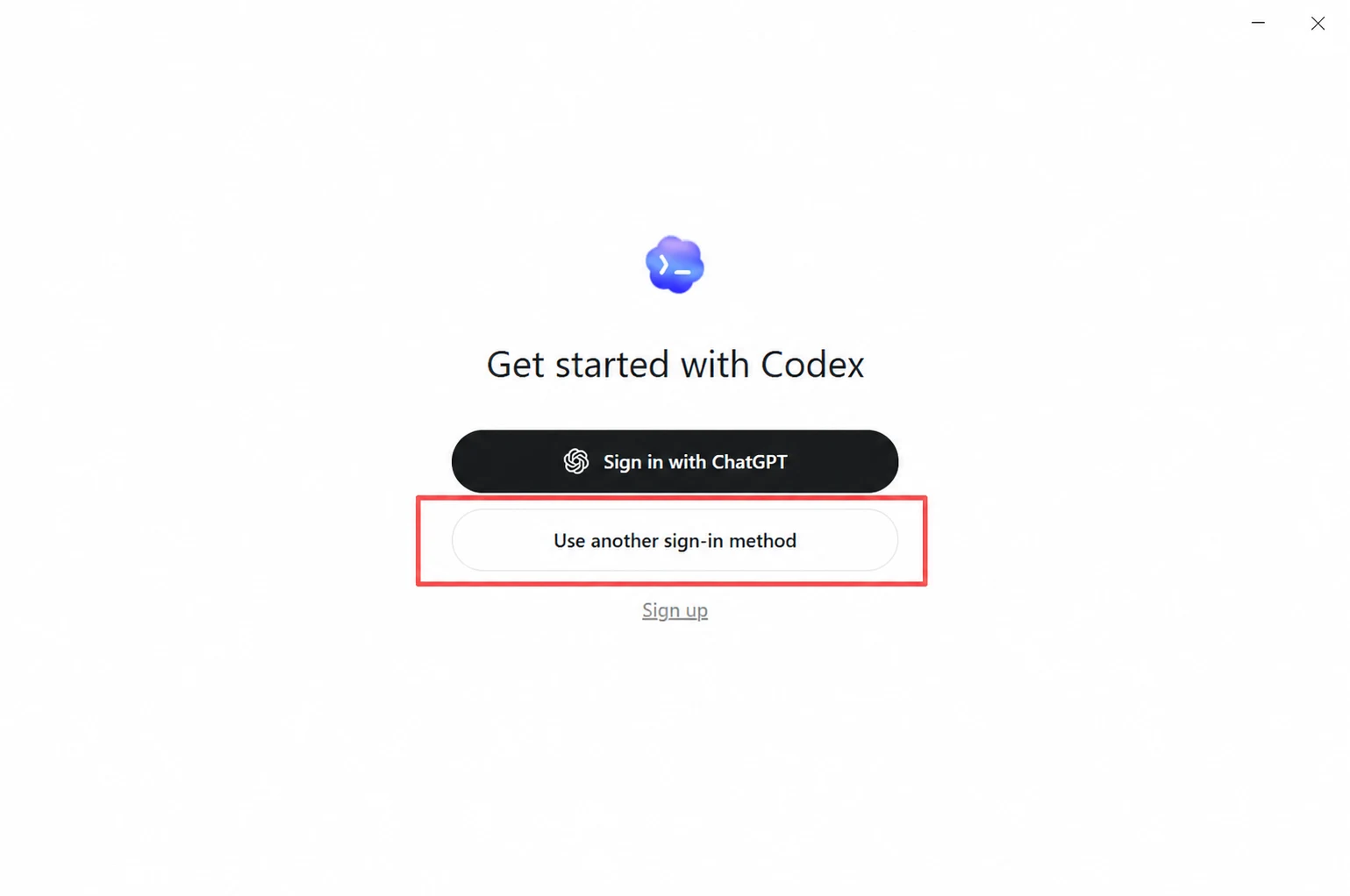
On first launch, you will usually see a sign-in page. There are two common sign-in methods:
- Sign in with a ChatGPT account
- Sign in with an API key
Here, select:
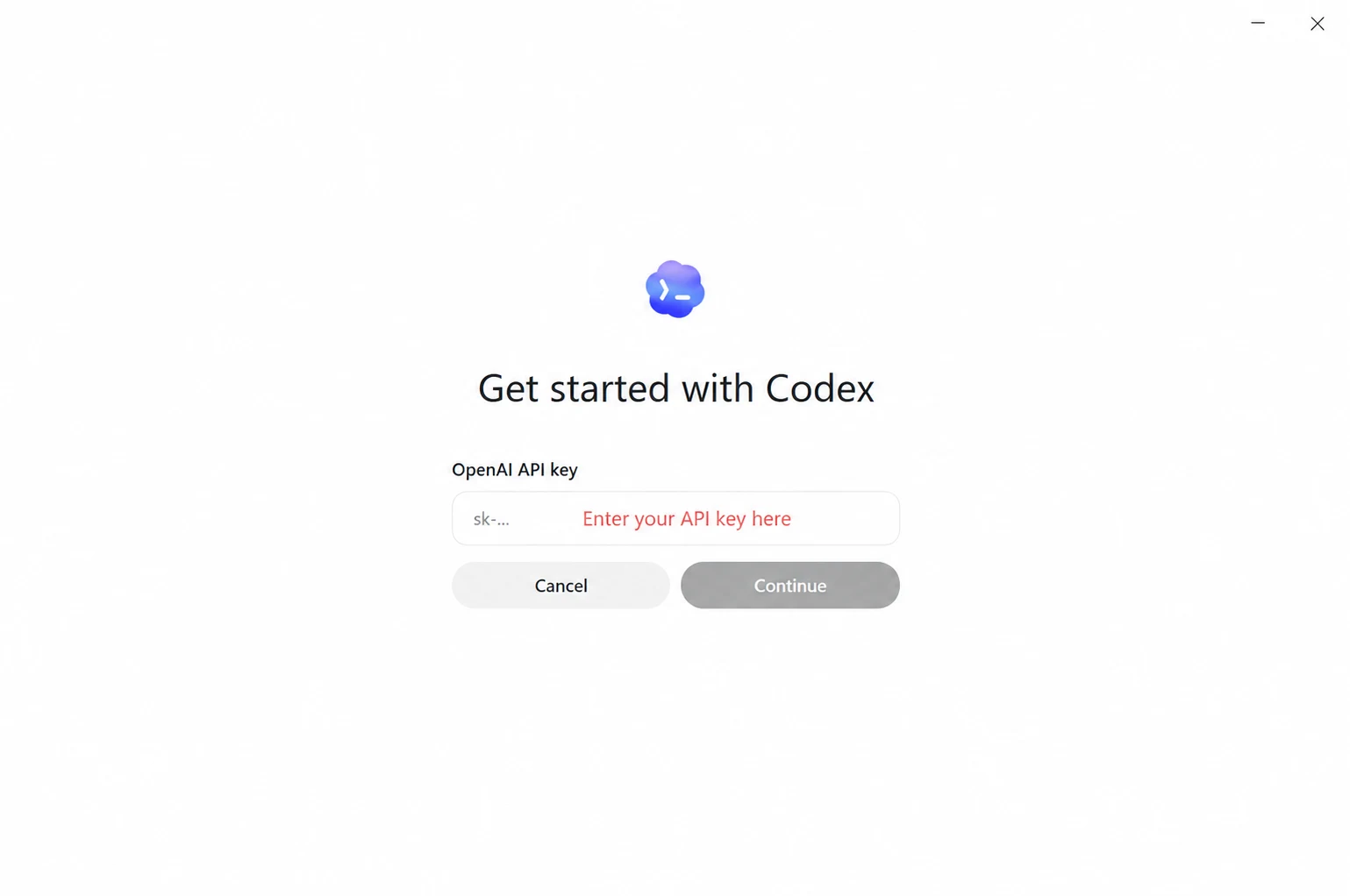
API Key Sign-in
Then enter the OpenOx API key you created.
Note:
- Do not include spaces when copying the API key.
- Do not copy line breaks.
- If an error occurs after pasting, first check for spaces before or after the key.
- If you previously signed in with a personal ChatGPT account, sign out first.
4. If You Have Already Signed In with a Personal Account
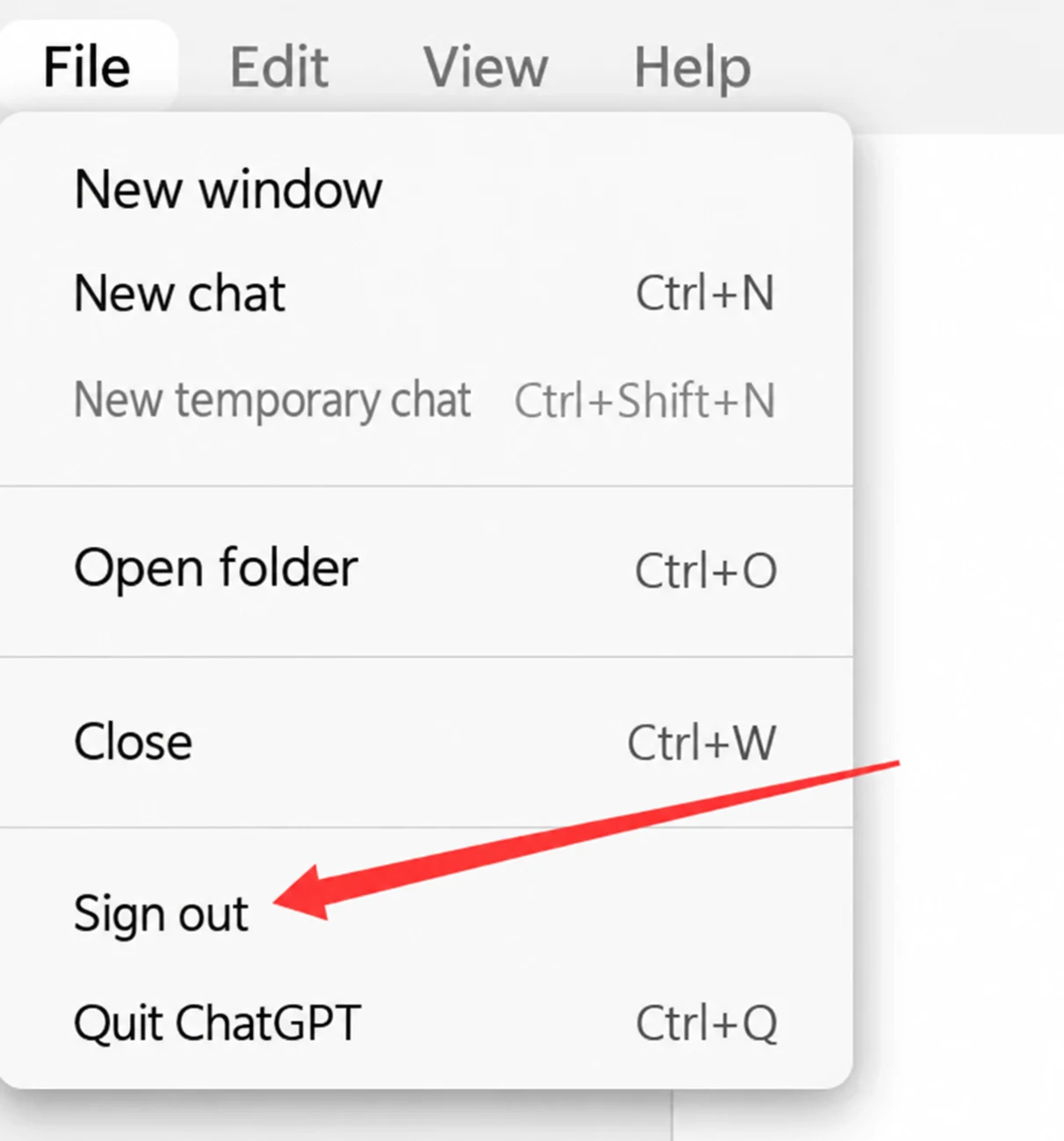
If Codex is already signed in with a ChatGPT account, sign out first, then sign in again using an API key.
Steps:
- Open the Codex Desktop App
- Click File in the upper-left corner
- Click:
Sign out
- Return to the sign-in page
- Select:
API Key
- Enter the API key provided to you by OpenOx
If you are using Codex for the first time, you do not need to sign out; simply choose API key sign-in.
5. Setting the OpenOx API Site
To make the Codex desktop app send requests to the OpenOx API, you need to modify the Codex configuration file:config.toml
This is the most important step in the entire tutorial.
Opening the Configuration File
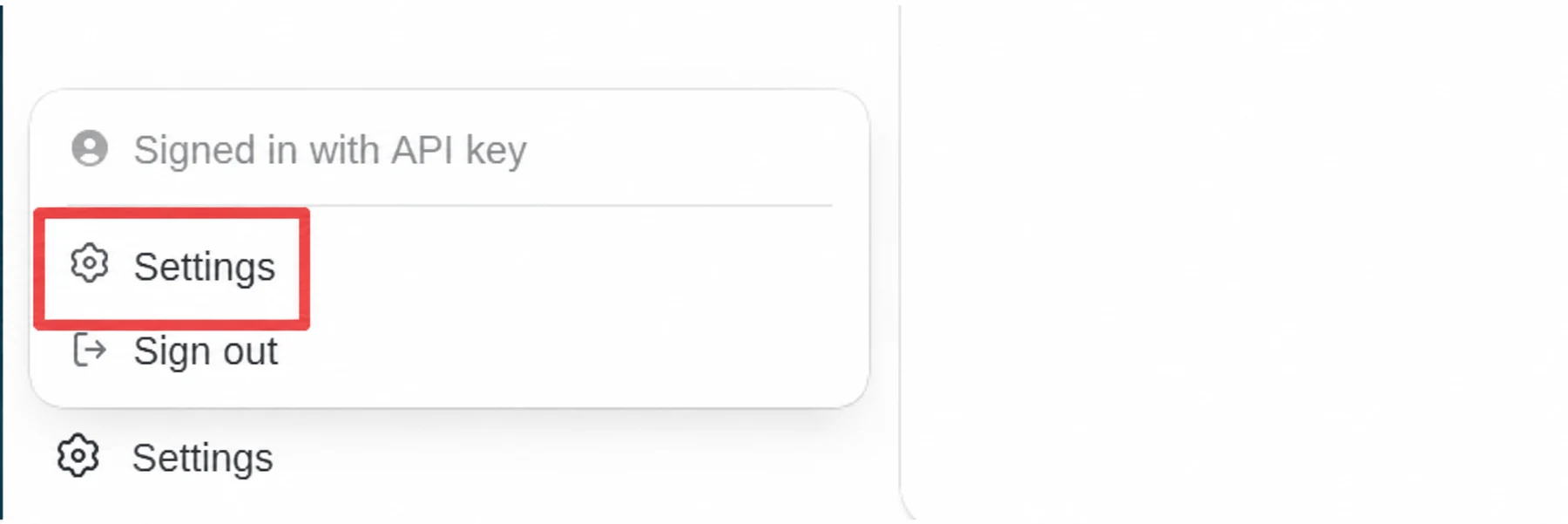
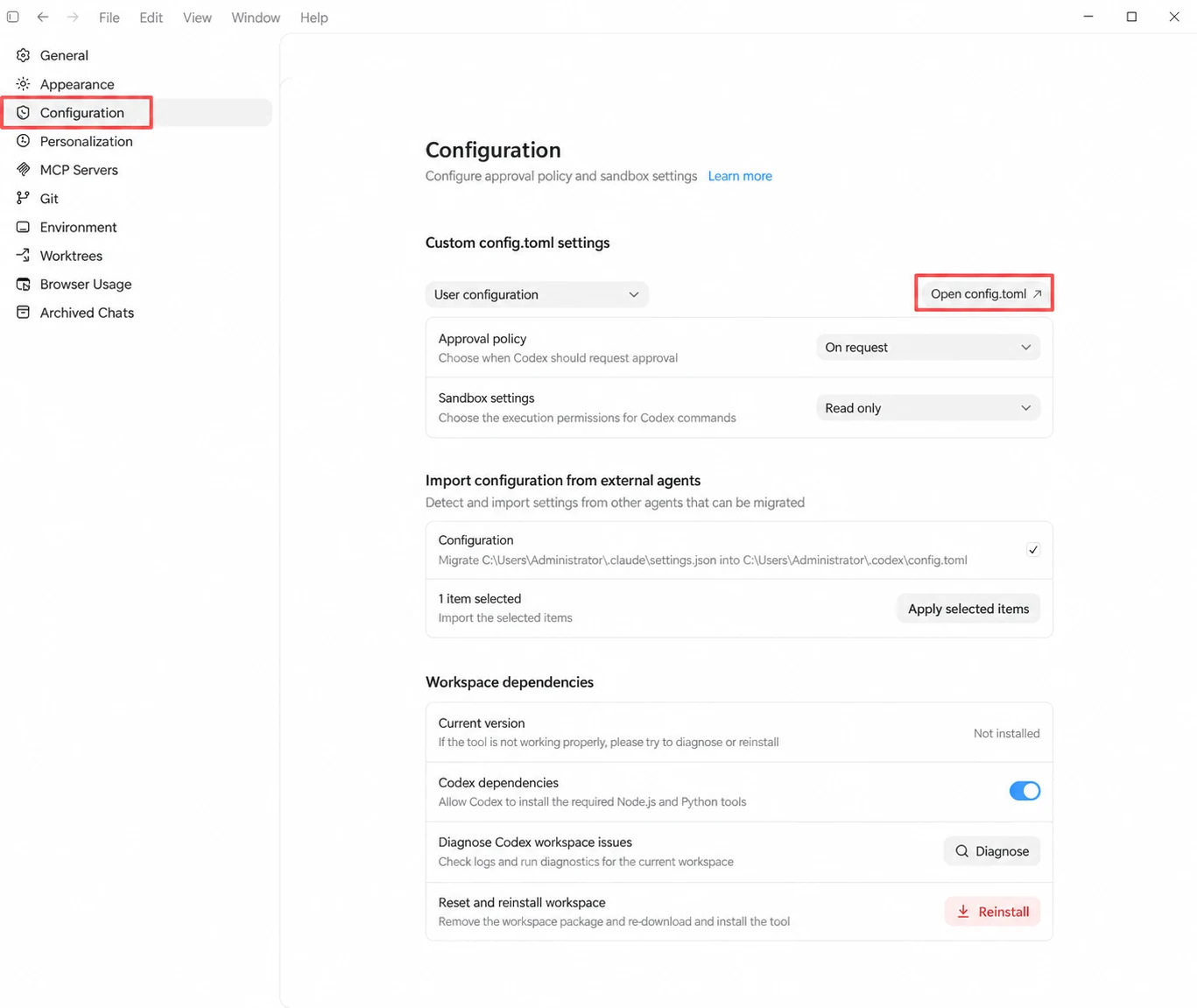
- Open the Codex Desktop App
- Click in the lower-left corner:
Settings
- Find the configuration entry
- Open config.toml
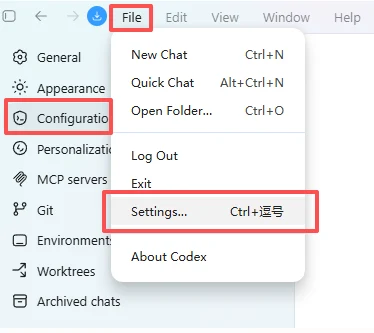
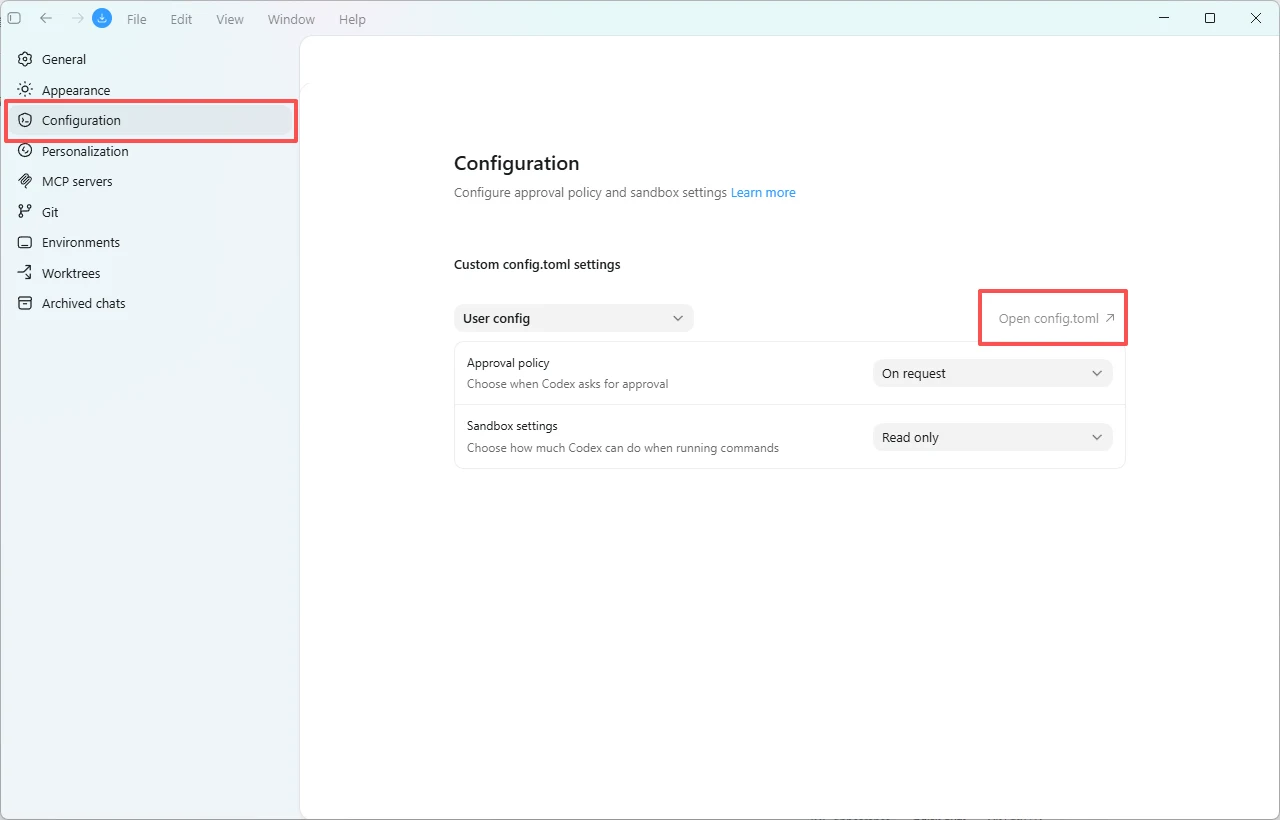
If you cannot find the Settings button, click ① 【File】 ②【Settings…】 ③【Configuration】④【Open config.toml】
Mac Configuration Content
Mac users should copy the following content into config.toml. Make sure the entire configuration file contains only the following content.
model_provider = "openox"
model = "gpt-5.6-sol"
model_reasoning_effort = "high"
disable_response_storage = true

approval_policy = "on-request"
sandbox_mode = "workspace-write"

[model_providers.openox]
name = "OpenOx"
base_url = "https://api.openoxai.com/v1"
wire_api = "responses"
requires_openai_auth = true

[sandbox_workspace_write]
network_access = true
On Mac, you do not need to add the [windows] configuration.
8. Save and Restart Codex
After completing the configuration:
- Save config.toml
- Exit the Codex desktop app completely
- Reopen Codex
- Open your project
- Create a new task to test it
You can enter:
Hello, please help me review the structure of the current project
If Codex responds normally without any API key, model, or network errors, OpenOx has been connected successfully.