Install the terminal client and connect it to OpenOx.
On this page
Mac System Configuration
1. Manual Configuration
Required Downloads
For M-series chips, click to download: https://nodejs.org/dist/v24.13.1/node-v24.13.1.pkg
For Intel chips, click to download: https://nodejs.org/dist/v24.13.1/node-v24.13.1.pkg
Note: Click Next throughout the installation. Do not change the installation path!
Installing and Configuring Codex
(1) Run the following commands separately in Terminal ⬇️ (Press Control + Space, type Terminal, then press Enter.)
# Enter in Terminal
sudo npm install -g @openai/codex

# If the download fails due to network issues, use the following command (turn off your VPN/proxy)
sudo npm install -g @openai/codex --registry https://registry.npmmirror.com

# Command to verify the installation
codex --version
Password means your computer password. Type it and press Enter (the characters will not be displayed).
(2) Run vim ~/.codex/config.toml in Terminal, then enter the following file contents ⬇️
(3) Run vim ~/.codex/auth.json in Terminal, then enter the following file contents ⬇️ (sk-xxx is the API key you created.)
{
    "OPENAI_API_KEY": "sk-xxx"
}
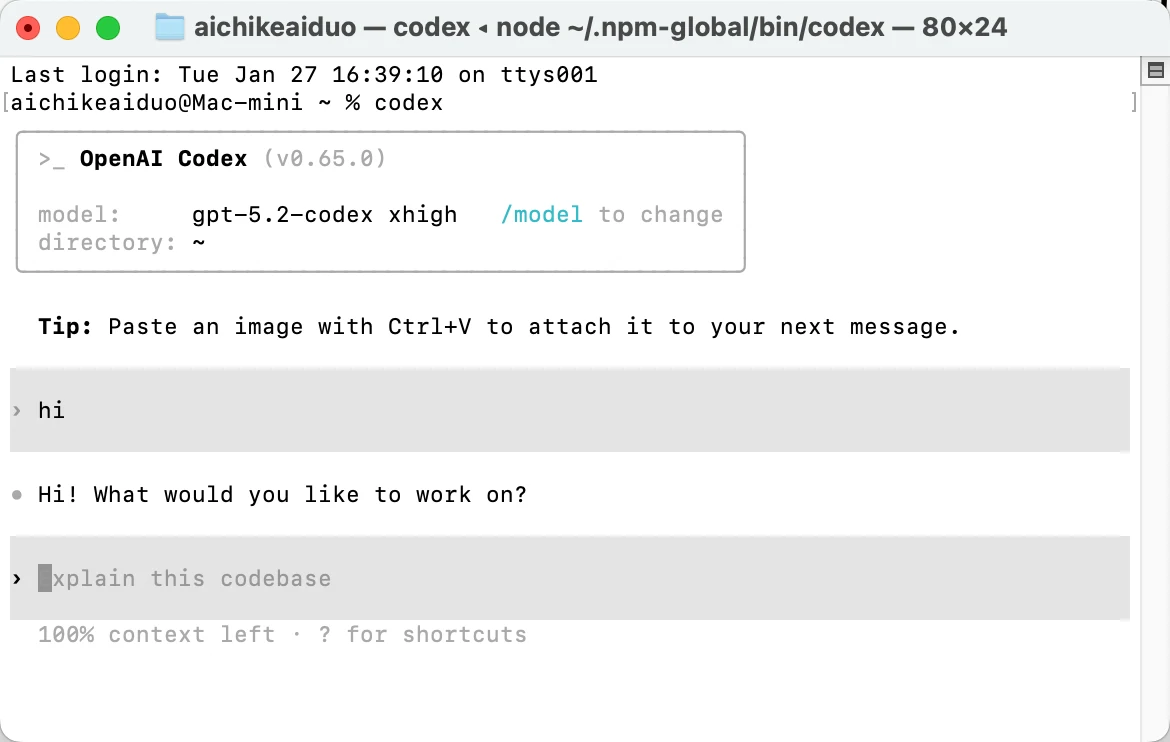
(4) Finally, run codex in Terminal to start using it:
Enter /model to choose an available model. Use the exact model ID from the live model catalog, for example gpt-5.6-sol.
Codex CLI setup screenshot
Modifying the Configuration File (Method 2) (Use This for IDEs)
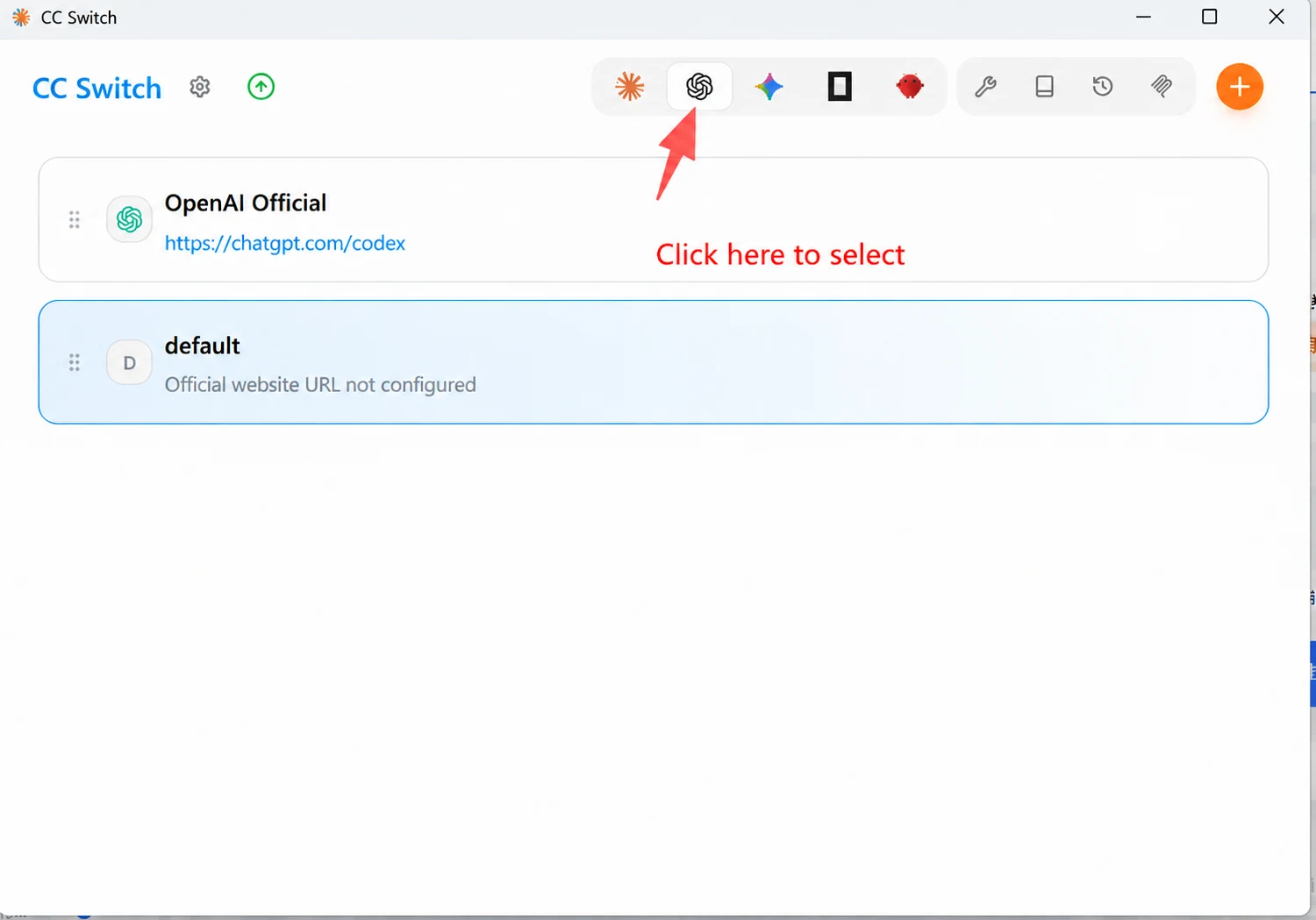
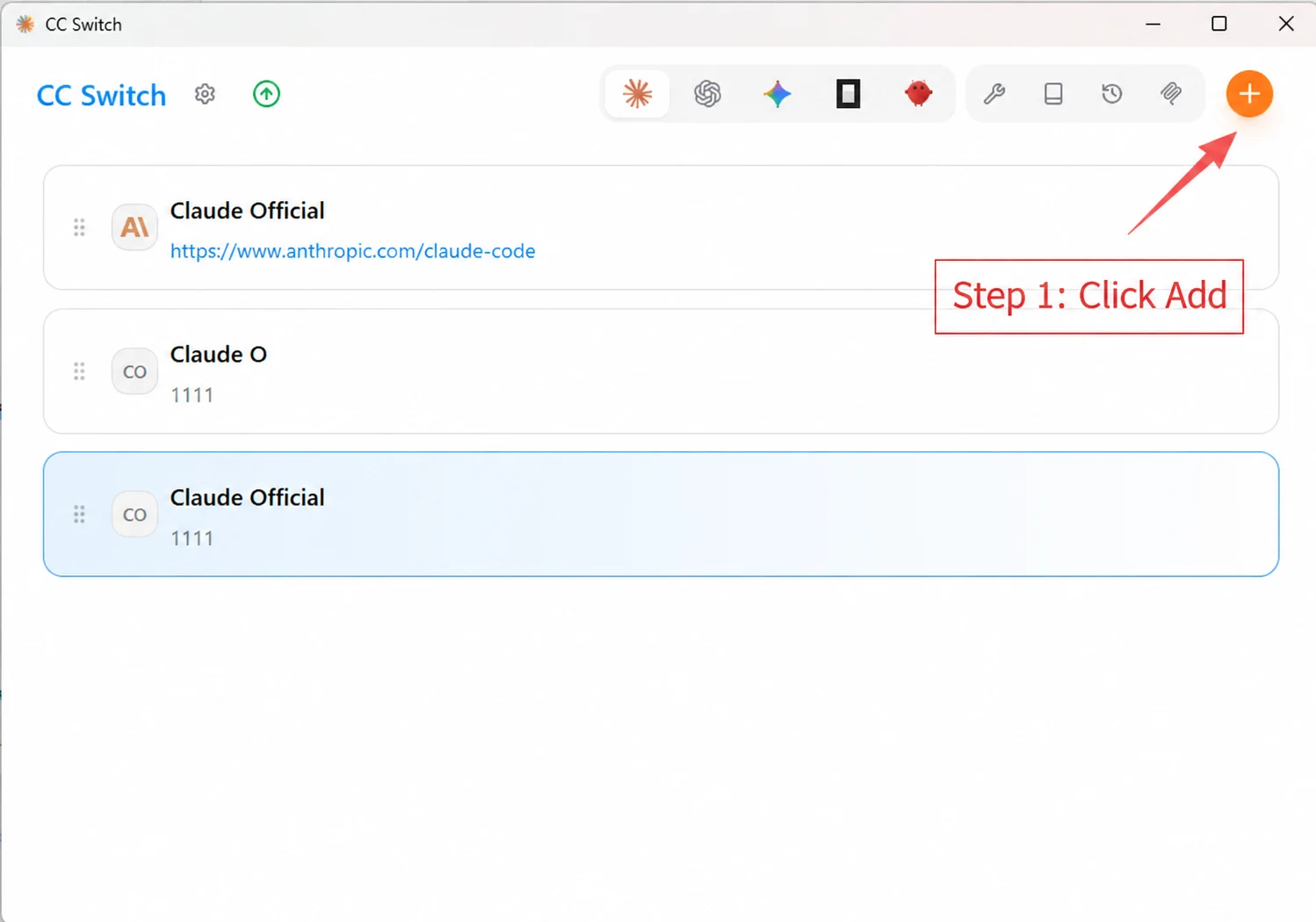
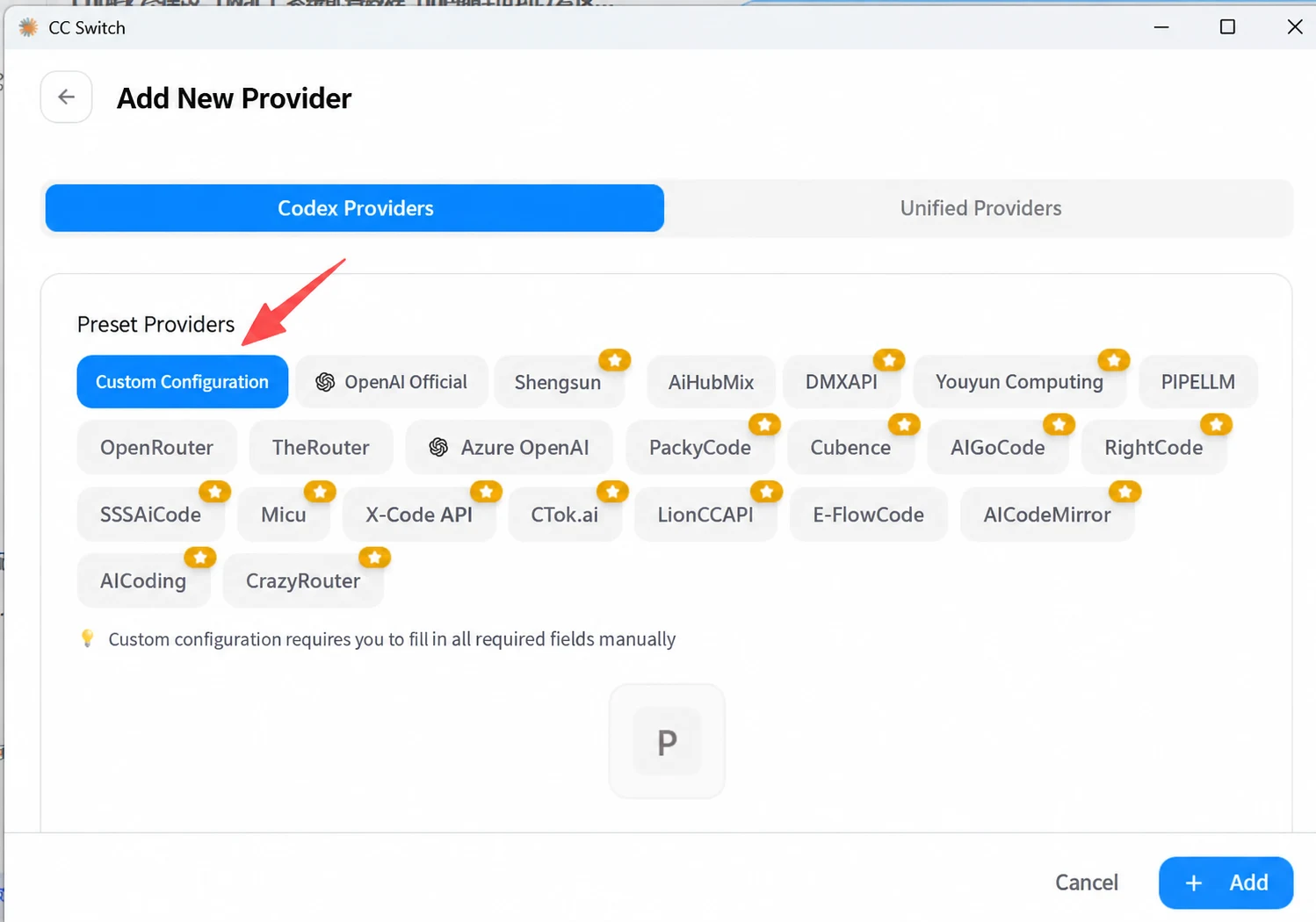
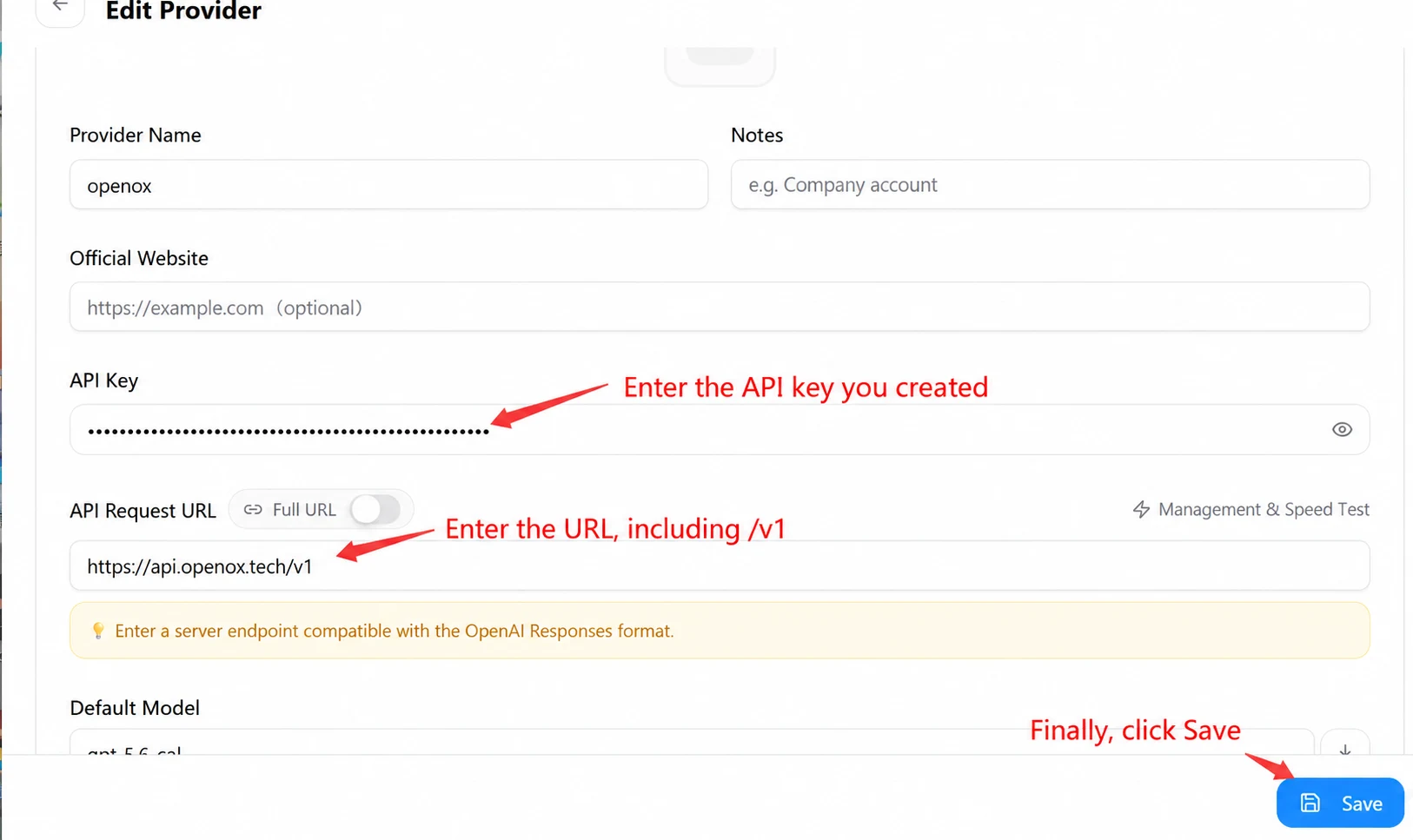
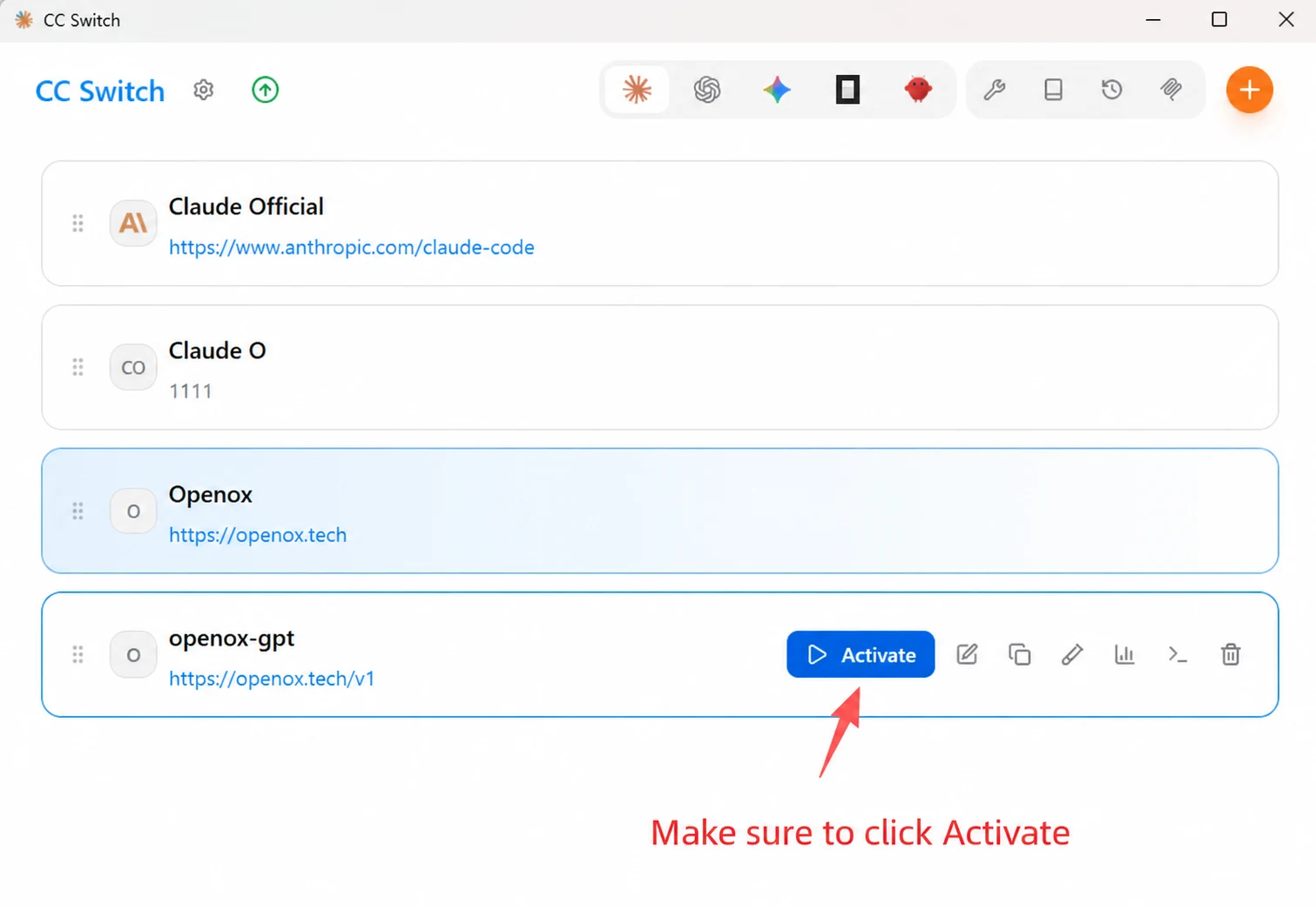
Install CC Switch
Mac installer
Codex CLI setup screenshot
Codex CLI setup screenshot
Codex CLI setup screenshot
Codex CLI setup screenshot
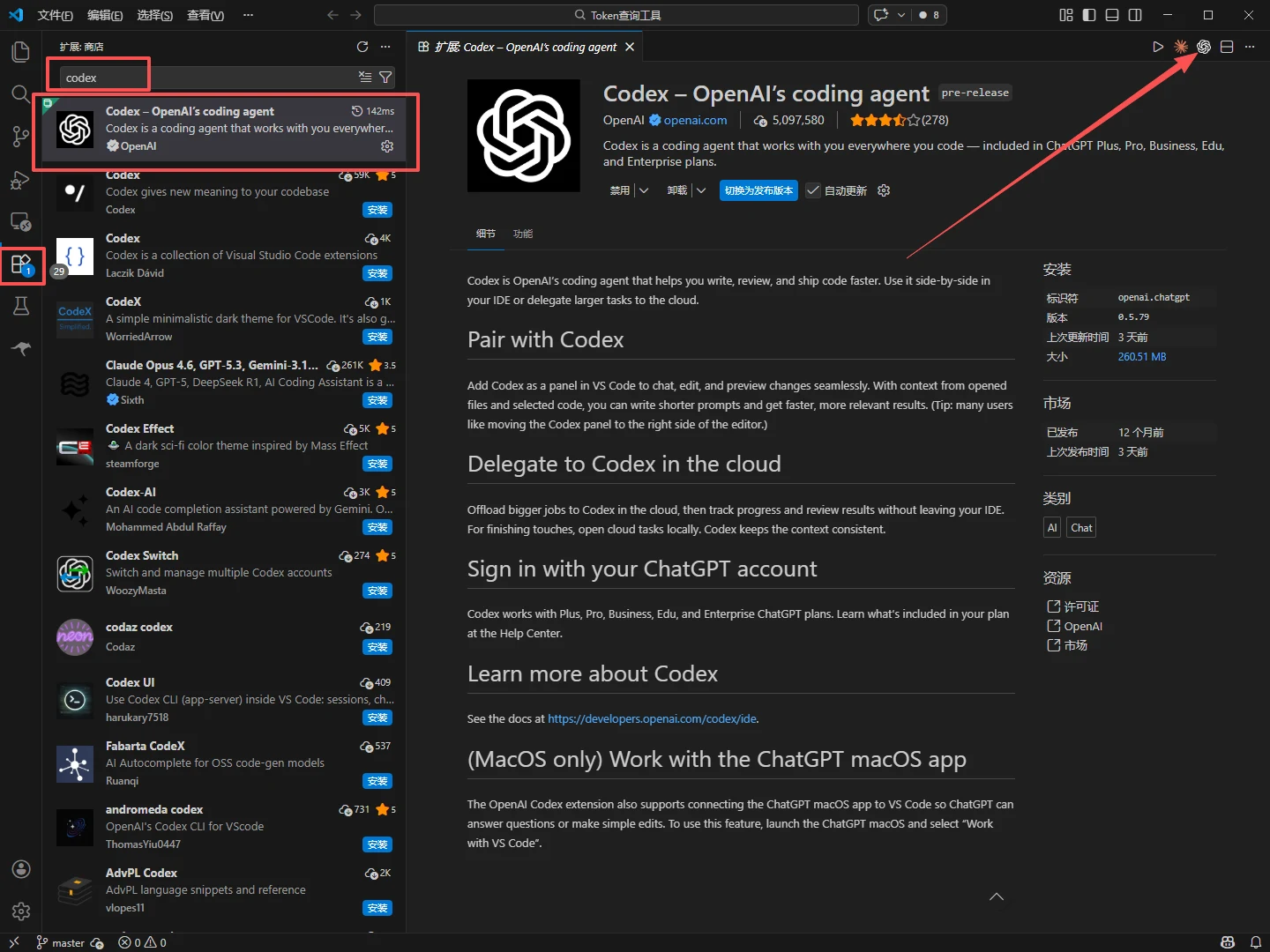
Codex CLI setup screenshotIDE Extension Setup (Configure Only If Needed; Otherwise, Skip This Step)
⬇️ Integration: After completing the configuration above and confirming that responses work normally, open a new VS Code / Cursor / Trae window and download the Codex extension to start using it.