Note: The easiest method is to ask ChatGPT to help you download Claude Code.
Claude Code installation tutorial.mp4
This article guides users through registering an account with the API relay service, obtaining a token, topping up and redeeming credit, and configuring it for use in Claude Code / Codex.
Follow the tutorial step by step in order, and try not to skip any steps. If a page loads slowly, try a different domain or browser, or reopen it later.
- When using the app, keep the conversation length in each chat window under control. Overly long conversations lead to faster usage consumption, slower responses, and poorer results. When a conversation becomes long, enter compact to compress the context, then copy the summary into a new window to continue.
(1) Windows One-Click Setup Tutorial
For Windows 10 / Windows 11 users. After completing this tutorial, you will be able to use Claude Code on your computer and manage your OpenOx API key configuration through CC Switch.
Before you begin, confirm the following:
- You have registered an OpenOx account.
- You have created an API key.
- An API key is generally a string beginning with sk.
- Your account has sufficient funds.
1. Install the Prerequisites
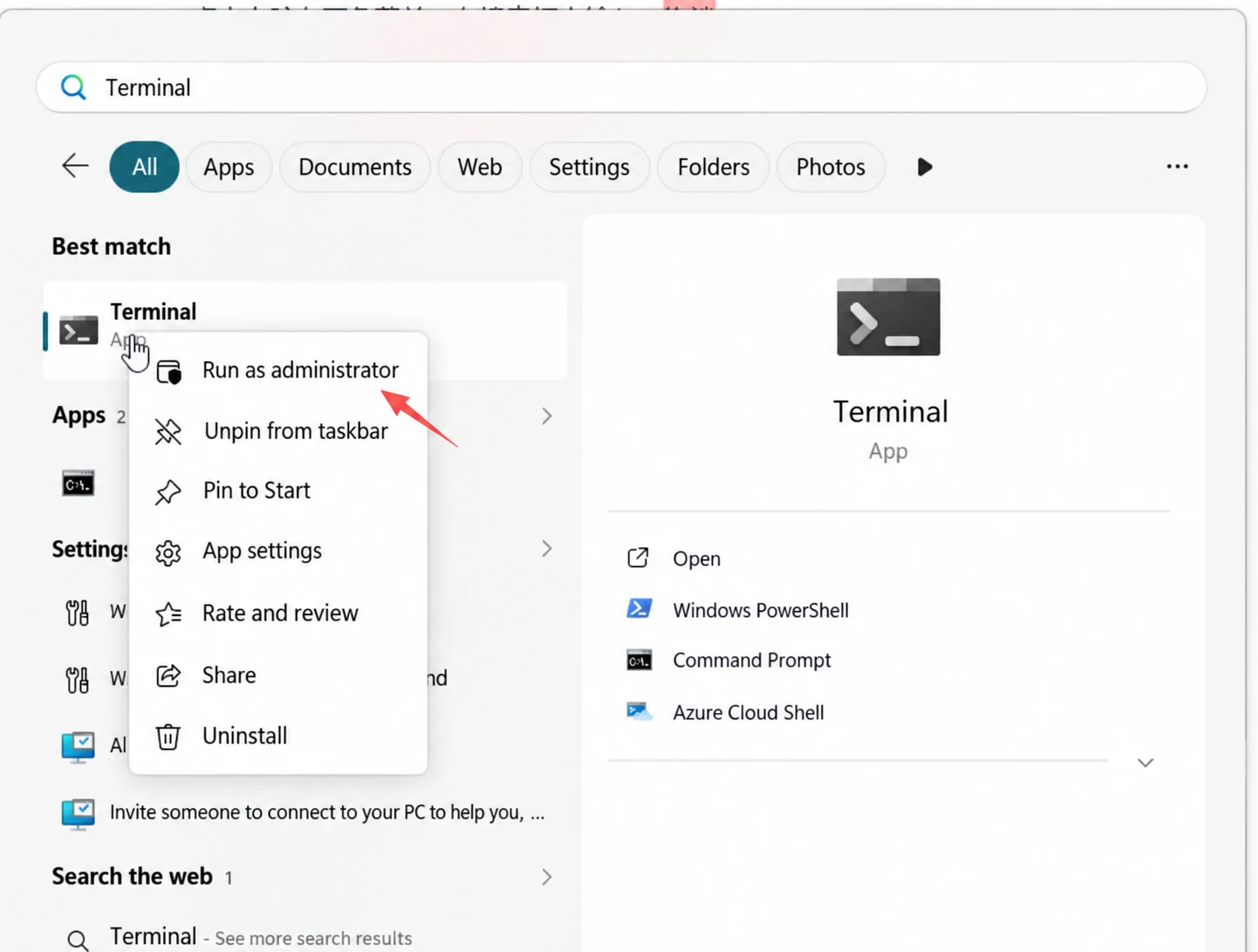
Open PowerShell (Terminal) as an administrator.
Click the menu in the lower-left corner of your computer screen and enter Terminal in the search box.
Once you find it, right-click it and run it as an administrator.
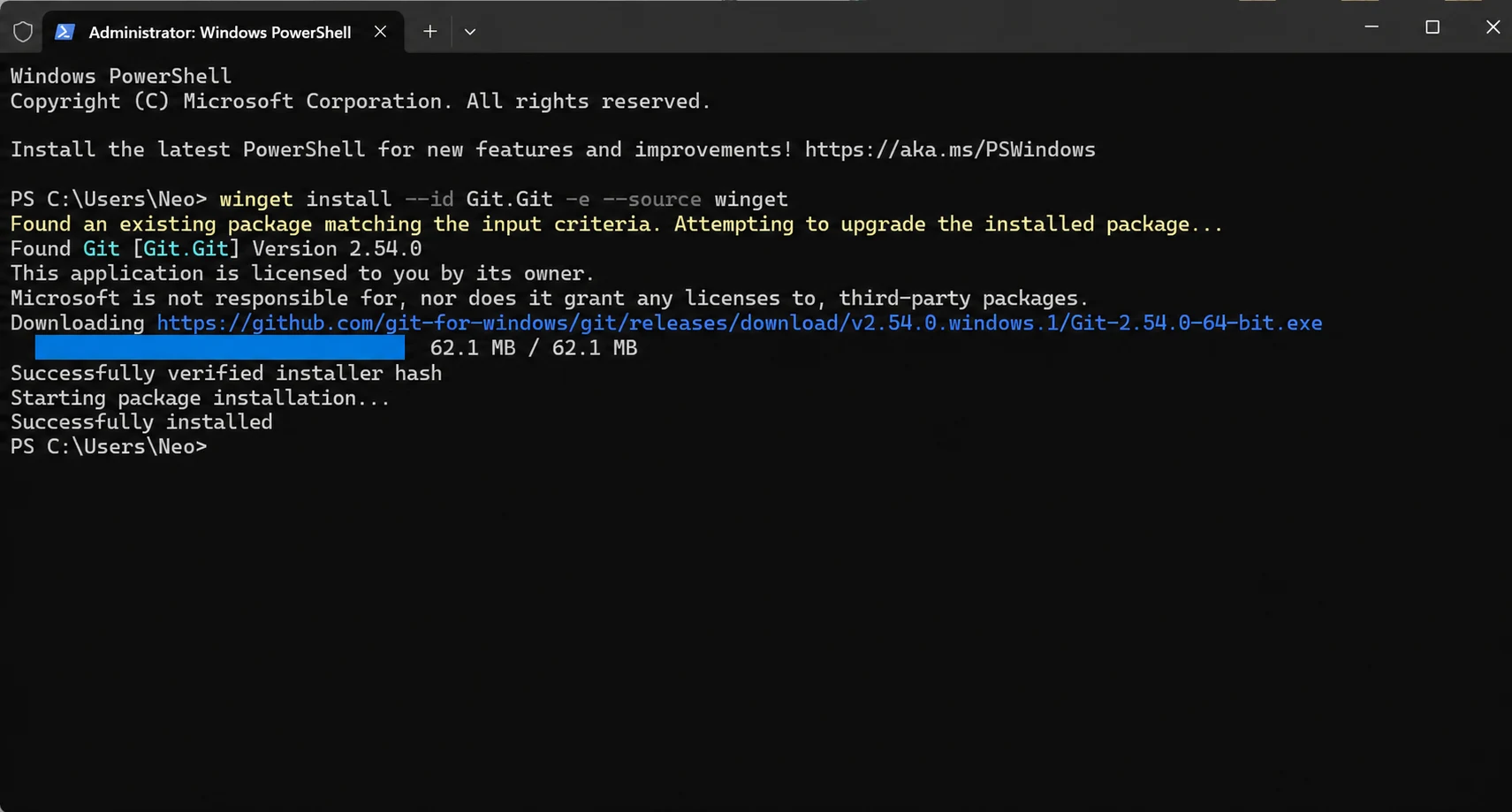
Install Git.
Copy and run the following command in PowerShell:
winget install --id Git.Git -e --source winget
If you are prompted to accept an agreement during installation, enter:
Y
Then press Enter and wait for installation to finish.
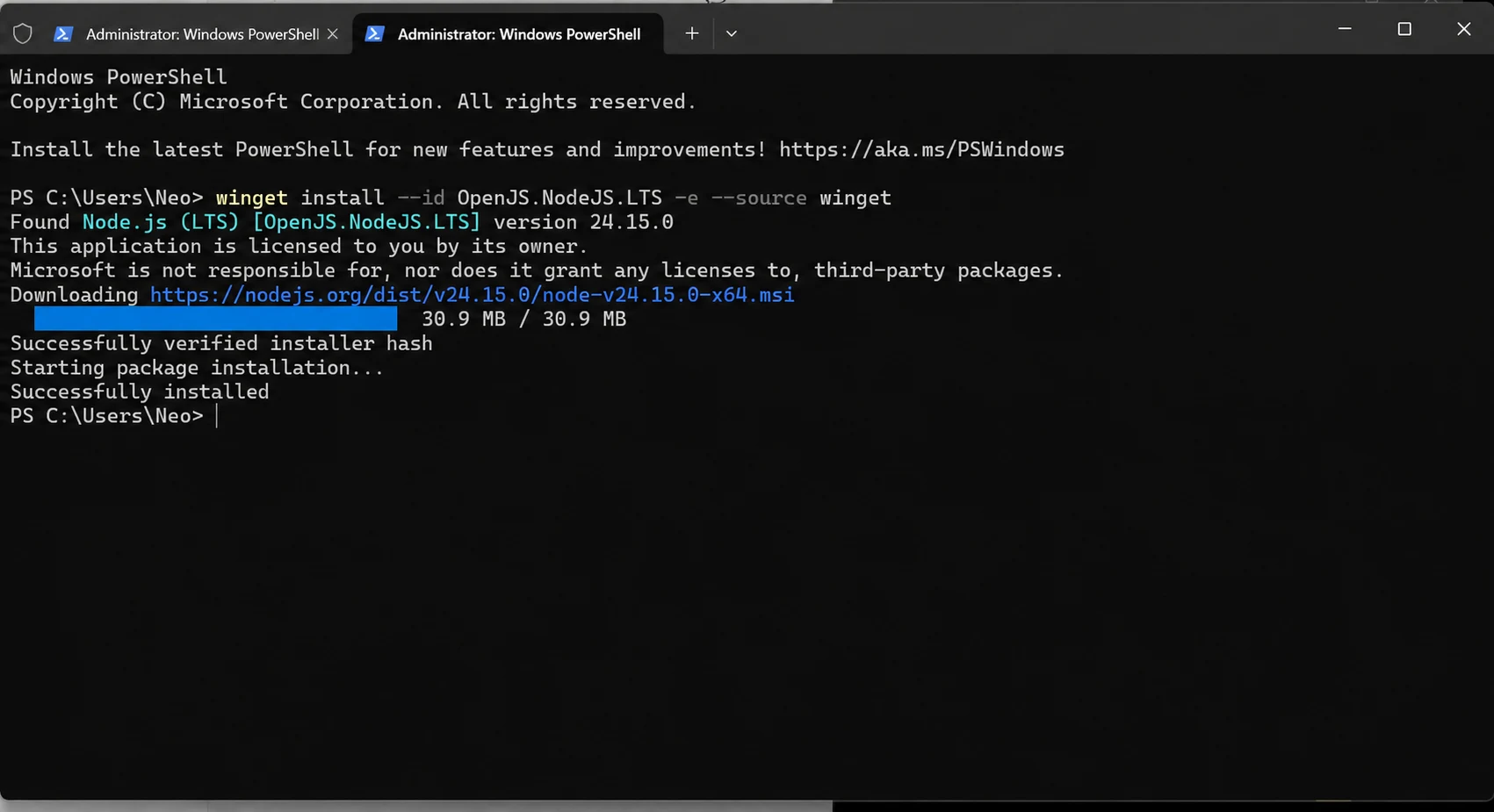
Install Node.js.
Next, copy and run the following command in PowerShell:
winget install --id OpenJS.NodeJS.LTS -e --source winget
Wait for installation to finish. Once it is complete, close PowerShell, then reopen PowerShell as an administrator.
Check That the Prerequisites Were Installed Successfully.
After reopening PowerShell, enter the following commands one by one:
git --version
node -v
npm -v
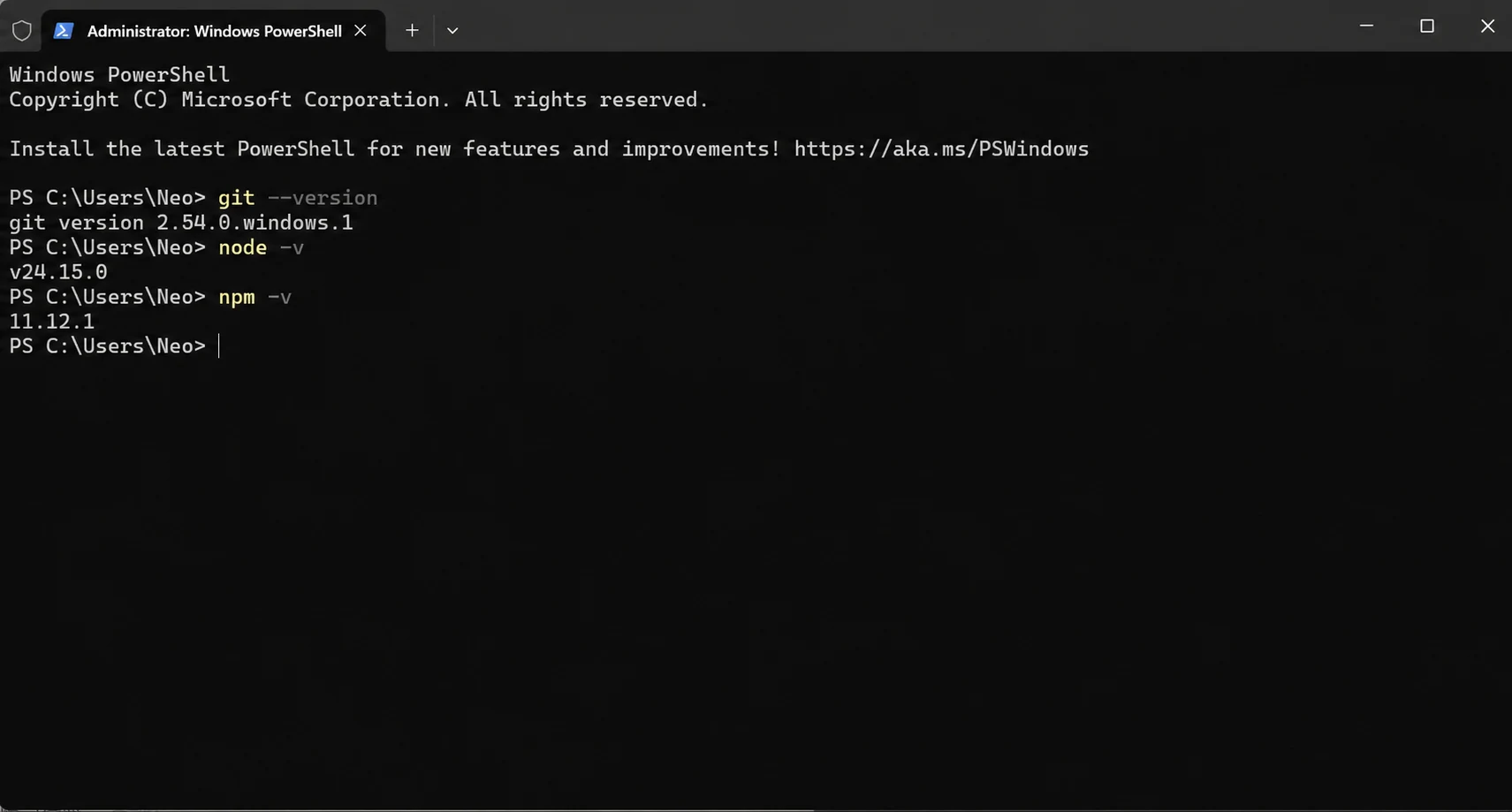
Note: If you see a command-not-recognized message, close and reopen PowerShell, then enter the commands again to test them.
2. Install Claude Code
- Copy and run the following command in PowerShell:
npm install -g @anthropic-ai/claude-code
Installation may take 1-3 minutes. Please wait patiently and do not close the window.
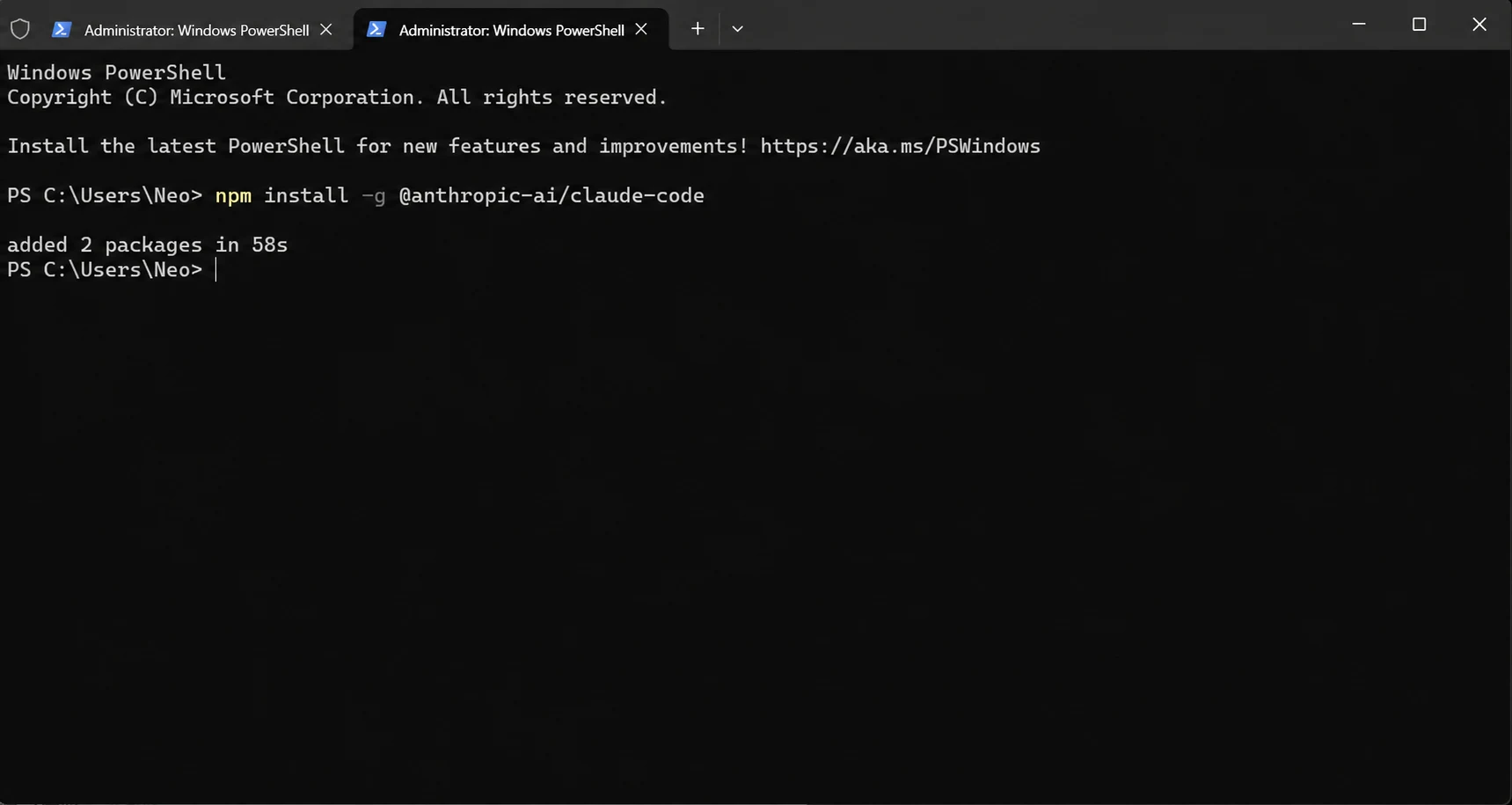
- After installation, enter the following command to check whether it was successful:
claude --version
If a version number is displayed, Claude Code has been installed successfully.
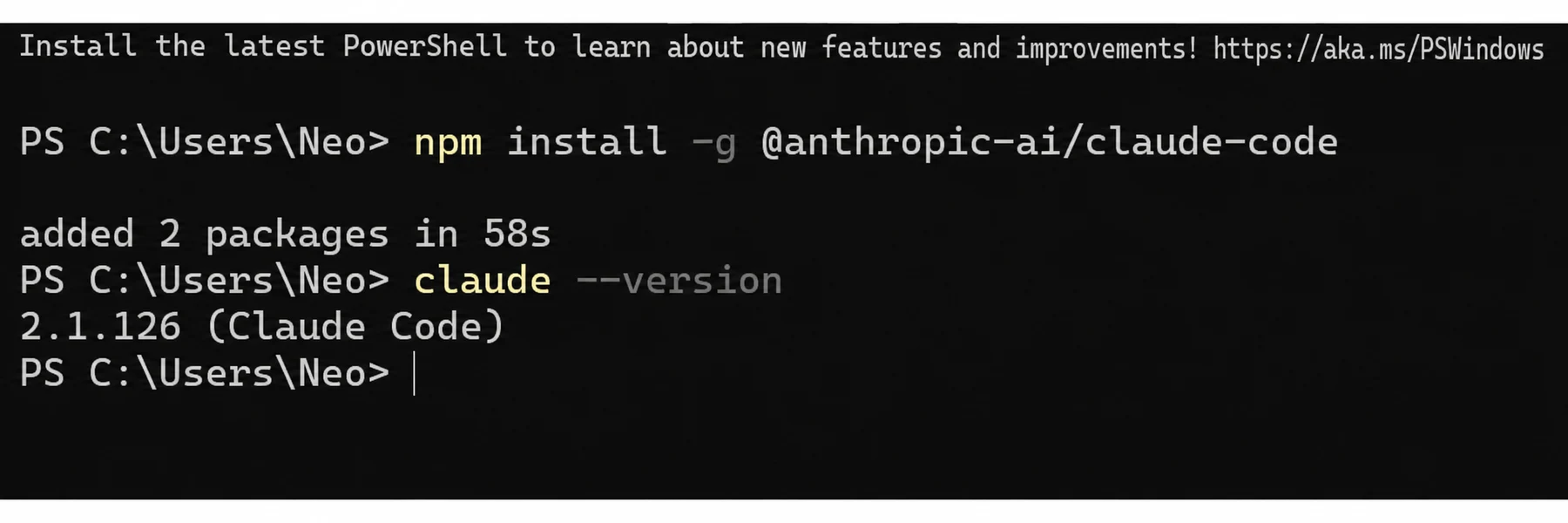
Note: If you are told that claude is not recognized as an internal or external command, close and reopen PowerShell, then enter claude --version to test it.
3. Configure CC Switch
Windows installer:
- Download and install CC Switch, then open the application. On the home page, click the [+] add button in the upper-right corner to open the provider configuration page.
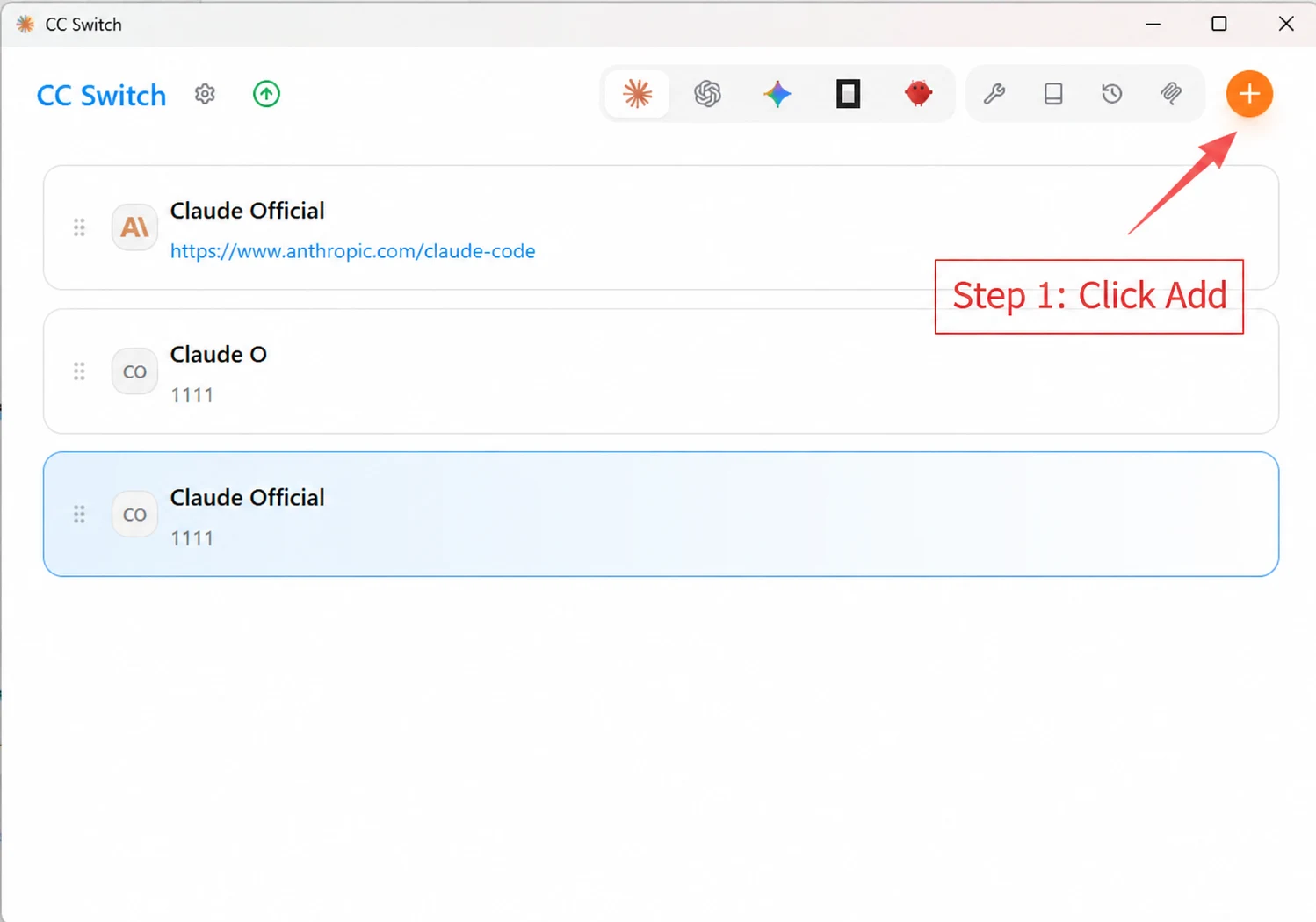
- Fill in the OpenOx configuration as prompted: enter Openox as the provider name; enter the key beginning with sk that you created earlier as the API Key; and enter https://api.openoxai.com/ as the request URL. Do not add /v1 to the end of the URL. When finished, click [Save] in the lower-right corner.
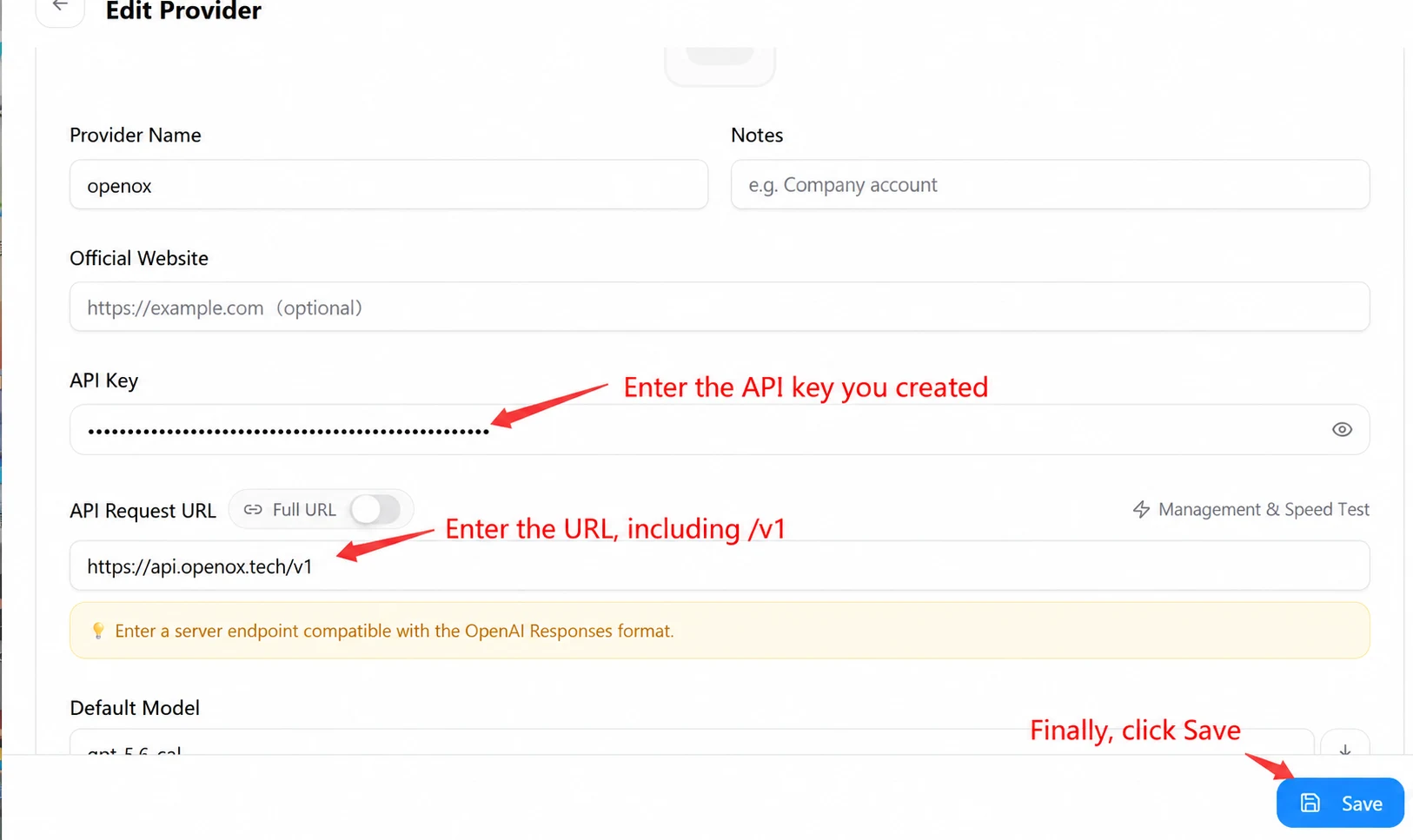
- After saving, return to the CC Switch home page, select the OpenOx configuration you just created, and confirm that it is enabled. Once configuration is complete, open Claude Code to test it.
- Test Whether Claude Code Works.
Close and reopen PowerShell, then enter:
claude
If you can enter the Claude Code interface normally, the configuration was successful.
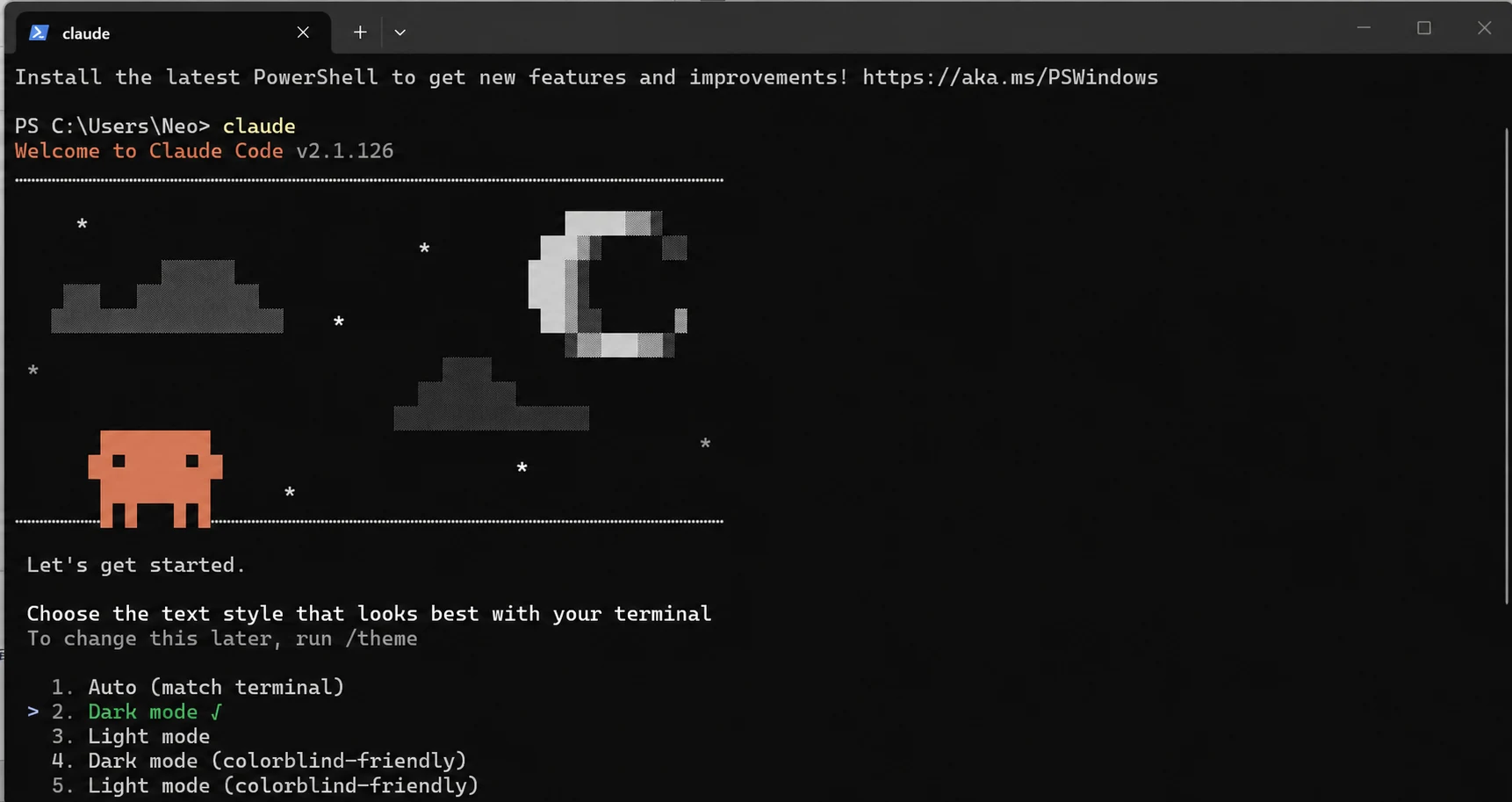
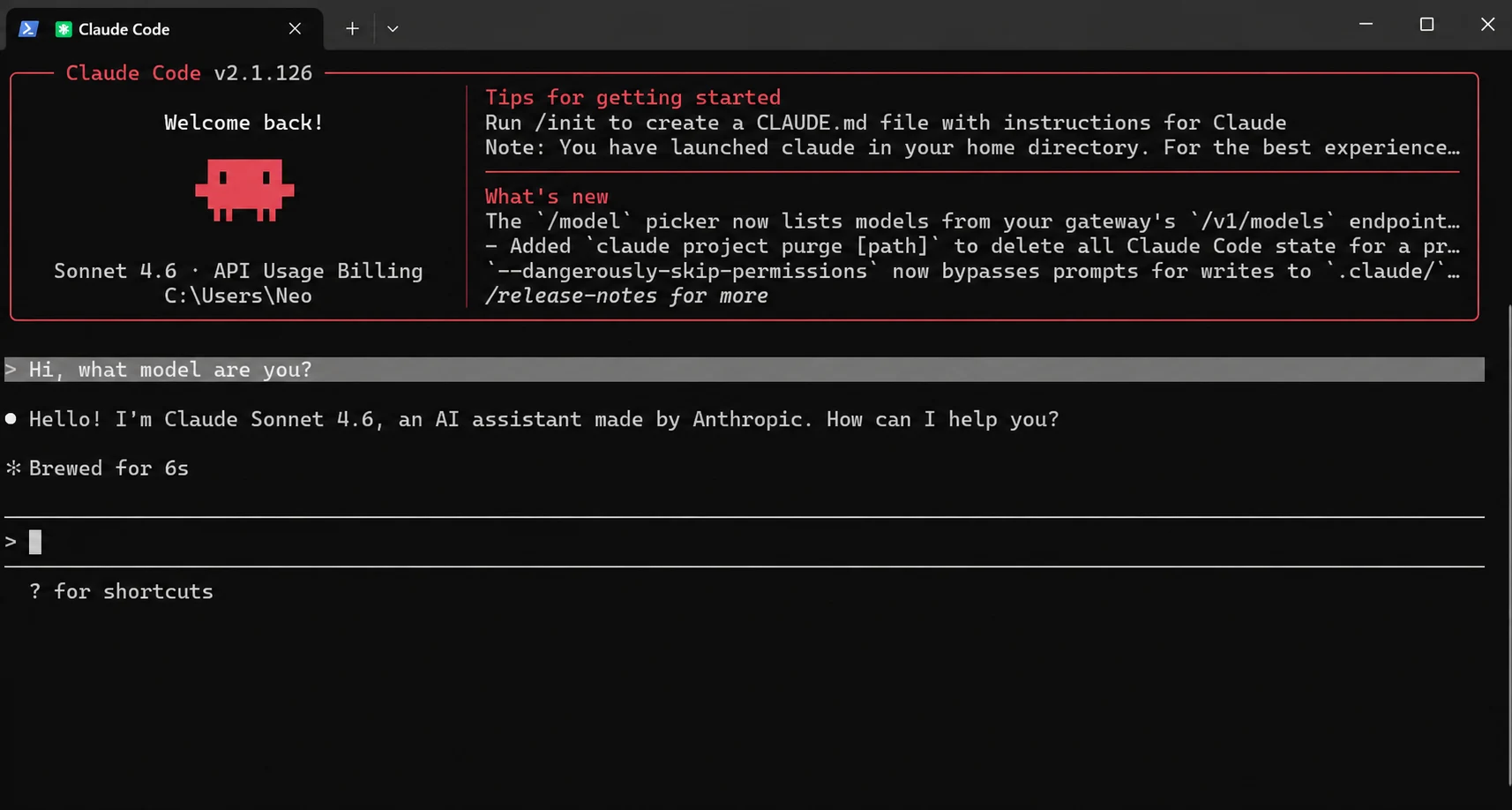
Note:
1. CC Switch is only a configuration management tool; it is not itself a model platform.
2. The API Key is the Token Key you created earlier, and it generally begins with sk.
3. Once generated, the key can be used long term. When your balance is low, you only need to top up. The original key remains usable and does not need to be recreated or replaced.
4. If it does not work after configuration, check that the API Key was copied in full, your balance is sufficient, and the Base URL is set to https://api.openoxai.com/
Common Reasons for Configuration Failure
- The configuration file was not saved, so the configuration did not take effect. Usually, clicking Save and fully exiting the application, or switching networks and reopening it, will resolve this.
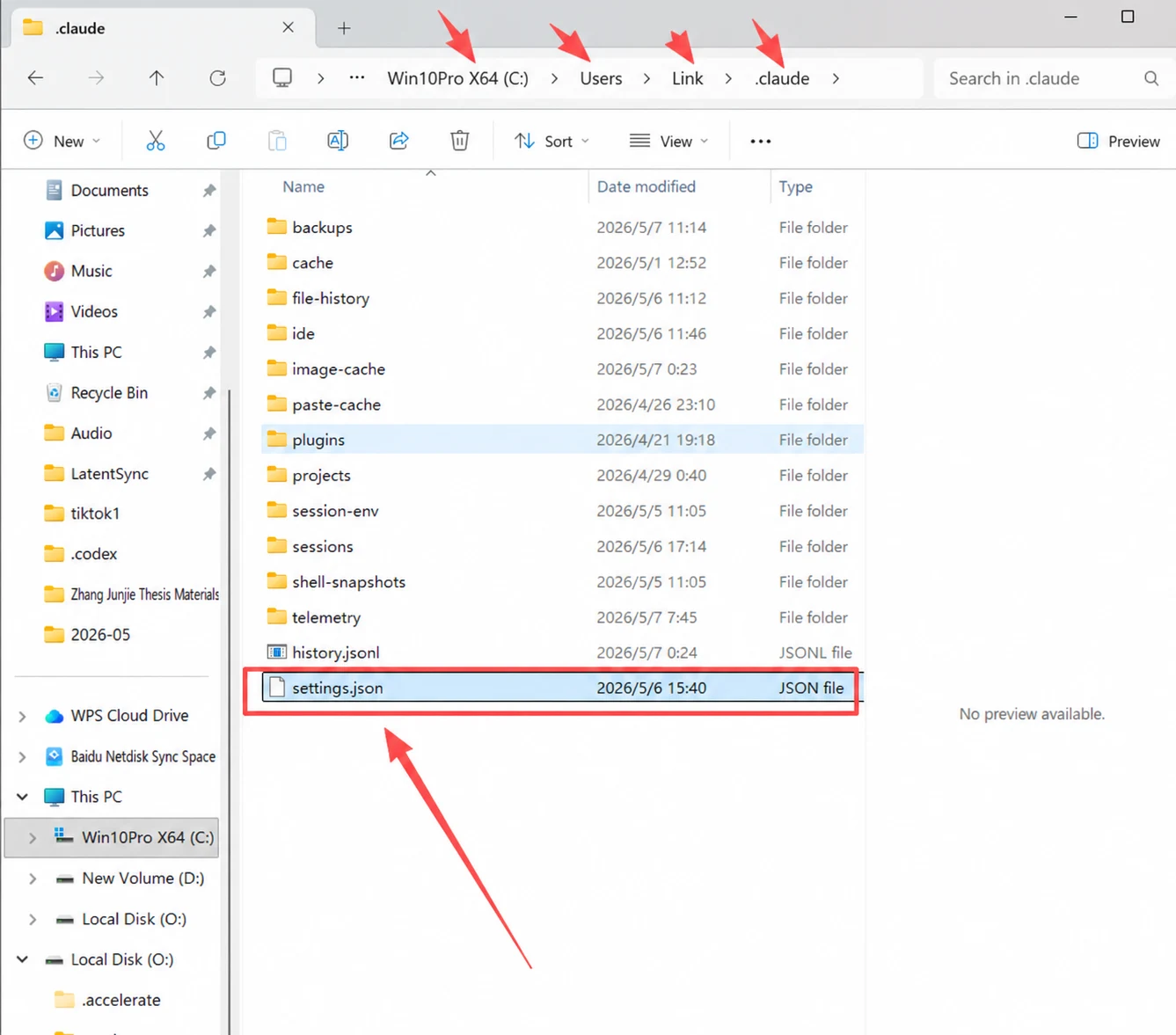
- If it still does not work after completing the first step, there is a conflict in the local files. Follow the image below to find the corresponding Setting.json file under C drive / Users / .Claude /. Clear the original configuration, paste in the configuration from the body of this document, replace the KEY, then save and exit for it to take effect.